跳至內容
Odoo 選單
  • 登入
  • 免費試用
  • 應用程式
    財政
    • 會計
    • 發票
    • 開支報銷
    • 試算表 (BI)
    • 文件管理
    • 電子簽名
    銷售
    • 客戶關係
    • 銷售
    • POS 銷售點管理 - 零售
    • POS 銷售點管理 - 餐廳
    • 訂閱
    • 租賃
    網站
    • 網站製作
    • 電子商務
    • 網誌
    • 討論區
    • 線上客服
    • 網上學習
    供應鏈
    • 庫存
    • 製造管理
    • 產品生命周期
    • 採購
    • 保養維護
    • 品質管理
    人力資源
    • 員工管理
    • 招聘
    • 休假
    • 工作表現評核
    • 內部推薦
    • 車隊管理
    市場推廣
    • 社交媒體推廣
    • 電郵推廣
    • 短訊營銷
    • 活動
    • 自動化推廣
    • 網上調查
    技術支援服務
    • 專案管理
    • 工時管理
    • 外勤服務管理
    • 技術支援
    • 工作規劃
    • 預約管理
    生產力
    • 聊天
    • AI 人工智能
    • 物聯網
    • VoIP
    • 知識庫
    • WhatsApp
    第三方應用程式 Odoo Studio Odoo 雲端平台
  • 行業
    零售
    • 書店
    • 服裝店
    • 家具店
    • 食品雜貨店
    • 五金店
    • 玩具店
    餐飲及款待
    • 酒吧及酒館
    • 餐廳
    • 快餐
    • 賓館
    • 飲品分銷商
    • 酒店
    房地產
    • 地產代理公司
    • 建築師事務所
    • 建造業
    • 物業管理
    • 園藝
    • 業主聯會
    顧問服務
    • 會計公司
    • Odoo 合作夥伴
    • 市場推廣公司
    • 律師事務所
    • 人才招募
    • 審計及認證
    製造管理
    • 紡織
    • 金屬
    • 家具
    • 食品
    • 啤酒廠
    • 企業禮品
    保健與健身
    • 運動俱樂部
    • 眼鏡店
    • 健身中心
    • 健康從業人員
    • 藥房
    • 髮型屋
    技術行業
    • 雜工
    • IT 硬體與支援
    • 太陽能系統
    • 鞋匠
    • 清潔服務
    • 暖通空調服務
    其他
    • 非牟利組織
    • 環境保護機構
    • 廣告板租賃
    • 攝影服務
    • 自行車租賃
    • 軟體經銷商
    瀏覽所有行業
  • 社群
    學習
    • 教學影片
    • 使用說明
    • 認證
    • 培訓
    • 網誌
    • Podcast
    增強教學效能
    • 教育計劃
    • Scale Up! 商業遊戲
    • 到訪 Odoo
    取得軟件
    • 下載
    • 版本對照表
    • 版本說明
    合作
    • GitHub
    • 討論區
    • 活動
    • 翻譯
    • 成為合作夥伴
    • 合作夥伴服務
    • 登記你的會計服務公司
    獲取服務相關資料
    • 尋找合作夥伴
    • 尋找會計服務
    • 預約專家一對一 Demo
    • 安裝及推行服務
    • 客戶案例
    • 支援
    • 軟件升級
    GitHub YouTube Twitter LinkedIn Instagram Facebook Spotify
    +1 (650) 691-3277
    預約示範
  • 定價
  • 技術支援
只限註冊用戶才可與社群互動。
所有帖文 人 獎章
標籤 (查看所有)
odoo accounting v14 pos v15
關於此討論區
只限註冊用戶才可與社群互動。
所有帖文 人 獎章
標籤 (查看所有)
odoo accounting v14 pos v15
關於此討論區
支援

Physical Inventory Access Rights

訂閱

此帖文有活動時,接收通知

此問題已被標幟
modelaccess rightsInventoryAdjustment
3 回覆
3302 瀏覽次數
頭像
National Co.

Hi


How to give a non-administrator user access to the physical inventory menu?


Can anyone tell me the "Access Rights name and model"?


Thanks

0
頭像
捨棄
Chris TRINGHAM

Which version of Odoo?

National Co.
作者

Hello Piyush

I can't find  ir.model.access, my database version is saas~18.2+e (Enterprise Edition)

If that's normal, how to create it if it doesn't exist?


For all the rest steps, I can do it.


Thanks


Chris TRINGHAM

In v18 inventory users should be able to access the Physical Inventory menu, but the Cybrosys answer should help you (but I don't think departments are a standard feature).

National Co.
作者

Hello Cybrosys


I have added the "Limited User" to stock.quant model as the picture, but still get "Access Error." 


Should I create a "Record rule" for the Limited User Group? If so, how do I creat this rule?


Thanks

image0


Chris TRINGHAM

What does the error message say? It might give you a clue.

You can read this to get more information: https://odootricks.tips/odoo-model-access/

National Co.
作者

Hello Chris

The user I need to grant permission to is not standard; it's custom (named Limited User), with specific menus and access rights.

Bellow the error message when I click Physical Inventory...


Thanks


Chris TRINGHAM

I see, so you have created a new user access group for the "Inventory / Limited User" which can do physical inventory but not some other things.

This is a complex area and from my own experience it needs a lot of checking and testing ("trial and error") and it's very difficult to diagnose the problem(s) from screenshots.

National Co.
作者

Hello Chris


Yes, it's a new user access group with specified access rights.


Do you mean this place?, If not, where to find it?

Thanks

Chris TRINGHAM

Yes, see my updated answer.

National Co.
作者

Hello Chris

Thank you very much for your help; it's worked like a charm after adding the "Limited User" to the menu Allowed Groups.


頭像
Chris TRINGHAM
最佳答案

I think it may because this menu option calls a Server Action that is only available for Inventory / User

Go to menu items, find Physical Inventory and then click on the second part of the Action

Then you can change who is authorized:
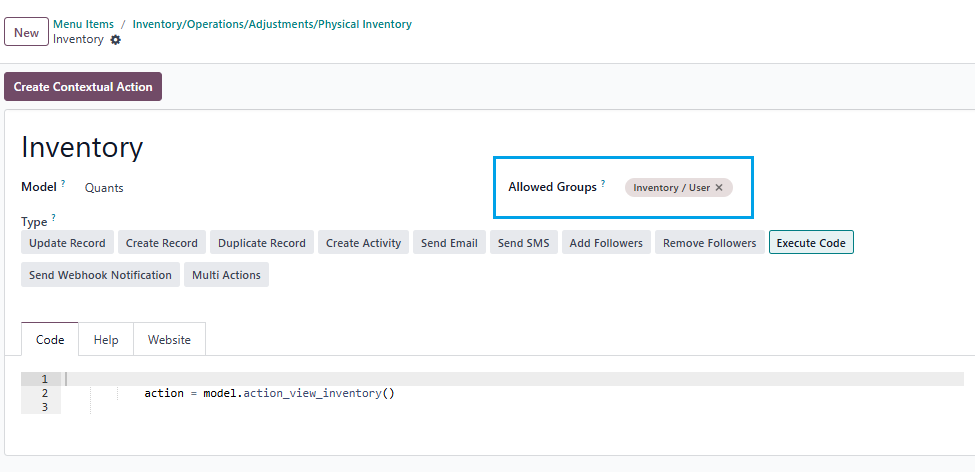
0
頭像
捨棄
頭像
Cybrosys Techno Solutions Pvt.Ltd
最佳答案

Hi,

You can set access rights in a model by navigating to Settings → Technical → Database Structure → Models. First, you need to enable Developer Mode.

stock.quant is the model used for physical inventory. If you open the stock.quant model, you can see tabs such as Fields, Access Rights, Record Rules, Notes, and Views. You can set access rights under the Access Rights tab in the model
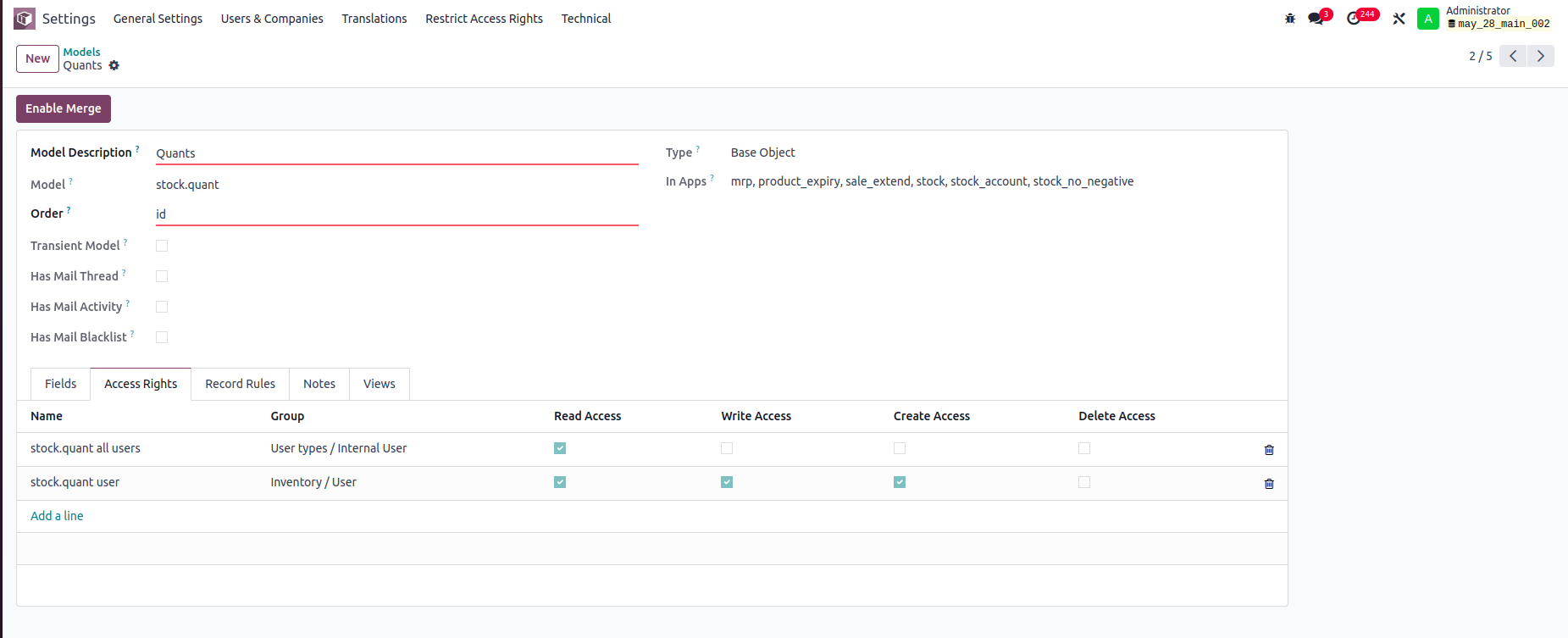


In this example:

-Internal Users can only read stock.quant records.

-Inventory Users can read, write, and create stock.quant records, but cannot delete them.

You can set read, write, create, and delete access rights for a model based on user groups


Record rule:

In Odoo, Record Rules define which records users can access within a model, based on filter conditions (domains) and user groups.



- Users can access only the stock quant records that belong to departments they are associated with.


Hope it helps.


0
頭像
捨棄
頭像
Tatvamasi Labs, Piyush H
最佳答案

To give a non-administrator user access to the physical inventory menu in Odoo, you need to adjust their access rights. Here's how you can do it, along with the relevant access rights name and model:

1. Access Rights and Model

  • Model: ir.model.access
  • You'll need to find or create an access right record that grants the necessary permissions for the "inventory.adjustment" model (which is used for physical inventories).

2. Steps to Grant Access

Activate Developer Mode:

  • First, activate Odoo's developer mode. Go to Settings and scroll down to the bottom of the page. Click "Activate the developer mode".

Navigate to Groups:

  • Go to Settings > Users & Companies > Groups.

Edit or Create a Group:

  • You can either modify an existing group or create a new one for your inventory users.
  • To create a new group, click "Create". Give it a descriptive name (e.g., "Inventory Counter").

Access Rights Tab:

  • In the group form, go to the "Access Rights" tab.
  • Click "Add a line".
  • In the "Model" field, search for and select "inventory.adjustment".
  • Enable the following options as appropriate:
    • Read: Allows the user to see existing physical inventory records.
    • Create: Allows the user to create new physical inventory records.
    • Write: Allows the user to edit existing physical inventory records.
    • Delete: Allows the user to delete physical inventory records (use caution with this one).

Assign Users to the Group:

  • Go to the "Users" tab on the group form.
  • Click "Add a line" and add the users who need access to physical inventories.

Important Considerations

  • Existing Groups: Carefully consider whether to modify existing groups. Adding users to powerful groups (like "Inventory / User") might grant them more access than you intend.
  • Minimum Necessary Access: Grant only the minimum access required for the user to perform their job.
  • Testing: Always test the new access rights to ensure they work as expected and don't grant unintended permissions.
  • Administrator Role: Only a user with "Access Rights" administration rights can modify access rights. Be careful when changing these settings, as incorrect settings can negatively impact your database. Odoo recommends contacting an Odoo Business Analyst or their Support Team before making changes to access rights.


🚀 Did This Solve Your Problem?

If this answer helped you save time, money, or frustration, consider:

✅ Upvoting (👍) to help others find it faster

✅ Marking as "Best Answer" if it resolved your issue

Your feedback keeps the Odoo community strong! 💪

(Need further customization? Drop a comment—I’m happy to refine the solution!)

-1
頭像
捨棄
Chris TRINGHAM

Do you really want feedback?

This answer is partially correct, but a lot of the advice is very misleading or just wrong and therefore unhelpful. So it won't save people time, and it will increase frustration.

喜歡這則討論?不要只閱讀,加入發表意見吧!

今天就建立帳戶,享受獨家功能,與我們精彩的社群互動!

註冊
相關帖文 回覆 瀏覽次數 活動
Restrict product quantity adjustments for Inventory / Users ✅ SOLVED
inventory access rights InventoryAdjustment Quickstart
頭像
頭像
1
3月 25
4387
How to override base model access rights in my custom module? 已解決
security model override access rights
頭像
頭像
1
4月 25
13148
Back Date Inventory adjustment excel import 已解決
InventoryAdjustment
頭像
頭像
1
7月 25
2836
Inventory Adjustment page is Blank | Would like to manually edit inventory numbers for initial count
InventoryAdjustment
頭像
頭像
頭像
2
6月 25
2843
Odoo Enterprise 16 Inventory Adjustment Set to ZERO Products in Locations 已解決
InventoryAdjustment
頭像
頭像
頭像
2
12月 24
6105
社群
  • 教學影片
  • 使用說明
  • 討論區
開源
  • 下載
  • GitHub
  • Runbot 測試環境
  • 翻譯
服務
  • odoo.sh 網頁寄存
  • 支援
  • 升級
  • 自訂功能開發
  • 教育及培訓
  • 尋找會計服務
  • 尋找合作夥伴
  • 成為合作夥伴
關於我們
  • 關於 Odoo 公司
  • 品牌資產
  • 聯絡我們
  • 招聘
  • 活動
  • Podcast
  • 網誌
  • 客戶
  • 法律 • 私隱政策
  • 安全性
الْعَرَبيّة Català 简体中文 繁體中文 (台灣) Čeština Dansk Nederlands English Suomi Français Deutsch हिंदी Bahasa Indonesia Italiano 日本語 한국어 (KR) Lietuvių kalba Język polski Português (BR) română русский язык Slovenský jazyk Slovenščina Español (América Latina) Español Svenska ภาษาไทย Türkçe українська Tiếng Việt

Odoo 是一套開放源碼的商業管理系統,涵蓋你公司全部的營運需要,包括客戶關係管理(CRM)、電子商務、會計、庫存管理、POS(銷售點管理)、專案管理等應用程式。

Odoo 的獨特價值是非常簡單易用,同時將不同應用程式完美整合。

Website made with

Odoo Experience on YouTube

1. Use the live chat to ask your questions.
2. The operator answers within a few minutes.

Live support on Youtube
Watch now