Skip to Content
Odoo Меню
  • Увійти
  • Спробуйте це безкоштовно
  • Додатки
    Фінанси
    • Бухоблік
    • Виставлення рахунку
    • Витрати
    • Електронні таблиці (BI)
    • Документи
    • Підпис
    Продажі
    • CRM
    • Продажі
    • POS Магазин
    • POS Ресторан
    • Підписки
    • Оренда
    Веб-сайти
    • Конструктор веб-сайту
    • Електронна комерція
    • Блог
    • Форум
    • Живий чат
    • Електронне навчання
    Ланцюг поставок
    • Склад
    • Виробництво
    • PLM
    • Купівлі
    • Технічне обслуговування
    • Якість
    Кадри
    • Співробітники
    • Рекрутинг
    • Відпустки
    • Оцінювання
    • Рекомендації
    • Автотранспорт
    Маркетинг
    • Маркетинг соцмереж
    • Email-маркетинг
    • SMS-маркетинг
    • Події
    • Автом. маркетингу
    • Опитування
    Послуги
    • Проект
    • Табелі
    • Виїзне обслуговування
    • Служба підтримки
    • Планування
    • Призначення
    Продуктивність
    • Обговорення
    • Artificial Intelligence
    • IoT
    • IP-телефонія
    • База знань
    • WhatsApp
    Сторонні модулі Odoo Studio Платформа Odoo Cloud
  • Сфери
    Роздрібна торгівля
    • Книжковий магазин
    • Магазин одягу
    • Магазин меблів
    • Продуктовий магазин
    • Магазин будівельних матеріалів
    • Магазин іграшок
    Food & Hospitality
    • Бар та паб
    • Ресторан
    • Фастфуд
    • Guest House
    • Дистриб'ютор напоїв
    • Hotel
    Нерухомість
    • Real Estate Agency
    • Архітектурна фірма
    • Будівництво
    • Property Management
    • Садівництво
    • Асоціація власників нерухомості
    Консалтинг
    • Бухгалтерська компанія
    • Партнер Odoo
    • Агенція маркетингу
    • Юридична фірма
    • Придбання Талантів
    • Аудит та сертифікація
    Виробництво
    • Textile
    • Metal
    • Меблі
    • Їжа
    • Brewery
    • Корпоративні подарунки
    Здоров'я & Фітнес
    • Спортивний клуб
    • Оптика
    • Фітнес-центр
    • Практики здоров'я
    • Аптека
    • Салон краси
    Trades
    • Ремонтник
    • IT-обладнання та Підтримка
    • Системи сонячної енергії
    • Shoe Maker
    • Cleaning Services
    • HVAC Services
    Інші
    • Nonprofit Organization
    • Екологічна агенція
    • Оренда білбордів
    • Фотографія
    • Лізинг велосипедів
    • Реселлер програмного забезпечення
    Browse all Industries
  • Спільнота
    Навчання
    • Навчальний посібник
    • Документація
    • Сертифікації
    • Тренування
    • Блог
    • Подкаст
    Сприяйте Освіті
    • Програма навчання
    • Бізнес гра Scale Up!
    • Відвідайте Odoo
    Отримайте програмне забезпечення
    • Завантаження
    • Порівняйте версії
    • Релізи
    Співпрацюйте
    • Github
    • Форум
    • Події
    • Переклади
    • Стати партнером
    • Services for Partners
    • Зареєструйте вашу бухгалтерську фірму
    Отримайте послуги
    • Знайдіть партнера
    • Знайдіть бухгалтера
    • Зустріньтеся з консультантом
    • Послуги з впровадження
    • Референси клієнтів
    • Підтримка
    • Оновлення
    Github Youtube Twitter Linkedin Instagram Facebook Spotify
    +1 (650) 691-3277
    Отримати демо
  • Ціни
  • Допомога
Вам необхідно зареєструватися, щоб взаємодіяти зі спільнотою.
All Posts Люди Значки
Мітки (View all)
odoo accounting v14 pos v15
Про цей форум
Вам необхідно зареєструватися, щоб взаємодіяти зі спільнотою.
All Posts Люди Значки
Мітки (View all)
odoo accounting v14 pos v15
Про цей форум
Допомога

Physical Inventory Access Rights

Підписатися

Отримуйте сповіщення про активність щодо цієї публікації

Це запитання позначене
modelaccess rightsInventoryAdjustment
3 Відповіді
3323 Переглядів
Аватар
National Co.

Hi


How to give a non-administrator user access to the physical inventory menu?


Can anyone tell me the "Access Rights name and model"?


Thanks

0
Аватар
Відмінити
Chris TRINGHAM

Which version of Odoo?

National Co.
Автор

Hello Piyush

I can't find  ir.model.access, my database version is saas~18.2+e (Enterprise Edition)

If that's normal, how to create it if it doesn't exist?


For all the rest steps, I can do it.


Thanks


Chris TRINGHAM

In v18 inventory users should be able to access the Physical Inventory menu, but the Cybrosys answer should help you (but I don't think departments are a standard feature).

National Co.
Автор

Hello Cybrosys


I have added the "Limited User" to stock.quant model as the picture, but still get "Access Error." 


Should I create a "Record rule" for the Limited User Group? If so, how do I creat this rule?


Thanks

image0


Chris TRINGHAM

What does the error message say? It might give you a clue.

You can read this to get more information: https://odootricks.tips/odoo-model-access/

National Co.
Автор

Hello Chris

The user I need to grant permission to is not standard; it's custom (named Limited User), with specific menus and access rights.

Bellow the error message when I click Physical Inventory...


Thanks


Chris TRINGHAM

I see, so you have created a new user access group for the "Inventory / Limited User" which can do physical inventory but not some other things.

This is a complex area and from my own experience it needs a lot of checking and testing ("trial and error") and it's very difficult to diagnose the problem(s) from screenshots.

National Co.
Автор

Hello Chris


Yes, it's a new user access group with specified access rights.


Do you mean this place?, If not, where to find it?

Thanks

Chris TRINGHAM

Yes, see my updated answer.

National Co.
Автор

Hello Chris

Thank you very much for your help; it's worked like a charm after adding the "Limited User" to the menu Allowed Groups.


Аватар
Chris TRINGHAM
Найкраща відповідь

I think it may because this menu option calls a Server Action that is only available for Inventory / User

Go to menu items, find Physical Inventory and then click on the second part of the Action

Then you can change who is authorized:
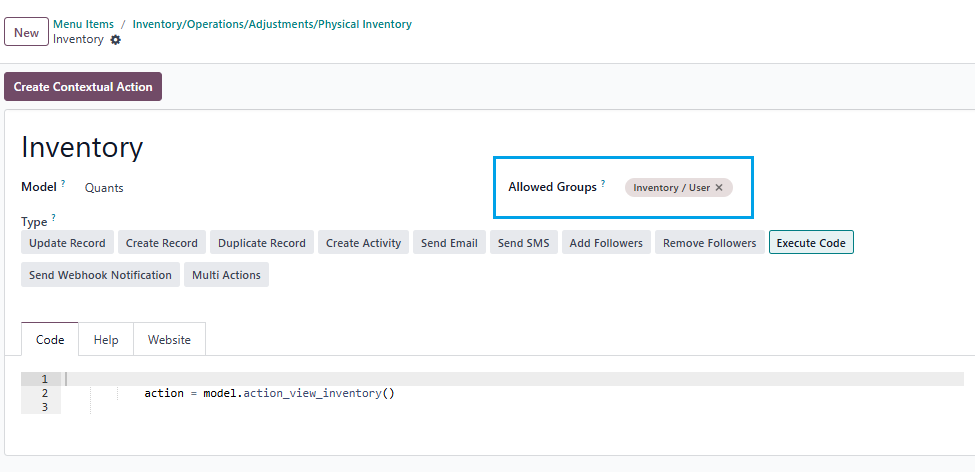
0
Аватар
Відмінити
Аватар
Cybrosys Techno Solutions Pvt.Ltd
Найкраща відповідь

Hi,

You can set access rights in a model by navigating to Settings → Technical → Database Structure → Models. First, you need to enable Developer Mode.

stock.quant is the model used for physical inventory. If you open the stock.quant model, you can see tabs such as Fields, Access Rights, Record Rules, Notes, and Views. You can set access rights under the Access Rights tab in the model
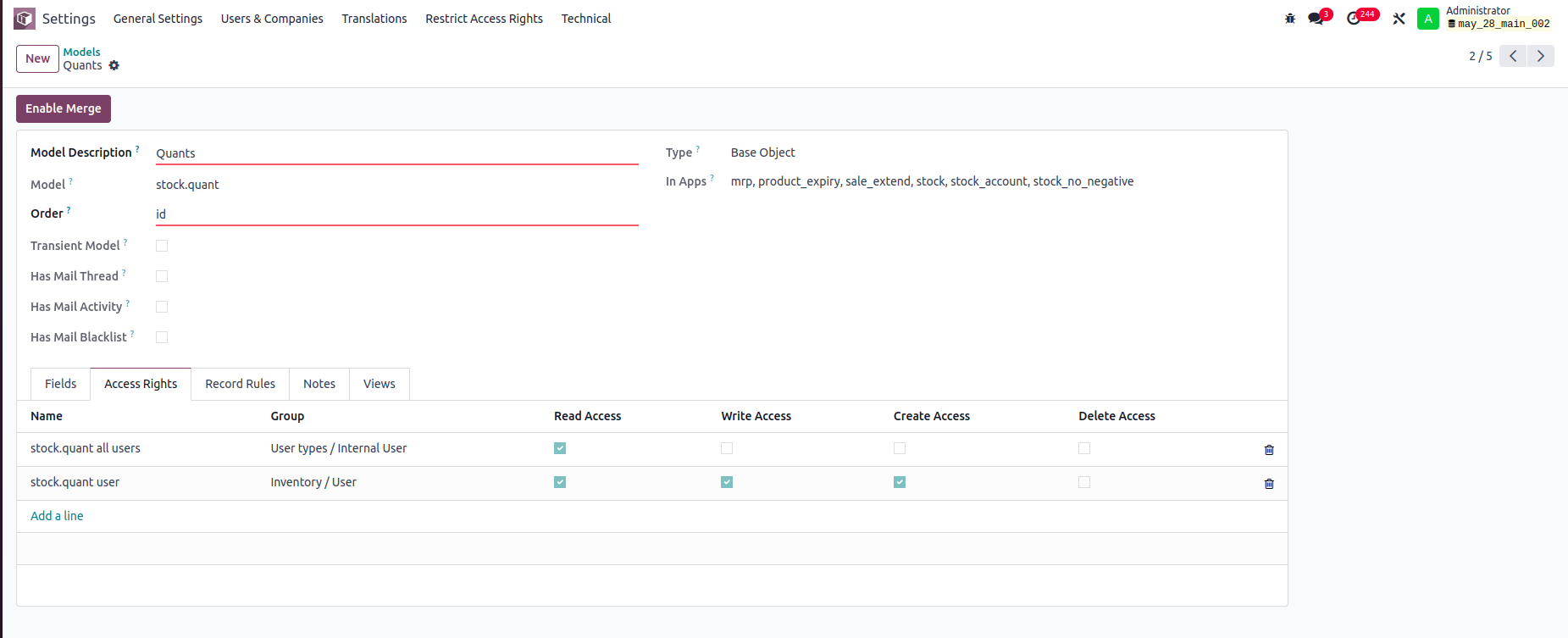


In this example:

-Internal Users can only read stock.quant records.

-Inventory Users can read, write, and create stock.quant records, but cannot delete them.

You can set read, write, create, and delete access rights for a model based on user groups


Record rule:

In Odoo, Record Rules define which records users can access within a model, based on filter conditions (domains) and user groups.



- Users can access only the stock quant records that belong to departments they are associated with.


Hope it helps.


0
Аватар
Відмінити
Аватар
Tatvamasi Labs, Piyush H
Найкраща відповідь

To give a non-administrator user access to the physical inventory menu in Odoo, you need to adjust their access rights. Here's how you can do it, along with the relevant access rights name and model:

1. Access Rights and Model

  • Model: ir.model.access
  • You'll need to find or create an access right record that grants the necessary permissions for the "inventory.adjustment" model (which is used for physical inventories).

2. Steps to Grant Access

Activate Developer Mode:

  • First, activate Odoo's developer mode. Go to Settings and scroll down to the bottom of the page. Click "Activate the developer mode".

Navigate to Groups:

  • Go to Settings > Users & Companies > Groups.

Edit or Create a Group:

  • You can either modify an existing group or create a new one for your inventory users.
  • To create a new group, click "Create". Give it a descriptive name (e.g., "Inventory Counter").

Access Rights Tab:

  • In the group form, go to the "Access Rights" tab.
  • Click "Add a line".
  • In the "Model" field, search for and select "inventory.adjustment".
  • Enable the following options as appropriate:
    • Read: Allows the user to see existing physical inventory records.
    • Create: Allows the user to create new physical inventory records.
    • Write: Allows the user to edit existing physical inventory records.
    • Delete: Allows the user to delete physical inventory records (use caution with this one).

Assign Users to the Group:

  • Go to the "Users" tab on the group form.
  • Click "Add a line" and add the users who need access to physical inventories.

Important Considerations

  • Existing Groups: Carefully consider whether to modify existing groups. Adding users to powerful groups (like "Inventory / User") might grant them more access than you intend.
  • Minimum Necessary Access: Grant only the minimum access required for the user to perform their job.
  • Testing: Always test the new access rights to ensure they work as expected and don't grant unintended permissions.
  • Administrator Role: Only a user with "Access Rights" administration rights can modify access rights. Be careful when changing these settings, as incorrect settings can negatively impact your database. Odoo recommends contacting an Odoo Business Analyst or their Support Team before making changes to access rights.


🚀 Did This Solve Your Problem?

If this answer helped you save time, money, or frustration, consider:

✅ Upvoting (👍) to help others find it faster

✅ Marking as "Best Answer" if it resolved your issue

Your feedback keeps the Odoo community strong! 💪

(Need further customization? Drop a comment—I’m happy to refine the solution!)

-1
Аватар
Відмінити
Chris TRINGHAM

Do you really want feedback?

This answer is partially correct, but a lot of the advice is very misleading or just wrong and therefore unhelpful. So it won't save people time, and it will increase frustration.

Enjoying the discussion? Don't just read, join in!

Create an account today to enjoy exclusive features and engage with our awesome community!

Реєстрація
Related Posts Відповіді Переглядів Дія
Restrict product quantity adjustments for Inventory / Users ✅ SOLVED
inventory access rights InventoryAdjustment Quickstart
Аватар
Аватар
1
бер. 25
4414
How to override base model access rights in my custom module? Вирішено
security model override access rights
Аватар
Аватар
1
квіт. 25
13258
Back Date Inventory adjustment excel import Вирішено
InventoryAdjustment
Аватар
Аватар
1
лип. 25
2875
Inventory Adjustment page is Blank | Would like to manually edit inventory numbers for initial count
InventoryAdjustment
Аватар
Аватар
Аватар
2
черв. 25
2852
Odoo Enterprise 16 Inventory Adjustment Set to ZERO Products in Locations Вирішено
InventoryAdjustment
Аватар
Аватар
Аватар
2
груд. 24
6130
Спільнота
  • Навчальний посібник
  • Документація
  • Форум
Open Source
  • Завантаження
  • Github
  • Runbot
  • Переклади
Послуги
  • Хостинг Odoo.sh
  • Підтримка
  • Оновлення
  • Кастомні доробки
  • Навчання
  • Знайдіть бухгалтера
  • Знайдіть партнера
  • Стати партнером
Про нас
  • Наша компанія
  • Торгові активи
  • Зв'яжіться з нами
  • Вакансії
  • Події
  • Подкаст
  • Блог
  • Клієнти
  • Юридичні документи • Конфіденційність
  • Безпека
الْعَرَبيّة Català 简体中文 繁體中文 (台灣) Čeština Dansk Nederlands English Suomi Français Deutsch हिंदी Bahasa Indonesia Italiano 日本語 한국어 (KR) Lietuvių kalba Język polski Português (BR) română русский язык Slovenský jazyk Slovenščina Español (América Latina) Español Svenska ภาษาไทย Türkçe українська Tiếng Việt

Odoo - це набір програм для роботи з відкритим кодом, які охоплюють всі ваші потреби компанії: CRM, електронна комерція, бухгалтерський облік, склад, точка продажу, управління проектами тощо.

Унікальна пропозиція Odoo - це одночасно дуже проста у використанні та повністю інтегрована.

Website made with

Odoo Experience on YouTube

1. Use the live chat to ask your questions.
2. The operator answers within a few minutes.

Live support on Youtube
Watch now