İçereği Atla
Odoo Menü
  • Portal
  • Ücretsiz deneyin
  • Uygulamalar
    Finans
    • Muhasebe
    • Faturalama
    • Masraf Yönetimi
    • Elektronik Çizelge (BI)
    • Belgeler
    • İmza
    Satış
    • Müşteri İlişkileri Yönetimi (CRM)
    • Satış
    • Satış Noktası Mağaza
    • Satış Noktası Restoran
    • Abonelikler
    • Kiralama
    Web Sitesi
    • Web Sitesi Oluşturucu
    • eTicaret
    • Blog
    • Forum
    • Canlı Sohbet
    • eÖğrenme
    Tedarik Zinciri
    • Envanter
    • Üretim
    • Ürün Yaşam Döngüsü Yönetimi
    • Satın Alma
    • Bakım
    • Kalite
    İnsan Kaynakları
    • Çalışanlar
    • İşe Alım
    • İzin
    • Değerlendirme
    • Referans
    • Filo Yönetimi
    Pazarlama
    • Sosyal Medyada Pazarlama
    • E-posta ile Pazarlama
    • SMS ile Pazarlama
    • Etkinlikler
    • Pazarlama Otomasyonu
    • Anket
    Hizmetler
    • Proje Yönetimi
    • Çalışma Çizelgeleri
    • Saha Hizmeti
    • Yardım Masası
    • Planlama
    • Randevular
    Verimlilik
    • Sohbet
    • Yapay Zeka
    • Nesnelerin İnterneti
    • VoIP
    • Bilgi Bankası
    • WhatsApp
    Üçüncü taraf uygulamalar Odoo Stüdyo Odoo Bulut Platformu
  • Sektörler
    Perakende satış
    • Kitapçı
    • Giyim Mağazası
    • Mobilya Mağazası
    • Gıda Marketi
    • Hırdavat Dükkanı
    • Oyuncak Dükkanı
    Gıda ve Konaklama
    • Bar ve Pub
    • Restoran
    • Fast Food Restoranı
    • Konuk Evi
    • İçecek Distribütörü
    • Otel
    Gayrimenkul
    • Emlak Acentesi
    • Mimarlık Firması
    • İnşaat
    • Emlak Yönetimi
    • Bahçe Tasarımı
    • Mülk Sahipleri Derneği
    Uzmanlık
    • Muhasebe Firması
    • Odoo Partner
    • Pazarlama Ajansı
    • Hukuk Firması
    • Yetenek Kazanımı
    • Denetim ve Belgelendirme
    Üretim
    • Tekstil
    • Metal
    • Mobilyalar
    • Gıda
    • Bira fabrikası
    • Kurumsal Hediye
    Sağlık ve Spor
    • Spor Kulübü
    • Optik Mağazası
    • Fitness Merkezi
    • Sağlıklı Yaşam Merkezi
    • Eczane
    • Kuaför Salonu
    Ticaret
    • Tamirci
    • BT Donanım & Destek
    • Güneş Enerjisi Sistemleri
    • Ayakkabı İmalatçısı
    • Temizlik Hizmetleri
    • HVAC Hizmetleri
    Diğerleri
    • Kar Amacı Gütmeyen Kuruluş
    • Çevre Ajansı
    • Reklam Panosu Kiralama
    • Fotoğrafçılık
    • Bisiklet Kiralama
    • Yazılım Bayisi
    Tüm Sektörlere Göz Atın
  • Topluluk
    Öğrenim
    • Eğitim Araçları
    • Dokümantasyon
    • Sertifikasyonlar
    • Eğitim Etkinlikleri
    • Blog
    • Podcast
    Eğitim ve Gelişim
    • Eğitim Programı
    • Scale Up! İşletme Oyunu
    • Odoo'yu Ziyaret Edin
    Yazılım
    • İndirin
    • Sürümleri Kıyaslayın
    • Sürümler
    İş Birliği
    • Github
    • Forum
    • Etkinlikler
    • Çeviriler
    • Partner Olun
    • Partnerler için Hizmetler
    • Muhasebe Firmanızı Kaydettirin
    Hizmetler
    • Partner Bulun
    • Muhasebeci Bulun
    • Bir danışmanla görüşün
    • Kurulum Hizmetleri
    • Müşteri Referansları
    • Destek
    • Sürüm Yükseltme
    Github Youtube Twitter Linkedin Instagram Facebook Spotify
    +1 (650) 691-3277
    Demo randevusu alın
  • Fiyatlandırma
  • Yardım
Toplulukla etkileşime geçmek için kayıtlı olmanız gerekir.
Tüm Gönderiler İnsanlar Rozetler
Etiketler (Tümünü göster)
odoo accounting v14 pos v15
Bu forum hakkında
Toplulukla etkileşime geçmek için kayıtlı olmanız gerekir.
Tüm Gönderiler İnsanlar Rozetler
Etiketler (Tümünü göster)
odoo accounting v14 pos v15
Bu forum hakkında
Yardım

Physical Inventory Access Rights

Abone Ol

Bu gönderide etkinlik olduğunda bildirim alın

Bu soru işaretlendi
modelaccess rightsInventoryAdjustment
3 Cevaplar
3307 Görünümler
Avatar
National Co.

Hi


How to give a non-administrator user access to the physical inventory menu?


Can anyone tell me the "Access Rights name and model"?


Thanks

0
Avatar
Vazgeç
Chris TRINGHAM

Which version of Odoo?

National Co.
Üretici

Hello Piyush

I can't find  ir.model.access, my database version is saas~18.2+e (Enterprise Edition)

If that's normal, how to create it if it doesn't exist?


For all the rest steps, I can do it.


Thanks


Chris TRINGHAM

In v18 inventory users should be able to access the Physical Inventory menu, but the Cybrosys answer should help you (but I don't think departments are a standard feature).

National Co.
Üretici

Hello Cybrosys


I have added the "Limited User" to stock.quant model as the picture, but still get "Access Error." 


Should I create a "Record rule" for the Limited User Group? If so, how do I creat this rule?


Thanks

image0


Chris TRINGHAM

What does the error message say? It might give you a clue.

You can read this to get more information: https://odootricks.tips/odoo-model-access/

National Co.
Üretici

Hello Chris

The user I need to grant permission to is not standard; it's custom (named Limited User), with specific menus and access rights.

Bellow the error message when I click Physical Inventory...


Thanks


Chris TRINGHAM

I see, so you have created a new user access group for the "Inventory / Limited User" which can do physical inventory but not some other things.

This is a complex area and from my own experience it needs a lot of checking and testing ("trial and error") and it's very difficult to diagnose the problem(s) from screenshots.

National Co.
Üretici

Hello Chris


Yes, it's a new user access group with specified access rights.


Do you mean this place?, If not, where to find it?

Thanks

Chris TRINGHAM

Yes, see my updated answer.

National Co.
Üretici

Hello Chris

Thank you very much for your help; it's worked like a charm after adding the "Limited User" to the menu Allowed Groups.


Avatar
Chris TRINGHAM
En İyi Yanıt

I think it may because this menu option calls a Server Action that is only available for Inventory / User

Go to menu items, find Physical Inventory and then click on the second part of the Action

Then you can change who is authorized:
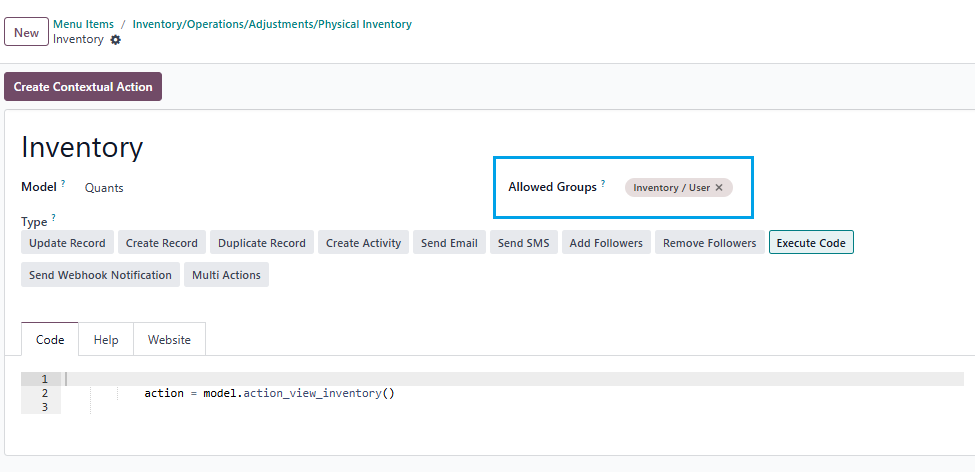
0
Avatar
Vazgeç
Avatar
Cybrosys Techno Solutions Pvt.Ltd
En İyi Yanıt

Hi,

You can set access rights in a model by navigating to Settings → Technical → Database Structure → Models. First, you need to enable Developer Mode.

stock.quant is the model used for physical inventory. If you open the stock.quant model, you can see tabs such as Fields, Access Rights, Record Rules, Notes, and Views. You can set access rights under the Access Rights tab in the model
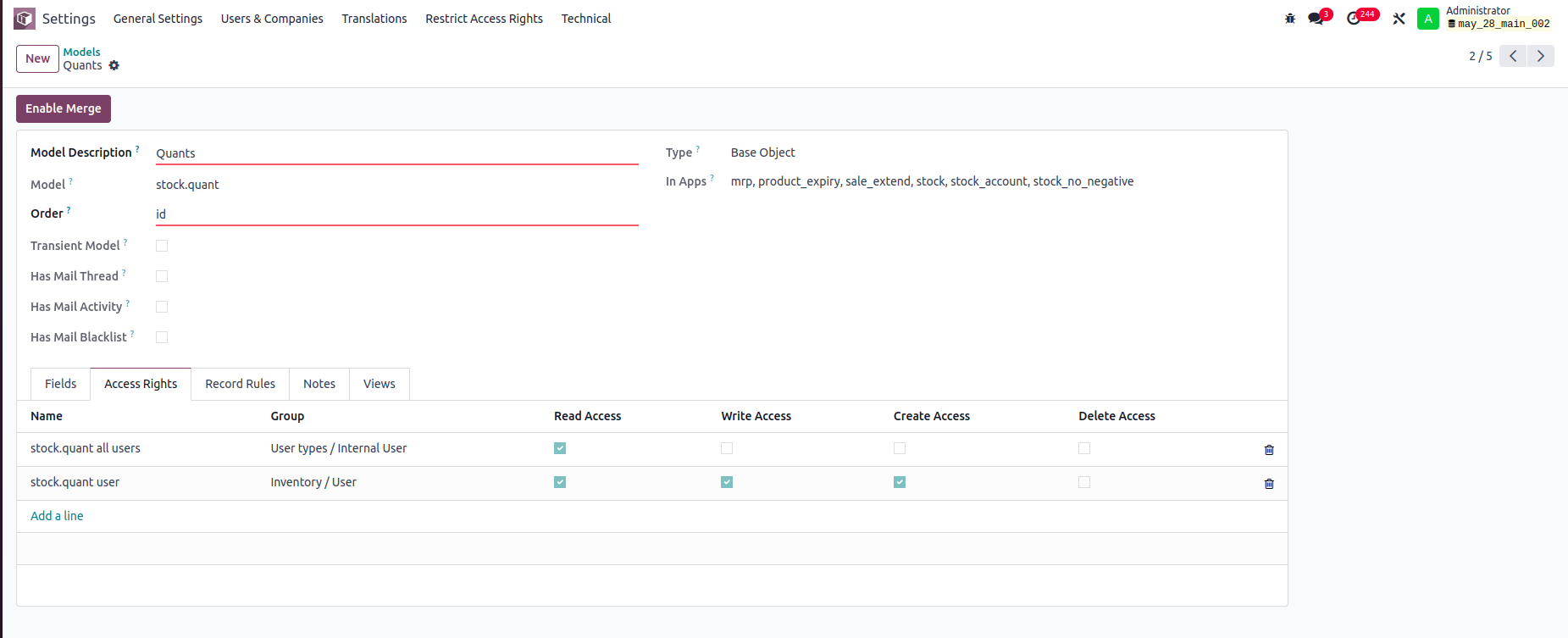


In this example:

-Internal Users can only read stock.quant records.

-Inventory Users can read, write, and create stock.quant records, but cannot delete them.

You can set read, write, create, and delete access rights for a model based on user groups


Record rule:

In Odoo, Record Rules define which records users can access within a model, based on filter conditions (domains) and user groups.



- Users can access only the stock quant records that belong to departments they are associated with.


Hope it helps.


0
Avatar
Vazgeç
Avatar
Tatvamasi Labs, Piyush H
En İyi Yanıt

To give a non-administrator user access to the physical inventory menu in Odoo, you need to adjust their access rights. Here's how you can do it, along with the relevant access rights name and model:

1. Access Rights and Model

  • Model: ir.model.access
  • You'll need to find or create an access right record that grants the necessary permissions for the "inventory.adjustment" model (which is used for physical inventories).

2. Steps to Grant Access

Activate Developer Mode:

  • First, activate Odoo's developer mode. Go to Settings and scroll down to the bottom of the page. Click "Activate the developer mode".

Navigate to Groups:

  • Go to Settings > Users & Companies > Groups.

Edit or Create a Group:

  • You can either modify an existing group or create a new one for your inventory users.
  • To create a new group, click "Create". Give it a descriptive name (e.g., "Inventory Counter").

Access Rights Tab:

  • In the group form, go to the "Access Rights" tab.
  • Click "Add a line".
  • In the "Model" field, search for and select "inventory.adjustment".
  • Enable the following options as appropriate:
    • Read: Allows the user to see existing physical inventory records.
    • Create: Allows the user to create new physical inventory records.
    • Write: Allows the user to edit existing physical inventory records.
    • Delete: Allows the user to delete physical inventory records (use caution with this one).

Assign Users to the Group:

  • Go to the "Users" tab on the group form.
  • Click "Add a line" and add the users who need access to physical inventories.

Important Considerations

  • Existing Groups: Carefully consider whether to modify existing groups. Adding users to powerful groups (like "Inventory / User") might grant them more access than you intend.
  • Minimum Necessary Access: Grant only the minimum access required for the user to perform their job.
  • Testing: Always test the new access rights to ensure they work as expected and don't grant unintended permissions.
  • Administrator Role: Only a user with "Access Rights" administration rights can modify access rights. Be careful when changing these settings, as incorrect settings can negatively impact your database. Odoo recommends contacting an Odoo Business Analyst or their Support Team before making changes to access rights.


🚀 Did This Solve Your Problem?

If this answer helped you save time, money, or frustration, consider:

✅ Upvoting (👍) to help others find it faster

✅ Marking as "Best Answer" if it resolved your issue

Your feedback keeps the Odoo community strong! 💪

(Need further customization? Drop a comment—I’m happy to refine the solution!)

-1
Avatar
Vazgeç
Chris TRINGHAM

Do you really want feedback?

This answer is partially correct, but a lot of the advice is very misleading or just wrong and therefore unhelpful. So it won't save people time, and it will increase frustration.

Tartışma hoşunuza mı gidiyor? Sadece okumakla kalmayın, katılın!

Özel özelliklerden yararlanmak ve harika topluluğumuzla etkileşime geçmek için bugün bir hesap oluşturun!

Üye Ol
İlgili Gönderiler Cevaplar Görünümler Aktivite
Restrict product quantity adjustments for Inventory / Users ✅ SOLVED
inventory access rights InventoryAdjustment Quickstart
Avatar
Avatar
1
Mar 25
4389
How to override base model access rights in my custom module? Çözüldü
security model override access rights
Avatar
Avatar
1
Nis 25
13154
Back Date Inventory adjustment excel import Çözüldü
InventoryAdjustment
Avatar
Avatar
1
Tem 25
2842
Inventory Adjustment page is Blank | Would like to manually edit inventory numbers for initial count
InventoryAdjustment
Avatar
Avatar
Avatar
2
Haz 25
2844
Odoo Enterprise 16 Inventory Adjustment Set to ZERO Products in Locations Çözüldü
InventoryAdjustment
Avatar
Avatar
Avatar
2
Ara 24
6105
Topluluk
  • Eğitim Araçları
  • Dokümantasyon
  • Forum
Açık Kaynak
  • İndirin
  • Github
  • Runbot
  • Çeviriler
Hizmetler
  • Odoo.sh Hosting
  • Destek
  • Sürüm Yükseltme
  • Özel Geliştirmeler
  • Eğitim
  • Muhasebeci Bulun
  • Partner Bulun
  • Partner Olun
Hakkında
  • Şirketimiz
  • Pazarlama Gereçleri
  • İletişim
  • Kariyer
  • Etkinlikler
  • Podcast
  • Blog
  • Müşteriler
  • Hukuki • Gizlilik
  • Güvenlik
الْعَرَبيّة Català 简体中文 繁體中文 (台灣) Čeština Dansk Nederlands English Suomi Français Deutsch हिंदी Bahasa Indonesia Italiano 日本語 한국어 (KR) Lietuvių kalba Język polski Português (BR) română русский язык Slovenský jazyk Slovenščina Español (América Latina) Español Svenska ภาษาไทย Türkçe українська Tiếng Việt

Odoo, müşteri ilişkileri yönetimi, eTicaret, muhasebe, envanter, satış noktası, proje yönetimi gibi şirketinizin tüm ihtiyaçlarını karşılayan bir açık kaynak işletme uygulamaları paketidir.

Odoo’nun eşsiz değer önermesi, aynı anda hem kullanımının çok kolay olup hem de tamamen entegre olmasıdır.

Website made with

Odoo Experience on YouTube

1. Use the live chat to ask your questions.
2. The operator answers within a few minutes.

Live support on Youtube
Watch now