Перейти к содержимому
Odoo Меню
  • Войти
  • Попробовать бесплатно
  • Модули
    Финансы
    • Бухгалтерия
    • Выставление счетов
    • Расходы
    • Таблицы
    • Документооборот
    • Подпись
    Продажи
    • CRM
    • Продажи
    • POS Магазин
    • POS Ресторан
    • Подписки
    • Аренда
    Вебсайты
    • Конструктор вебсайтов
    • eCommerce
    • Блог
    • Форум
    • Онлайн-чат
    • Электронное обучение
    Логистика
    • Склад
    • Производство
    • PLM
    • Закупки
    • Обслуживание
    • Качество
    Отдел кадров
    • Сотрудники
    • Подбор персонала
    • Отпуска
    • Оценка персонала
    • Реферальная программа
    • Автопарк
    Маркетинг
    • SMM
    • E-mail рассылки
    • СМС рассылки
    • Мероприятия
    • Автоматизация маркетинга
    • Опросы
    Услуги
    • Проекты
    • Табели
    • Выездной сервис
    • Поддержка
    • Планирование
    • Встречи
    Продуктивность
    • Обсуждения
    • Искусственный интеллект
    • IoT
    • VoIP-телефония
    • Knowledge
    • WhatsApp
    Сторонние приложения Модуль Студия Odoo Платформа Odoo Cloud
  • Индустрии
    Розничная торговля
    • Книжный магазин
    • Магазин одежды
    • Мебельный магазин
    • Продуктовый магазин
    • Строительный магазин
    • Магазин игрушек
    Гостинично-ресторанный бизнес
    • Бар и паб
    • Ресторан
    • Фастфуд
    • Гостевой дом
    • Дистрибьютор напитков
    • Отель
    Недвижимость
    • Агентство недвижимости
    • Архитектурное бюро
    • Строительство
    • Управление недвижимостью
    • Ландшафтный дизайн
    • Товарищество собственников жилья
    Консалтинг
    • Бухгалтерская фирма
    • Партнер Odoo
    • Маркетинговое агентство
    • Юридическая фирма
    • Подбор персонала
    • Аудиторское бюро
    Производство
    • Текстиль
    • Металл
    • Мебель
    • Продукты питания
    • Пивоварня
    • Корпоративные сувениры
    Здоровье и фитнес
    • Спортивный комплекс
    • Магазин оптики
    • Фитнес-клуб
    • Велнес-центр
    • Аптека
    • Салон красоты
    Услуги
    • Специалист по бытовым услугам
    • Продажа и обслуживание IT-оборудования
    • Солнечные энергосистемы
    • Производство обуви
    • Клининг
    • Системы ОВКВ
    Прочее
    • Некоммерческая организация
    • Консалтинг в сфере устойчивого развития
    • Аренда рекламных щитов
    • Бизнес по фотосъемке
    • Прокат велосипедов
    • Реселлер программного обеспечения
    Все индустрии
  • Community
    Обучение
    • Видео уроки
    • Документация
    • Сертификация
    • Тренинг
    • Блог
    • Подкаст
    Образование и развитие
    • Образовательная программа
    • Деловая игра Scale Up!
    • Экскурсия в офис Odoo
    ПО
    • Скачать
    • Сравнить версии
    • Релизы
    Сотрудничество
    • Github
    • Форум
    • Мероприятия
    • Перевод
    • Стать партнером
    • Услуги для партнеров
    • Зарегистрировать бухгалтерскую фирму
    Услуги
    • Найти партнера
    • Найти бухгалтера
    • Встреча с экспертом
    • Услуги по внедрению
    • Отзывы клиентов
    • Поддержка
    • Обновления
    Github Youtube Twitter Linkedin Instagram Facebook Spotify
    +1 (650) 691-3277
    Заказать демонстрацию
  • Цены
  • Поддержка
Чтобы взаимодействовать с сообществом, необходимо зарегистрироваться.
Все посты Люди Значки
Теги (Смотреть все)
odoo accounting v14 pos v15
Об этом форуме
Чтобы взаимодействовать с сообществом, необходимо зарегистрироваться.
Все посты Люди Значки
Теги (Смотреть все)
odoo accounting v14 pos v15
Об этом форуме
Помощь

Physical Inventory Access Rights

Подписаться

Получайте уведомления о появлении активности в этом посте

Этот вопрос был отмечен
modelaccess rightsInventoryAdjustment
3 Ответы
3311 Представления
Аватар
National Co.

Hi


How to give a non-administrator user access to the physical inventory menu?


Can anyone tell me the "Access Rights name and model"?


Thanks

0
Аватар
Отменить
Chris TRINGHAM

Which version of Odoo?

National Co.
Автор

Hello Piyush

I can't find  ir.model.access, my database version is saas~18.2+e (Enterprise Edition)

If that's normal, how to create it if it doesn't exist?


For all the rest steps, I can do it.


Thanks


Chris TRINGHAM

In v18 inventory users should be able to access the Physical Inventory menu, but the Cybrosys answer should help you (but I don't think departments are a standard feature).

National Co.
Автор

Hello Cybrosys


I have added the "Limited User" to stock.quant model as the picture, but still get "Access Error." 


Should I create a "Record rule" for the Limited User Group? If so, how do I creat this rule?


Thanks

image0


Chris TRINGHAM

What does the error message say? It might give you a clue.

You can read this to get more information: https://odootricks.tips/odoo-model-access/

National Co.
Автор

Hello Chris

The user I need to grant permission to is not standard; it's custom (named Limited User), with specific menus and access rights.

Bellow the error message when I click Physical Inventory...


Thanks


Chris TRINGHAM

I see, so you have created a new user access group for the "Inventory / Limited User" which can do physical inventory but not some other things.

This is a complex area and from my own experience it needs a lot of checking and testing ("trial and error") and it's very difficult to diagnose the problem(s) from screenshots.

National Co.
Автор

Hello Chris


Yes, it's a new user access group with specified access rights.


Do you mean this place?, If not, where to find it?

Thanks

Chris TRINGHAM

Yes, see my updated answer.

National Co.
Автор

Hello Chris

Thank you very much for your help; it's worked like a charm after adding the "Limited User" to the menu Allowed Groups.


Аватар
Chris TRINGHAM
Лучший ответ

I think it may because this menu option calls a Server Action that is only available for Inventory / User

Go to menu items, find Physical Inventory and then click on the second part of the Action

Then you can change who is authorized:
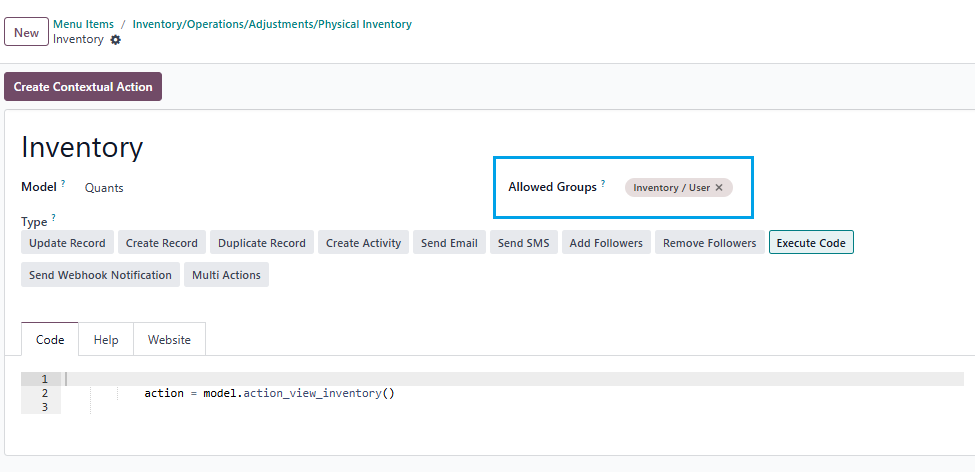
0
Аватар
Отменить
Аватар
Cybrosys Techno Solutions Pvt.Ltd
Лучший ответ

Hi,

You can set access rights in a model by navigating to Settings → Technical → Database Structure → Models. First, you need to enable Developer Mode.

stock.quant is the model used for physical inventory. If you open the stock.quant model, you can see tabs such as Fields, Access Rights, Record Rules, Notes, and Views. You can set access rights under the Access Rights tab in the model
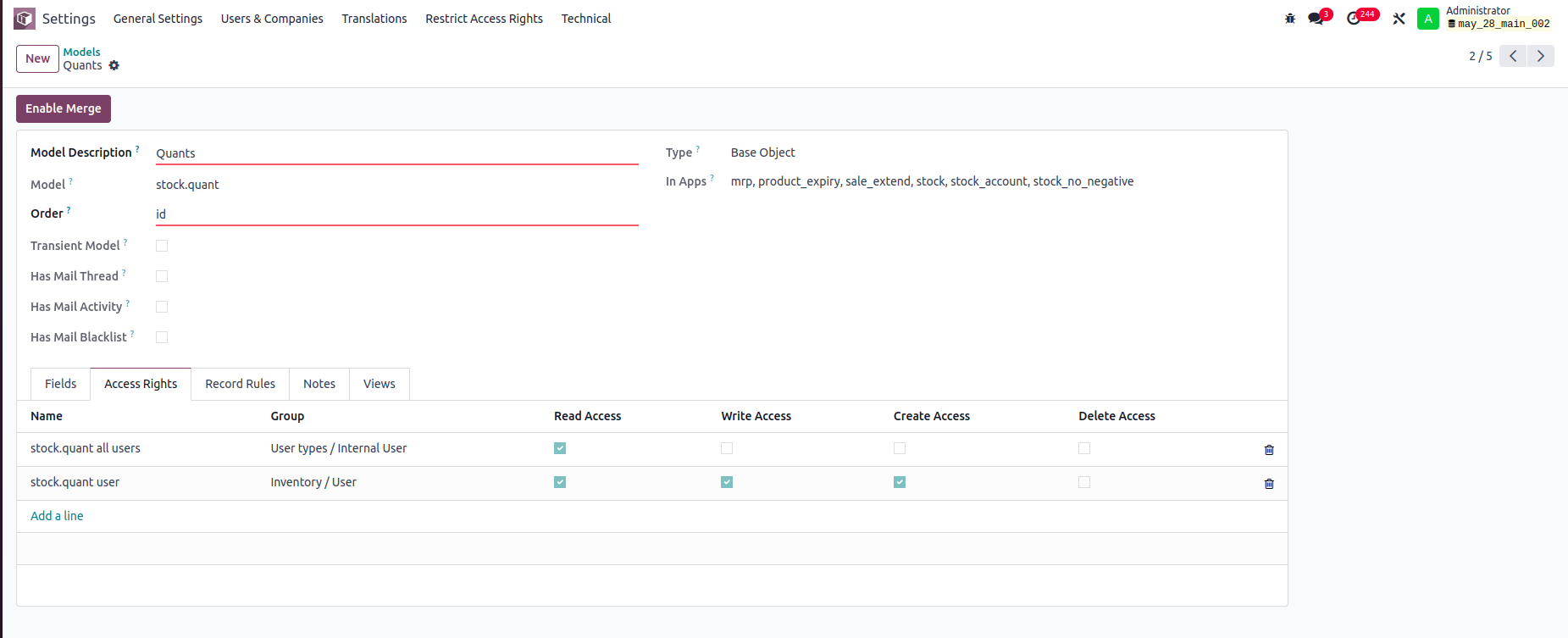


In this example:

-Internal Users can only read stock.quant records.

-Inventory Users can read, write, and create stock.quant records, but cannot delete them.

You can set read, write, create, and delete access rights for a model based on user groups


Record rule:

In Odoo, Record Rules define which records users can access within a model, based on filter conditions (domains) and user groups.



- Users can access only the stock quant records that belong to departments they are associated with.


Hope it helps.


0
Аватар
Отменить
Аватар
Tatvamasi Labs, Piyush H
Лучший ответ

To give a non-administrator user access to the physical inventory menu in Odoo, you need to adjust their access rights. Here's how you can do it, along with the relevant access rights name and model:

1. Access Rights and Model

  • Model: ir.model.access
  • You'll need to find or create an access right record that grants the necessary permissions for the "inventory.adjustment" model (which is used for physical inventories).

2. Steps to Grant Access

Activate Developer Mode:

  • First, activate Odoo's developer mode. Go to Settings and scroll down to the bottom of the page. Click "Activate the developer mode".

Navigate to Groups:

  • Go to Settings > Users & Companies > Groups.

Edit or Create a Group:

  • You can either modify an existing group or create a new one for your inventory users.
  • To create a new group, click "Create". Give it a descriptive name (e.g., "Inventory Counter").

Access Rights Tab:

  • In the group form, go to the "Access Rights" tab.
  • Click "Add a line".
  • In the "Model" field, search for and select "inventory.adjustment".
  • Enable the following options as appropriate:
    • Read: Allows the user to see existing physical inventory records.
    • Create: Allows the user to create new physical inventory records.
    • Write: Allows the user to edit existing physical inventory records.
    • Delete: Allows the user to delete physical inventory records (use caution with this one).

Assign Users to the Group:

  • Go to the "Users" tab on the group form.
  • Click "Add a line" and add the users who need access to physical inventories.

Important Considerations

  • Existing Groups: Carefully consider whether to modify existing groups. Adding users to powerful groups (like "Inventory / User") might grant them more access than you intend.
  • Minimum Necessary Access: Grant only the minimum access required for the user to perform their job.
  • Testing: Always test the new access rights to ensure they work as expected and don't grant unintended permissions.
  • Administrator Role: Only a user with "Access Rights" administration rights can modify access rights. Be careful when changing these settings, as incorrect settings can negatively impact your database. Odoo recommends contacting an Odoo Business Analyst or their Support Team before making changes to access rights.


🚀 Did This Solve Your Problem?

If this answer helped you save time, money, or frustration, consider:

✅ Upvoting (👍) to help others find it faster

✅ Marking as "Best Answer" if it resolved your issue

Your feedback keeps the Odoo community strong! 💪

(Need further customization? Drop a comment—I’m happy to refine the solution!)

-1
Аватар
Отменить
Chris TRINGHAM

Do you really want feedback?

This answer is partially correct, but a lot of the advice is very misleading or just wrong and therefore unhelpful. So it won't save people time, and it will increase frustration.

Не оставайтесь в стороне – присоединяйтесь к обсуждению!

Создайте аккаунт сегодня, чтобы получить доступ к эксклюзивным функциям и стать частью нашего замечательного сообщества!

Регистрация
Похожие посты Ответы Просмотры Активность
Restrict product quantity adjustments for Inventory / Users ✅ SOLVED
inventory access rights InventoryAdjustment Quickstart
Аватар
Аватар
1
мар. 25
4399
How to override base model access rights in my custom module? Решено
security model override access rights
Аватар
Аватар
1
апр. 25
13191
Back Date Inventory adjustment excel import Решено
InventoryAdjustment
Аватар
Аватар
1
июл. 25
2852
Inventory Adjustment page is Blank | Would like to manually edit inventory numbers for initial count
InventoryAdjustment
Аватар
Аватар
Аватар
2
июн. 25
2846
Odoo Enterprise 16 Inventory Adjustment Set to ZERO Products in Locations Решено
InventoryAdjustment
Аватар
Аватар
Аватар
2
дек. 24
6111
Сообщество
  • Видео уроки
  • Документация
  • Форум
Открытый исходный код
  • Скачать
  • Github
  • Runbot
  • Перевод
Услуги
  • Хостинг Odoo.sh
  • Поддержка
  • Обновление
  • Индивидуальные решения по доработке
  • Образование
  • Найти бухгалтера
  • Найти партнера
  • Стать партнером
О нас
  • Наша компания
  • Активы бренда
  • Cвяжитесь с нами
  • Вакансии
  • Мероприятия
  • Подкаст
  • Блог
  • Клиенты
  • Правовые документы • Конфиденциальность
  • Безопасность
الْعَرَبيّة Català 简体中文 繁體中文 (台灣) Čeština Dansk Nederlands English Suomi Français Deutsch हिंदी Bahasa Indonesia Italiano 日本語 한국어 (KR) Lietuvių kalba Język polski Português (BR) română русский язык Slovenský jazyk Slovenščina Español (América Latina) Español Svenska ภาษาไทย Türkçe українська Tiếng Việt

Odoo – это набор бизнес-модулей с открытым исходным кодом, который закроет все потребности вашей компании: CRM, E-commerce, Бухгалтерия, Склад, POS, управление проектами и др.

Odoo сочетает в себе простоту использования и полную интеграцию всех бизнес-процессов в одной системе.

Website made with

Odoo Experience on YouTube

1. Use the live chat to ask your questions.
2. The operator answers within a few minutes.

Live support on Youtube
Watch now