Zum Inhalt springen
Odoo Menü
  • Anmelden
  • Jetzt gratis testen
  • Apps
    Finanzen
    • Buchhaltung
    • Rechnungsstellung
    • Spesenabrechnung
    • Tabellenkalkulation (BI)
    • Dokumente
    • E-Signatur
    Verkauf
    • CRM
    • Verkauf
    • Kassensystem – Shop
    • Kassensystem – Restaurant
    • Abonnements
    • Vermietung
    Websites
    • Website-Builder
    • E-Commerce
    • Blog
    • Forum
    • Livechat
    • E-Learning
    Lieferkette
    • Lager
    • Fertigung
    • PLM
    • Einkauf
    • Wartung
    • Qualität
    Personalwesen
    • Mitarbeiter
    • Personalbeschaffung
    • Abwesenheiten
    • Mitarbeiterbeurteilung
    • Personalempfehlungen
    • Fuhrpark
    Marketing
    • Social Marketing
    • E-Mail-Marketing
    • SMS-Marketing
    • Veranstaltungen
    • Marketing-Automatisierung
    • Umfragen
    Dienstleistungen
    • Projekte
    • Zeiterfassung
    • Außendienst
    • Kundendienst
    • Planung
    • Termine
    Produktivität
    • Dialog
    • Künstliche Intelligenz
    • IoT
    • VoIP
    • Wissensdatenbank
    • WhatsApp
    Apps von Drittanbietern Odoo Studio Odoo Cloud-Plattform
  • Branchen
    Einzelhandel
    • Buchladen
    • Kleidergeschäft
    • Möbelhaus
    • Lebensmittelgeschäft
    • Baumarkt
    • Spielwarengeschäft
    Essen & Gastgewerbe
    • Bar und Kneipe
    • Restaurant
    • Fast Food
    • Gästehaus
    • Getränkehändler
    • Hotel
    Immobilien
    • Immobilienagentur
    • Architekturbüro
    • Baugewerbe
    • Immobilienverwaltung
    • Gartenarbeit
    • Eigentümervereinigung
    Beratung
    • Buchhaltungsfirma
    • Odoo-Partner
    • Marketingagentur
    • Anwaltskanzlei
    • Talentakquise
    • Prüfung & Zertifizierung
    Fertigung
    • Textil
    • Metall
    • Möbel
    • Speisen
    • Brauerei
    • Firmengeschenke
    Gesundheit & Fitness
    • Sportklub
    • Brillengeschäft
    • Fitnessstudio
    • Therapeut
    • Apotheke
    • Friseursalon
    Handel
    • Handyman
    • IT-Hardware & -Support
    • Solarenergiesysteme
    • Schuster
    • Reinigungsdienstleistungen
    • HLK-Dienstleistungen
    Sonstiges
    • Gemeinnützige Organisation
    • Umweltschutzagentur
    • Plakatwandvermietung
    • Fotostudio
    • Fahrrad-Leasing
    • Software-Händler
    Alle Branchen ansehen
  • Community
    Lernen
    • Tutorials
    • Dokumentation
    • Zertifizierungen
    • Schulung
    • Blog
    • Podcast
    Bildung fördern
    • Bildungsprogramm
    • Scale-Up! Planspiel
    • Odoo besuchen
    Software anfragen
    • Herunterladen
    • Editionen vergleichen
    • Releases
    Zusammenarbeiten
    • Github
    • Forum
    • Veranstaltungen
    • Übersetzungen
    • Partner werden
    • Dienstleistungen für Partner
    • Buchhaltungsfirma registrieren
    Services anfragen
    • Partner finden
    • Buchhalter finden
    • Einen Experten treffen
    • Implementierungsservices
    • Kundenreferenzen
    • Support
    • Upgrades
    Github Youtube Twitter Linkedin Instagram Facebook Spotify
    +1 (650) 691-3277
    Eine Demo erhalten
  • Preise
  • Hilfe
Sie müssen registriert sein, um mit der Community zu interagieren.
Alle Beiträge Personen Abzeichen
Stichwörter (Alle anzeigen)
odoo accounting v14 pos v15
Über dieses Forum
Sie müssen registriert sein, um mit der Community zu interagieren.
Alle Beiträge Personen Abzeichen
Stichwörter (Alle anzeigen)
odoo accounting v14 pos v15
Über dieses Forum
Hilfe

Physical Inventory Access Rights

Abonnieren

Erhalten Sie eine Benachrichtigung, wenn es eine Aktivität zu diesem Beitrag gibt

Diese Frage wurde gekennzeichnet
modelaccess rightsInventoryAdjustment
3 Antworten
3314 Ansichten
Avatar
National Co.

Hi


How to give a non-administrator user access to the physical inventory menu?


Can anyone tell me the "Access Rights name and model"?


Thanks

0
Avatar
Verwerfen
Chris TRINGHAM

Which version of Odoo?

National Co.
Autor

Hello Piyush

I can't find  ir.model.access, my database version is saas~18.2+e (Enterprise Edition)

If that's normal, how to create it if it doesn't exist?


For all the rest steps, I can do it.


Thanks


Chris TRINGHAM

In v18 inventory users should be able to access the Physical Inventory menu, but the Cybrosys answer should help you (but I don't think departments are a standard feature).

National Co.
Autor

Hello Cybrosys


I have added the "Limited User" to stock.quant model as the picture, but still get "Access Error." 


Should I create a "Record rule" for the Limited User Group? If so, how do I creat this rule?


Thanks

image0


Chris TRINGHAM

What does the error message say? It might give you a clue.

You can read this to get more information: https://odootricks.tips/odoo-model-access/

National Co.
Autor

Hello Chris

The user I need to grant permission to is not standard; it's custom (named Limited User), with specific menus and access rights.

Bellow the error message when I click Physical Inventory...


Thanks


Chris TRINGHAM

I see, so you have created a new user access group for the "Inventory / Limited User" which can do physical inventory but not some other things.

This is a complex area and from my own experience it needs a lot of checking and testing ("trial and error") and it's very difficult to diagnose the problem(s) from screenshots.

National Co.
Autor

Hello Chris


Yes, it's a new user access group with specified access rights.


Do you mean this place?, If not, where to find it?

Thanks

Chris TRINGHAM

Yes, see my updated answer.

National Co.
Autor

Hello Chris

Thank you very much for your help; it's worked like a charm after adding the "Limited User" to the menu Allowed Groups.


Avatar
Chris TRINGHAM
Beste Antwort

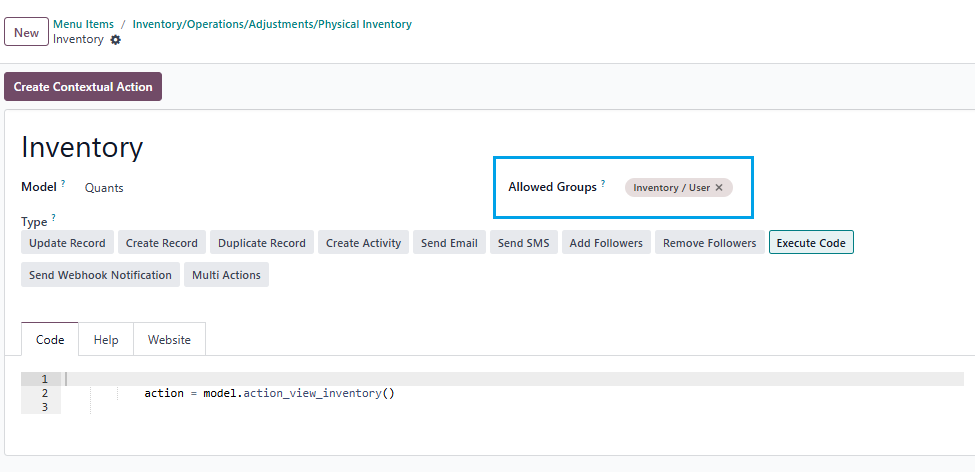
I think it may because this menu option calls a Server Action that is only available for Inventory / User

Go to menu items, find Physical Inventory and then click on the second part of the Action

Then you can change who is authorized:
0
Avatar
Verwerfen
Avatar
Cybrosys Techno Solutions Pvt.Ltd
Beste Antwort

Hi,

You can set access rights in a model by navigating to Settings → Technical → Database Structure → Models. First, you need to enable Developer Mode.

stock.quant is the model used for physical inventory. If you open the stock.quant model, you can see tabs such as Fields, Access Rights, Record Rules, Notes, and Views. You can set access rights under the Access Rights tab in the model
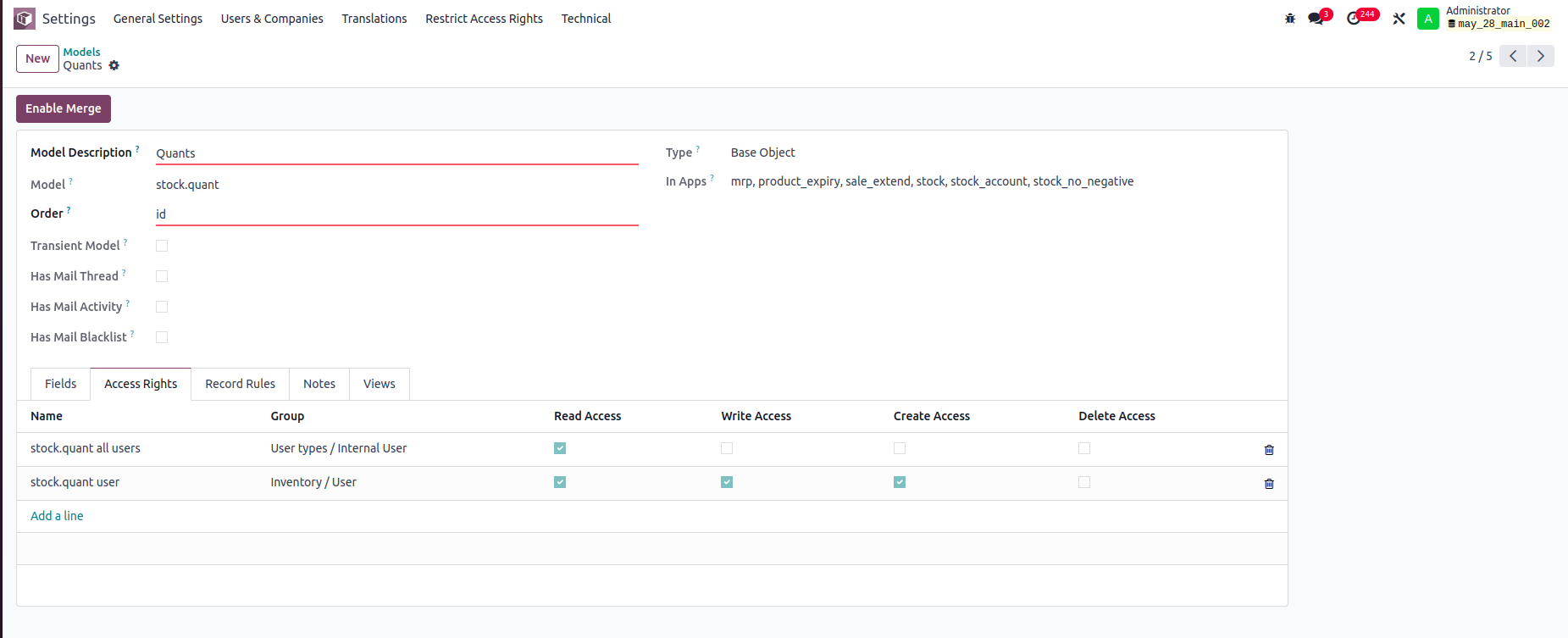


In this example:

-Internal Users can only read stock.quant records.

-Inventory Users can read, write, and create stock.quant records, but cannot delete them.

You can set read, write, create, and delete access rights for a model based on user groups


Record rule:

In Odoo, Record Rules define which records users can access within a model, based on filter conditions (domains) and user groups.



- Users can access only the stock quant records that belong to departments they are associated with.


Hope it helps.


0
Avatar
Verwerfen
Avatar
Tatvamasi Labs, Piyush H
Beste Antwort

To give a non-administrator user access to the physical inventory menu in Odoo, you need to adjust their access rights. Here's how you can do it, along with the relevant access rights name and model:

1. Access Rights and Model

  • Model: ir.model.access
  • You'll need to find or create an access right record that grants the necessary permissions for the "inventory.adjustment" model (which is used for physical inventories).

2. Steps to Grant Access

Activate Developer Mode:

  • First, activate Odoo's developer mode. Go to Settings and scroll down to the bottom of the page. Click "Activate the developer mode".

Navigate to Groups:

  • Go to Settings > Users & Companies > Groups.

Edit or Create a Group:

  • You can either modify an existing group or create a new one for your inventory users.
  • To create a new group, click "Create". Give it a descriptive name (e.g., "Inventory Counter").

Access Rights Tab:

  • In the group form, go to the "Access Rights" tab.
  • Click "Add a line".
  • In the "Model" field, search for and select "inventory.adjustment".
  • Enable the following options as appropriate:
    • Read: Allows the user to see existing physical inventory records.
    • Create: Allows the user to create new physical inventory records.
    • Write: Allows the user to edit existing physical inventory records.
    • Delete: Allows the user to delete physical inventory records (use caution with this one).

Assign Users to the Group:

  • Go to the "Users" tab on the group form.
  • Click "Add a line" and add the users who need access to physical inventories.

Important Considerations

  • Existing Groups: Carefully consider whether to modify existing groups. Adding users to powerful groups (like "Inventory / User") might grant them more access than you intend.
  • Minimum Necessary Access: Grant only the minimum access required for the user to perform their job.
  • Testing: Always test the new access rights to ensure they work as expected and don't grant unintended permissions.
  • Administrator Role: Only a user with "Access Rights" administration rights can modify access rights. Be careful when changing these settings, as incorrect settings can negatively impact your database. Odoo recommends contacting an Odoo Business Analyst or their Support Team before making changes to access rights.


🚀 Did This Solve Your Problem?

If this answer helped you save time, money, or frustration, consider:

✅ Upvoting (👍) to help others find it faster

✅ Marking as "Best Answer" if it resolved your issue

Your feedback keeps the Odoo community strong! 💪

(Need further customization? Drop a comment—I’m happy to refine the solution!)

-1
Avatar
Verwerfen
Chris TRINGHAM

Do you really want feedback?

This answer is partially correct, but a lot of the advice is very misleading or just wrong and therefore unhelpful. So it won't save people time, and it will increase frustration.

Diskutieren Sie gerne? Treten Sie bei, statt nur zu lesen!

Erstellen Sie heute ein Konto, um exklusive Funktionen zu nutzen und mit unserer tollen Community zu interagieren!

Registrieren
Verknüpfte Beiträge Antworten Ansichten Aktivität
Restrict product quantity adjustments for Inventory / Users ✅ SOLVED
inventory access rights InventoryAdjustment Quickstart
Avatar
Avatar
1
März 25
4399
How to override base model access rights in my custom module? Gelöst
security model override access rights
Avatar
Avatar
1
Apr. 25
13199
Back Date Inventory adjustment excel import Gelöst
InventoryAdjustment
Avatar
Avatar
1
Juli 25
2855
Inventory Adjustment page is Blank | Would like to manually edit inventory numbers for initial count
InventoryAdjustment
Avatar
Avatar
Avatar
2
Juni 25
2846
Odoo Enterprise 16 Inventory Adjustment Set to ZERO Products in Locations Gelöst
InventoryAdjustment
Avatar
Avatar
Avatar
2
Dez. 24
6111
Community
  • Tutorials
  • Dokumentation
  • Forum
Open Source
  • Herunterladen
  • Github
  • Runbot
  • Übersetzungen
Dienstleistungen
  • Odoo.sh-Hosting
  • Support
  • Upgrade
  • Individuelle Entwicklungen
  • Bildung
  • Buchhalter finden
  • Partner finden
  • Partner werden
Über uns
  • Unsere Firma
  • Markenwerte
  • Kontakt
  • Karriere
  • Veranstaltungen
  • Podcast
  • Blog
  • Kunden
  • Rechtliches • Datenschutz
  • Sicherheit
الْعَرَبيّة Català 简体中文 繁體中文 (台灣) Čeština Dansk Nederlands English Suomi Français Deutsch हिंदी Bahasa Indonesia Italiano 日本語 한국어 (KR) Lietuvių kalba Język polski Português (BR) română русский язык Slovenský jazyk Slovenščina Español (América Latina) Español Svenska ภาษาไทย Türkçe українська Tiếng Việt

Odoo ist eine Suite von Open-Source-Betriebsanwendungen, die alle Bedürfnisse Ihres Unternehmens abdecken: CRM, E-Commerce, Buchhaltung, Lager, Kassensystem, Projektmanagement etc.

Das einzigartige Wertversprechen von Odoo ist, dass es gleichzeitig sehr einfach zu bedienen und voll integriert ist.

Website made with

Odoo Experience on YouTube

1. Use the live chat to ask your questions.
2. The operator answers within a few minutes.

Live support on Youtube
Watch now