Se rendre au contenu
Odoo Menu
  • Se connecter
  • Essai gratuit
  • Applications
    Finance
    • Comptabilité
    • Facturation
    • Notes de frais
    • Feuilles de calcul (BI)
    • Documents
    • Signature
    Ventes
    • CRM
    • Ventes
    • PdV Boutique
    • PdV Restaurant
    • Abonnements
    • Location
    Sites web
    • Site Web
    • eCommerce
    • Blog
    • Forum
    • Live Chat
    • eLearning
    Chaîne d'approvisionnement
    • Inventaire
    • Fabrication
    • PLM
    • Achats
    • Maintenance
    • Qualité
    Ressources Humaines
    • Employés
    • Recrutement
    • Congés
    • Évaluations
    • Recommandations
    • Parc automobile
    Marketing
    • Marketing Social
    • E-mail Marketing
    • SMS Marketing
    • Événements
    • Marketing Automation
    • Sondages
    Services
    • Projet
    • Feuilles de temps
    • Services sur Site
    • Assistance
    • Planification
    • Rendez-vous
    Productivité
    • Discussion
    • Intelligence artificielle
    • Internet des Objets
    • VoIP
    • Connaissances
    • WhatsApp
    Applications tierces Odoo Studio Plateforme Cloud d'Odoo
  • Industries
    Commerce de détail
    • Librairie
    • Magasin de vêtements
    • Magasin de meubles
    • Supermarché
    • Quincaillerie
    • Magasin de jouets
    Restauration & Hôtellerie
    • Bar et Pub
    • Restaurant
    • Fast-food
    • Maison d’hôtes
    • Distributeur de boissons
    • Hôtel
    Immobilier
    • Agence immobilière
    • Cabinet d'architecture
    • Construction
    • Gestion immobilière
    • Jardinage
    • Association de copropriétaires
    Consultance
    • Cabinet d'expertise comptable
    • Partenaire Odoo
    • Agence Marketing
    • Cabinet d'avocats
    • Aquisition de talents
    • Audit & Certification
    Fabrication
    • Textile
    • Métal
    • Meubles
    • Alimentation
    • Brasserie
    • Cadeaux d'entreprise
    Santé & Fitness
    • Club de sports
    • Opticien
    • Salle de fitness
    • Praticiens bien-être
    • Pharmacie
    • Salon de coiffure
    Commerce
    • Homme à tout faire
    • Matériel informatique & support
    • Systèmes photovoltaïques
    • Cordonnier
    • Services de nettoyage
    • Services CVC
    Autres
    • Organisation à but non lucratif
    • Agence environnementale
    • Location de panneaux d'affichage
    • Photographie
    • Leasing de vélos
    • Revendeur de logiciel
    Parcourir toutes les industries
  • Communauté
    Apprenez
    • Tutoriels
    • Documentation
    • Certifications
    • Formation
    • Blog
    • Podcast
    Renforcer l'éducation
    • Programme éducatif
    • Business Game Scale-Up!
    • Rendez-nous visite
    Obtenir le logiciel
    • Téléchargement
    • Comparez les éditions
    • Versions
    Collaborer
    • Github
    • Forum
    • Événements
    • Traductions
    • Devenir partenaire
    • Services pour partenaires
    • Enregistrer votre cabinet comptable
    Nos Services
    • Trouver un partenaire
    • Trouver un comptable
    • Rencontrer un conseiller
    • Services de mise en œuvre
    • Références clients
    • Assistance
    • Mises à niveau
    Github Youtube Twitter Linkedin Instagram Facebook Spotify
    +1 (650) 691-3277
    Obtenir une démonstration
  • Tarification
  • Aide
Vous devez être inscrit pour interagir avec la communauté.
Toutes les publications Personnes Badges
Étiquettes (Voir toutl)
odoo accounting v14 pos v15
À propos de ce forum
Vous devez être inscrit pour interagir avec la communauté.
Toutes les publications Personnes Badges
Étiquettes (Voir toutl)
odoo accounting v14 pos v15
À propos de ce forum
Aide

Physical Inventory Access Rights

S'inscrire

Recevez une notification lorsqu'il y a de l'activité sur ce poste

Cette question a été signalée
modelaccess rightsInventoryAdjustment
3 Réponses
3286 Vues
Avatar
National Co.

Hi


How to give a non-administrator user access to the physical inventory menu?


Can anyone tell me the "Access Rights name and model"?


Thanks

0
Avatar
Ignorer
Chris TRINGHAM

Which version of Odoo?

National Co.
Auteur

Hello Piyush

I can't find  ir.model.access, my database version is saas~18.2+e (Enterprise Edition)

If that's normal, how to create it if it doesn't exist?


For all the rest steps, I can do it.


Thanks


Chris TRINGHAM

In v18 inventory users should be able to access the Physical Inventory menu, but the Cybrosys answer should help you (but I don't think departments are a standard feature).

National Co.
Auteur

Hello Cybrosys


I have added the "Limited User" to stock.quant model as the picture, but still get "Access Error." 


Should I create a "Record rule" for the Limited User Group? If so, how do I creat this rule?


Thanks

image0


Chris TRINGHAM

What does the error message say? It might give you a clue.

You can read this to get more information: https://odootricks.tips/odoo-model-access/

National Co.
Auteur

Hello Chris

The user I need to grant permission to is not standard; it's custom (named Limited User), with specific menus and access rights.

Bellow the error message when I click Physical Inventory...


Thanks


Chris TRINGHAM

I see, so you have created a new user access group for the "Inventory / Limited User" which can do physical inventory but not some other things.

This is a complex area and from my own experience it needs a lot of checking and testing ("trial and error") and it's very difficult to diagnose the problem(s) from screenshots.

National Co.
Auteur

Hello Chris


Yes, it's a new user access group with specified access rights.


Do you mean this place?, If not, where to find it?

Thanks

Chris TRINGHAM

Yes, see my updated answer.

National Co.
Auteur

Hello Chris

Thank you very much for your help; it's worked like a charm after adding the "Limited User" to the menu Allowed Groups.


Avatar
Chris TRINGHAM
Meilleure réponse

I think it may because this menu option calls a Server Action that is only available for Inventory / User

Go to menu items, find Physical Inventory and then click on the second part of the Action

Then you can change who is authorized:
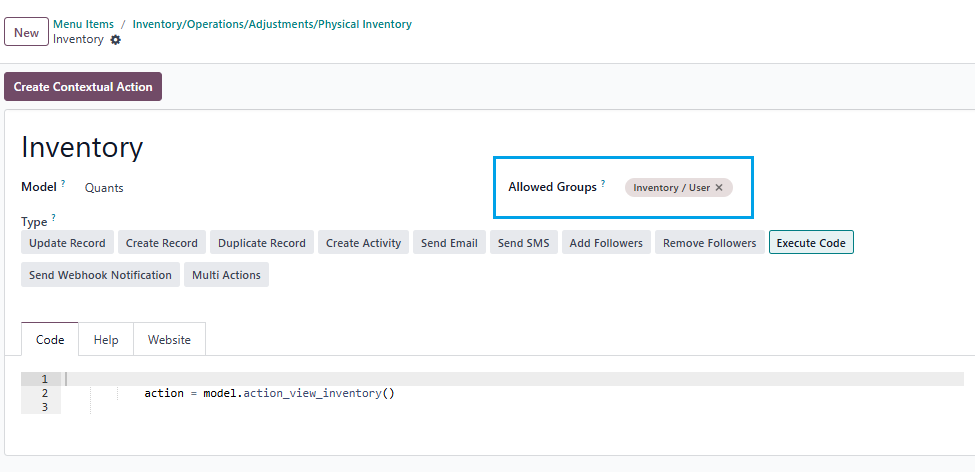
0
Avatar
Ignorer
Avatar
Cybrosys Techno Solutions Pvt.Ltd
Meilleure réponse

Hi,

You can set access rights in a model by navigating to Settings → Technical → Database Structure → Models. First, you need to enable Developer Mode.

stock.quant is the model used for physical inventory. If you open the stock.quant model, you can see tabs such as Fields, Access Rights, Record Rules, Notes, and Views. You can set access rights under the Access Rights tab in the model
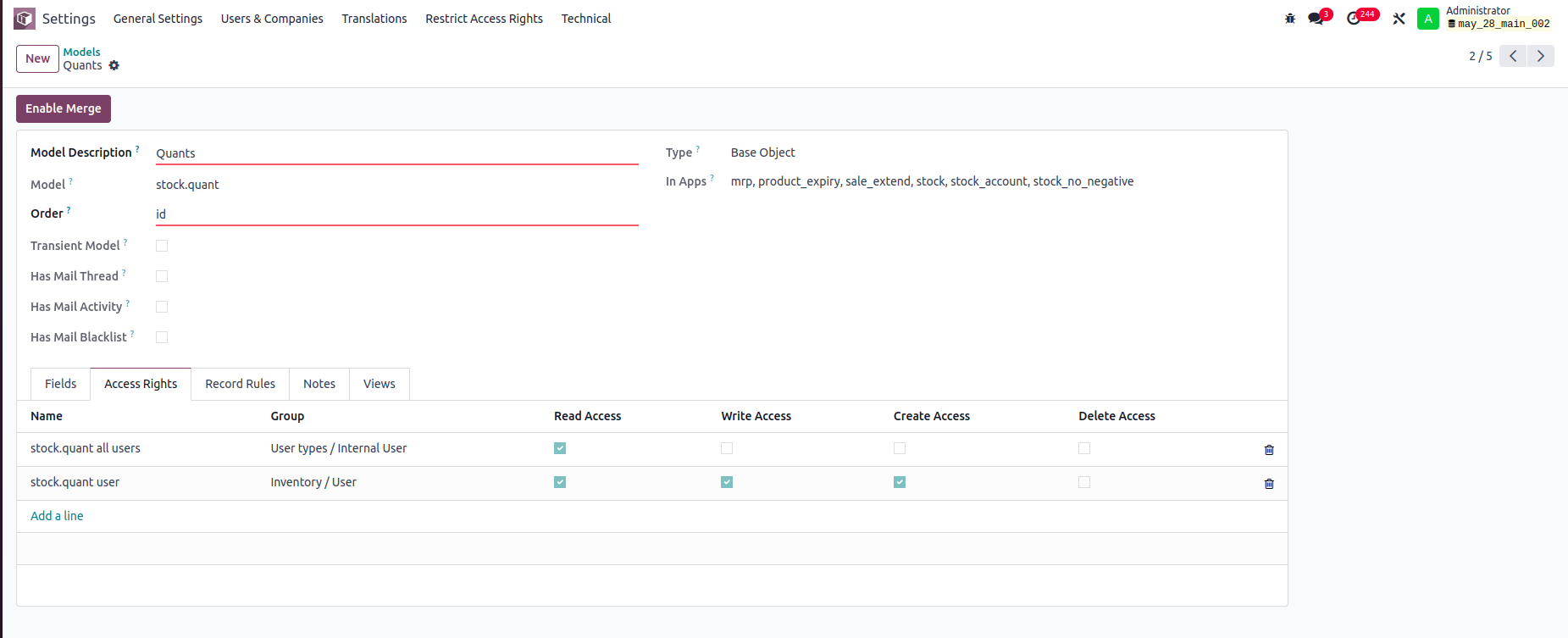


In this example:

-Internal Users can only read stock.quant records.

-Inventory Users can read, write, and create stock.quant records, but cannot delete them.

You can set read, write, create, and delete access rights for a model based on user groups


Record rule:

In Odoo, Record Rules define which records users can access within a model, based on filter conditions (domains) and user groups.



- Users can access only the stock quant records that belong to departments they are associated with.


Hope it helps.


0
Avatar
Ignorer
Avatar
Tatvamasi Labs, Piyush H
Meilleure réponse

To give a non-administrator user access to the physical inventory menu in Odoo, you need to adjust their access rights. Here's how you can do it, along with the relevant access rights name and model:

1. Access Rights and Model

  • Model: ir.model.access
  • You'll need to find or create an access right record that grants the necessary permissions for the "inventory.adjustment" model (which is used for physical inventories).

2. Steps to Grant Access

Activate Developer Mode:

  • First, activate Odoo's developer mode. Go to Settings and scroll down to the bottom of the page. Click "Activate the developer mode".

Navigate to Groups:

  • Go to Settings > Users & Companies > Groups.

Edit or Create a Group:

  • You can either modify an existing group or create a new one for your inventory users.
  • To create a new group, click "Create". Give it a descriptive name (e.g., "Inventory Counter").

Access Rights Tab:

  • In the group form, go to the "Access Rights" tab.
  • Click "Add a line".
  • In the "Model" field, search for and select "inventory.adjustment".
  • Enable the following options as appropriate:
    • Read: Allows the user to see existing physical inventory records.
    • Create: Allows the user to create new physical inventory records.
    • Write: Allows the user to edit existing physical inventory records.
    • Delete: Allows the user to delete physical inventory records (use caution with this one).

Assign Users to the Group:

  • Go to the "Users" tab on the group form.
  • Click "Add a line" and add the users who need access to physical inventories.

Important Considerations

  • Existing Groups: Carefully consider whether to modify existing groups. Adding users to powerful groups (like "Inventory / User") might grant them more access than you intend.
  • Minimum Necessary Access: Grant only the minimum access required for the user to perform their job.
  • Testing: Always test the new access rights to ensure they work as expected and don't grant unintended permissions.
  • Administrator Role: Only a user with "Access Rights" administration rights can modify access rights. Be careful when changing these settings, as incorrect settings can negatively impact your database. Odoo recommends contacting an Odoo Business Analyst or their Support Team before making changes to access rights.


🚀 Did This Solve Your Problem?

If this answer helped you save time, money, or frustration, consider:

✅ Upvoting (👍) to help others find it faster

✅ Marking as "Best Answer" if it resolved your issue

Your feedback keeps the Odoo community strong! 💪

(Need further customization? Drop a comment—I’m happy to refine the solution!)

-1
Avatar
Ignorer
Chris TRINGHAM

Do you really want feedback?

This answer is partially correct, but a lot of the advice is very misleading or just wrong and therefore unhelpful. So it won't save people time, and it will increase frustration.

Vous appréciez la discussion ? Ne vous contentez pas de lire, rejoignez-nous !

Créez un compte dès aujourd'hui pour profiter de fonctionnalités exclusives et échanger avec notre formidable communauté !

S'inscrire
Publications associées Réponses Vues Activité
Restrict product quantity adjustments for Inventory / Users ✅ SOLVED
inventory access rights InventoryAdjustment Quickstart
Avatar
Avatar
1
mars 25
4356
How to override base model access rights in my custom module? Résolu
security model override access rights
Avatar
Avatar
1
avr. 25
13143
Back Date Inventory adjustment excel import Résolu
InventoryAdjustment
Avatar
Avatar
1
juil. 25
2820
Inventory Adjustment page is Blank | Would like to manually edit inventory numbers for initial count
InventoryAdjustment
Avatar
Avatar
Avatar
2
juin 25
2841
Odoo Enterprise 16 Inventory Adjustment Set to ZERO Products in Locations Résolu
InventoryAdjustment
Avatar
Avatar
Avatar
2
déc. 24
6102
Communauté
  • Tutoriels
  • Documentation
  • Forum
Open Source
  • Téléchargement
  • Github
  • Runbot
  • Traductions
Services
  • Hébergement Odoo.sh
  • Assistance
  • Migration
  • Développements personnalisés
  • Éducation
  • Trouver un comptable
  • Trouver un partenaire
  • Devenir partenaire
À propos
  • Notre société
  • Actifs de la marque
  • Contactez-nous
  • Emplois
  • Événements
  • Podcast
  • Blog
  • Clients
  • Informations légales • Confidentialité
  • Sécurité.
الْعَرَبيّة Català 简体中文 繁體中文 (台灣) Čeština Dansk Nederlands English Suomi Français Deutsch हिंदी Bahasa Indonesia Italiano 日本語 한국어 (KR) Lietuvių kalba Język polski Português (BR) română русский язык Slovenský jazyk Slovenščina Español (América Latina) Español Svenska ภาษาไทย Türkçe українська Tiếng Việt

Odoo est une suite d'applications open source couvrant tous les besoins de votre entreprise : CRM, eCommerce, Comptabilité, Inventaire, Point de Vente, Gestion de Projet, etc.

Le positionnement unique d'Odoo est d'être à la fois très facile à utiliser et totalement intégré.

Website made with

Odoo Experience on YouTube

1. Use the live chat to ask your questions.
2. The operator answers within a few minutes.

Live support on Youtube
Watch now