Siirry sisältöön
Odoo Menu
  • Kirjaudu sisään
  • Kokeile ilmaiseksi
  • Sovellukset
    Talous
    • Kirjanpito
    • Laskutus
    • Kulut
    • Datataulukot (BI)
    • Asiakirjat
    • Allekirjoita
    Myynti
    • CRM
    • Myynti
    • Kassajärjestelmä myymälään
    • Kassajärjestelmä ravintolaan
    • Tilaukset
    • Vuokraus
    Verkkosivut
    • Verkkosivun Rakennustyökalu
    • Verkkokauppa
    • Blogi
    • Foorumi
    • Livechat
    • Verkko-oppiminen
    Toimitusketju
    • Varastointi
    • Tuotanto
    • Tuotteen elinkaaren hallinta (PLM)
    • Ostot
    • Huolto
    • Laatu
    Henkilöstöhallinto
    • Työntekijät
    • Rekrytointi
    • Vapaat
    • Arvioinnit
    • Suositukset
    • Kuljetuskalusto
    Markkinointi
    • Somemarkkinointi
    • Sähköpostimarkkinointi
    • Tekstiviestimarkkinointi
    • Tapahtumat
    • Markkinoinnin automaatio
    • Kyselyt
    Palvelut
    • Projekti
    • Työaikakirjaukset
    • Kenttähuolto
    • Asiakaspalvelu
    • Suunnittelu
    • Ajanvaraukset
    Tuottavuus
    • Viestintä
    • Tekoäly
    • IoT
    • IP-puhe
    • Tietokirjasto
    • WhatsApp
    Kolmannen osapuolen sovellukset Odoo-Studio Odoo-Pilvialusta
  • Toimialat
    Vähittäiskauppa
    • Kirjakauppa
    • Vaatekauppa
    • Huonekaluliike
    • Ruokakauppa
    • Laitteistokauppa
    • Lelukauppa
    Ruoka & Majoitus
    • Baari ja Pubi
    • Ravintola
    • Pikaruoka
    • Majatalo
    • Juomien jakelija
    • Hotelli
    Kiinteistöt
    • Kiinteistönvälitystoimisto
    • Arkkitehtitoimisto
    • Rakentaminen
    • Kiinteistönhallinto
    • Puutarhanhoito
    • Kiinteistönomistajien yhdistys
    Konsultointi
    • Tilitoimisto
    • Odoo-kumppani
    • Markkinointitoimisto
    • Lakitoimisto
    • Osaajahankinta
    • Tilintarkastus & sertifiointi
    Tuotanto
    • Tekstiili
    • Metalli
    • Huonekalut
    • Ruoka
    • Panimo
    • Yrityslahjat
    Terveys & Liikunta
    • Urheiluseura
    • Silmälasiliike
    • Kuntokeskus
    • Hyvinvointialan ammattilaiset
    • Apteekki
    • Kampaamo
    Kaupat
    • Yleismies
    • IT-laitteisto & Tuki
    • Aurinkoenergiajärjestelmät
    • Suutari
    • Siivouspalvelut
    • LVI-palvelut
    Muut
    • Voittoa tavoittelematon järjestö
    • Ympäristötoimisto
    • Mainostaulujen vuokraus  
    • Valokuvaus
    • Leasing-pyörät
    • Ohjelmistojen jälleenmyyjä
    Selaa kaikkia toimialoja
  • Yhteisö
    Opi
    • Kurssit
    • Dokumentaatio
    • Todistukset
    • Koulutus
    • Blogi
    • Podcast
    Kannusta kouluttautumaan
    • Koulutusohjelmat
    • Scale Up! Liiketoimintapeli
    • Vieraile Odoolla
    Hanki ohjelmisto
    • Lataa
    • Vertaile versioita
    • Julkaisut
    Tee yhteistyötä
    • Github
    • Foorumi
    • Tapahtumat
    • Käännökset
    • Ryhdy kumppaniksi
    • Kumppanipalvelut
    • Rekisteröi tilitoimistosi
    Hanki palveluja
    • Löydä kumppani
    • Löydä kirjanpitäjä
    • Varaa asiantuntijatapaaminen
    • Implementaatiopalvelut
    • Asiakasreferenssit
    • Tuki
    • Versionkorotukset
    Github Youtube Twitter Linkedin Instagram Facebook Spotify
    +1 (650) 691-3277
    Varaa demo
  • Hinnoittelu
  • Asiakaspalvelu
Sinun on rekisteröidyttävä, jotta voit olla vuorovaikutuksessa yhteisön kanssa.
Kaikki kirjoitukset Ihmiset Merkit
Tunnisteet (Näytä kaikki)
odoo accounting v14 pos v15
Tietoa tästä foorumista
Sinun on rekisteröidyttävä, jotta voit olla vuorovaikutuksessa yhteisön kanssa.
Kaikki kirjoitukset Ihmiset Merkit
Tunnisteet (Näytä kaikki)
odoo accounting v14 pos v15
Tietoa tästä foorumista
Apua

Physical Inventory Access Rights

Tilaa

Saat ilmoituksen, kun tähän viestiin ilmaantuu aktiviteettia

Tämä kysymys on merkitty
modelaccess rightsInventoryAdjustment
3 Vastaukset
3293 Näkymät
Avatar
National Co.

Hi


How to give a non-administrator user access to the physical inventory menu?


Can anyone tell me the "Access Rights name and model"?


Thanks

0
Avatar
Hylkää
Chris TRINGHAM

Which version of Odoo?

National Co.
Tekijä

Hello Piyush

I can't find  ir.model.access, my database version is saas~18.2+e (Enterprise Edition)

If that's normal, how to create it if it doesn't exist?


For all the rest steps, I can do it.


Thanks


Chris TRINGHAM

In v18 inventory users should be able to access the Physical Inventory menu, but the Cybrosys answer should help you (but I don't think departments are a standard feature).

National Co.
Tekijä

Hello Cybrosys


I have added the "Limited User" to stock.quant model as the picture, but still get "Access Error." 


Should I create a "Record rule" for the Limited User Group? If so, how do I creat this rule?


Thanks

image0


Chris TRINGHAM

What does the error message say? It might give you a clue.

You can read this to get more information: https://odootricks.tips/odoo-model-access/

National Co.
Tekijä

Hello Chris

The user I need to grant permission to is not standard; it's custom (named Limited User), with specific menus and access rights.

Bellow the error message when I click Physical Inventory...


Thanks


Chris TRINGHAM

I see, so you have created a new user access group for the "Inventory / Limited User" which can do physical inventory but not some other things.

This is a complex area and from my own experience it needs a lot of checking and testing ("trial and error") and it's very difficult to diagnose the problem(s) from screenshots.

National Co.
Tekijä

Hello Chris


Yes, it's a new user access group with specified access rights.


Do you mean this place?, If not, where to find it?

Thanks

Chris TRINGHAM

Yes, see my updated answer.

National Co.
Tekijä

Hello Chris

Thank you very much for your help; it's worked like a charm after adding the "Limited User" to the menu Allowed Groups.


Avatar
Chris TRINGHAM
Paras vastaus

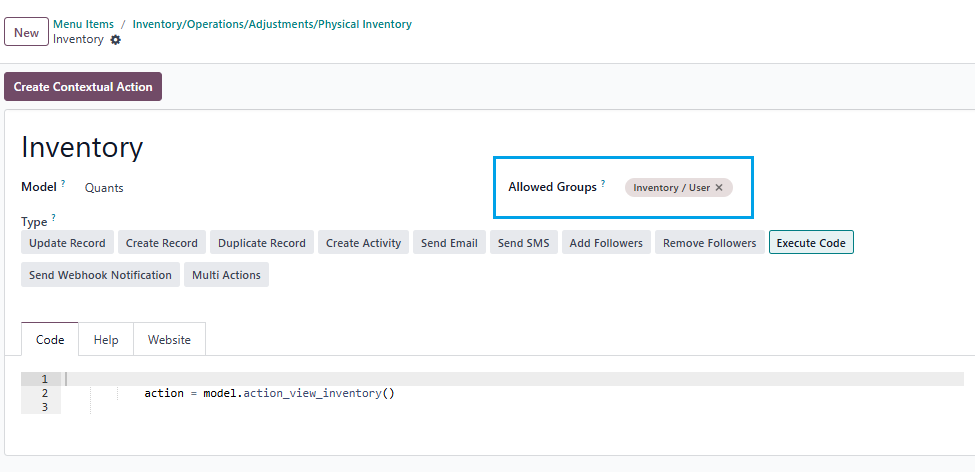
I think it may because this menu option calls a Server Action that is only available for Inventory / User

Go to menu items, find Physical Inventory and then click on the second part of the Action

Then you can change who is authorized:
0
Avatar
Hylkää
Avatar
Cybrosys Techno Solutions Pvt.Ltd
Paras vastaus

Hi,

You can set access rights in a model by navigating to Settings → Technical → Database Structure → Models. First, you need to enable Developer Mode.

stock.quant is the model used for physical inventory. If you open the stock.quant model, you can see tabs such as Fields, Access Rights, Record Rules, Notes, and Views. You can set access rights under the Access Rights tab in the model
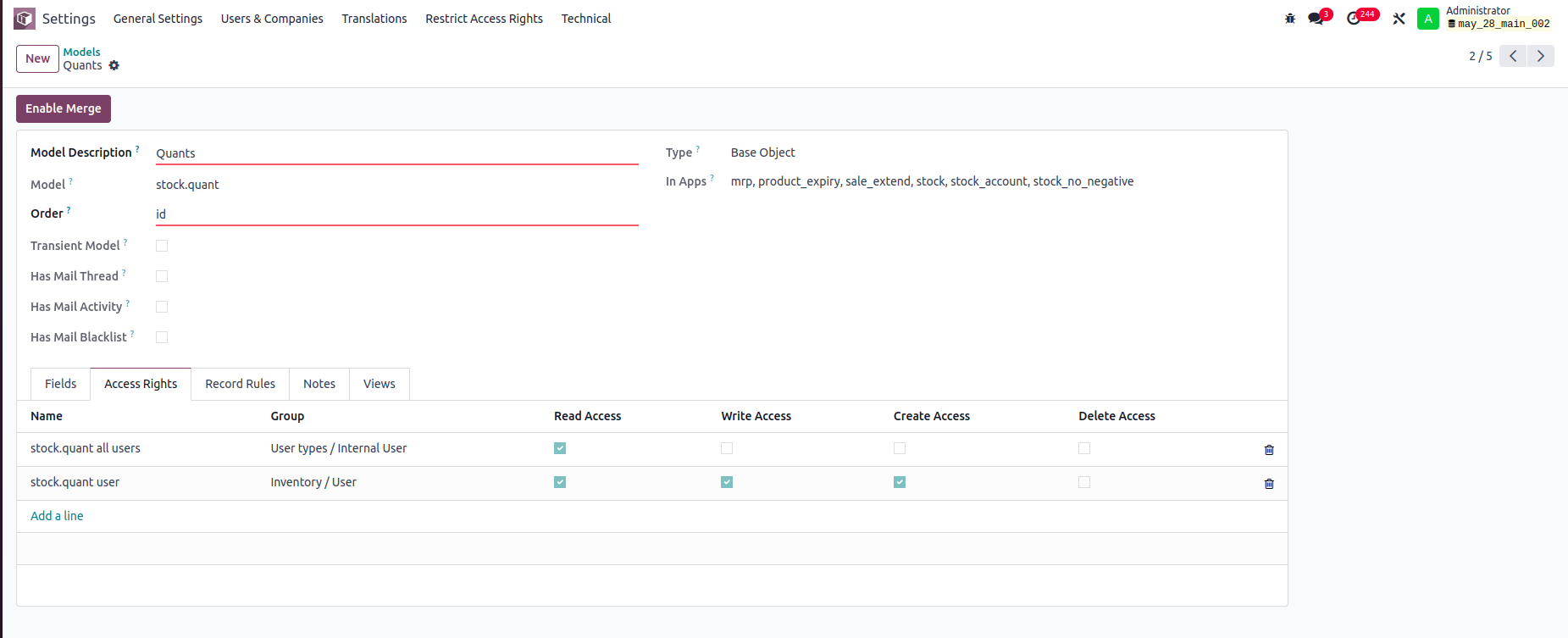


In this example:

-Internal Users can only read stock.quant records.

-Inventory Users can read, write, and create stock.quant records, but cannot delete them.

You can set read, write, create, and delete access rights for a model based on user groups


Record rule:

In Odoo, Record Rules define which records users can access within a model, based on filter conditions (domains) and user groups.



- Users can access only the stock quant records that belong to departments they are associated with.


Hope it helps.


0
Avatar
Hylkää
Avatar
Tatvamasi Labs, Piyush H
Paras vastaus

To give a non-administrator user access to the physical inventory menu in Odoo, you need to adjust their access rights. Here's how you can do it, along with the relevant access rights name and model:

1. Access Rights and Model

  • Model: ir.model.access
  • You'll need to find or create an access right record that grants the necessary permissions for the "inventory.adjustment" model (which is used for physical inventories).

2. Steps to Grant Access

Activate Developer Mode:

  • First, activate Odoo's developer mode. Go to Settings and scroll down to the bottom of the page. Click "Activate the developer mode".

Navigate to Groups:

  • Go to Settings > Users & Companies > Groups.

Edit or Create a Group:

  • You can either modify an existing group or create a new one for your inventory users.
  • To create a new group, click "Create". Give it a descriptive name (e.g., "Inventory Counter").

Access Rights Tab:

  • In the group form, go to the "Access Rights" tab.
  • Click "Add a line".
  • In the "Model" field, search for and select "inventory.adjustment".
  • Enable the following options as appropriate:
    • Read: Allows the user to see existing physical inventory records.
    • Create: Allows the user to create new physical inventory records.
    • Write: Allows the user to edit existing physical inventory records.
    • Delete: Allows the user to delete physical inventory records (use caution with this one).

Assign Users to the Group:

  • Go to the "Users" tab on the group form.
  • Click "Add a line" and add the users who need access to physical inventories.

Important Considerations

  • Existing Groups: Carefully consider whether to modify existing groups. Adding users to powerful groups (like "Inventory / User") might grant them more access than you intend.
  • Minimum Necessary Access: Grant only the minimum access required for the user to perform their job.
  • Testing: Always test the new access rights to ensure they work as expected and don't grant unintended permissions.
  • Administrator Role: Only a user with "Access Rights" administration rights can modify access rights. Be careful when changing these settings, as incorrect settings can negatively impact your database. Odoo recommends contacting an Odoo Business Analyst or their Support Team before making changes to access rights.


🚀 Did This Solve Your Problem?

If this answer helped you save time, money, or frustration, consider:

✅ Upvoting (👍) to help others find it faster

✅ Marking as "Best Answer" if it resolved your issue

Your feedback keeps the Odoo community strong! 💪

(Need further customization? Drop a comment—I’m happy to refine the solution!)

-1
Avatar
Hylkää
Chris TRINGHAM

Do you really want feedback?

This answer is partially correct, but a lot of the advice is very misleading or just wrong and therefore unhelpful. So it won't save people time, and it will increase frustration.

Nautitko keskustelusta? Älä vain lue, vaan osallistu!

Luo tili jo tänään nauttiaksesi yksinoikeusominaisuuksista ja osallistuaksesi mahtavaan yhteisöömme!

Rekisteröidy
Aiheeseen liittyviä artikkeleita Vastaukset Näkymät Toimenpide
Restrict product quantity adjustments for Inventory / Users ✅ SOLVED
inventory access rights InventoryAdjustment Quickstart
Avatar
Avatar
1
maalisk. 25
4359
How to override base model access rights in my custom module? Ratkaistu
security model override access rights
Avatar
Avatar
1
huhtik. 25
13143
Back Date Inventory adjustment excel import Ratkaistu
InventoryAdjustment
Avatar
Avatar
1
heinäk. 25
2820
Inventory Adjustment page is Blank | Would like to manually edit inventory numbers for initial count
InventoryAdjustment
Avatar
Avatar
Avatar
2
kesäk. 25
2842
Odoo Enterprise 16 Inventory Adjustment Set to ZERO Products in Locations Ratkaistu
InventoryAdjustment
Avatar
Avatar
Avatar
2
jouluk. 24
6102
Yhteisö
  • Kurssit
  • Dokumentaatio
  • Foorumi
Avoin lähdekoodi
  • Lataa
  • Github
  • Runbot
  • Käännökset
Palvelut
  • Odoo.sh hosting
  • Tuki
  • Versionkorotus
  • Räätälöidyt kehitykset
  • Koulutus
  • Löydä kirjanpitäjä
  • Löydä kumppani
  • Ryhdy kumppaniksi
Meistä
  • Yrityksemme
  • Brändimateriaalit
  • Ota yhteyttä
  • Työpaikat
  • Tapahtumat
  • Podcast
  • Blogi
  • Asiakkaat
  • Oikeudelliset tiedot • Yksityisyys
  • Tietoturva
الْعَرَبيّة Català 简体中文 繁體中文 (台灣) Čeština Dansk Nederlands English Suomi Français Deutsch हिंदी Bahasa Indonesia Italiano 日本語 한국어 (KR) Lietuvių kalba Język polski Português (BR) română русский язык Slovenský jazyk Slovenščina Español (América Latina) Español Svenska ภาษาไทย Türkçe українська Tiếng Việt

Odoo on kokoelma avoimen lähdekoodin yrityssovelluksia, jotka kattavat kaikki yrityksesi tarpeet: asiakkuudenhallinta eli CRM, verkkokauppa, kirjanpito, varastointi, kassajärjestelmä, projektinhallinta, jne.

Odoon ainutlaatuinen arvolupaus on olla samanaikaisesti erittäin helppokäyttöinen ja täysin integroitu.

Website made with

Odoo Experience on YouTube

1. Use the live chat to ask your questions.
2. The operator answers within a few minutes.

Live support on Youtube
Watch now