Overslaan naar inhoud
Odoo Menu
  • Aanmelden
  • Probeer het gratis
  • Apps
    Financiën
    • Boekhouding
    • Facturatie
    • Onkosten
    • Spreadsheet (BI)
    • Documenten
    • Ondertekenen
    Verkoop
    • CRM
    • Verkoop
    • Kassasysteem winkel
    • Kassasysteem Restaurant
    • Abonnementen
    • Verhuur
    Websites
    • Websitebouwer
    • E-commerce
    • Blog
    • Forum
    • Live Chat
    • E-learning
    Bevoorradingsketen
    • Voorraad
    • Productie
    • PLM
    • Inkoop
    • Onderhoud
    • Kwaliteit
    Personeelsbeheer
    • Werknemers
    • Werving & Selectie
    • Verlof
    • Evaluaties
    • Aanbevelingen
    • Wagenpark
    Marketing
    • Sociale media-marketing
    • E-mailmarketing
    • Sms-marketing
    • Evenementen
    • Marketingautomatisering
    • Enquêtes
    Diensten
    • Project
    • Urenstaten
    • Buitendienst
    • Helpdesk
    • Planning
    • Afspraken
    Productiviteit
    • Chat
    • Artificiële Intelligentie
    • IoT
    • VoIP
    • Kennis
    • WhatsApp
    Apps van derden Odoo Studio Odoo Cloud Platform
  • Bedrijfstakken
    Detailhandel
    • Boekhandel
    • kledingwinkel
    • Meubelwinkel
    • Supermarkt
    • Bouwmarkt
    • Speelgoedwinkel
    Horeca & Hospitality
    • Bar en café
    • Restaurant
    • Fastfood
    • Gastenverblijf
    • Drankenhandelaar
    • Hotel
    Vastgoed
    • Makelaarskantoor
    • Architectenbureau
    • Bouw
    • Vastgoedbeheer
    • Tuinieren
    • Vereniging van mede-eigenaren
    Consulting
    • Accountantskantoor
    • Odoo Partner
    • Marketingbureau
    • Advocatenkantoor
    • Talentenwerving
    • Audit & Certificering
    Productie
    • Textiel
    • Metaal
    • Meubels
    • Eten
    • Brouwerij
    • Relatiegeschenken
    Gezondheid & Fitness
    • Sportclub
    • Opticien
    • Fitnesscentrum
    • Wellness-medewerkers
    • Apotheek
    • Kapper
    Diensten
    • Klusjesman
    • IT-hardware & ondersteuning
    • Zonne-energiesystemen
    • Schoenmaker
    • Schoonmaakdiensten
    • HVAC-diensten
    Andere
    • Non-profitorganisatie
    • Milieuagentschap
    • Verhuur van Billboards
    • Fotograaf
    • Fietsleasing
    • Softwareverkoper
    Alle bedrijfstakken bekijken
  • Community
    Leren
    • Tutorials
    • Documentatie
    • Certificeringen
    • Training
    • Blog
    • Podcast
    Versterk het onderwijs
    • Onderwijsprogramma
    • Scale Up! Business Game
    • Odoo bezoeken
    Download de Software
    • Downloaden
    • Vergelijk edities
    • Releases
    Werk samen
    • Github
    • Forum
    • Evenementen
    • Vertalingen
    • Partner worden
    • Diensten voor partners
    • Registreer je accountantskantoor
    Diensten
    • Vind een partner
    • Vind een boekhouder
    • Een adviseur ontmoeten
    • Implementatiediensten
    • Klantreferenties
    • Ondersteuning
    • Upgrades
    Github Youtube Twitter Linkedin Instagram Facebook Spotify
    +1 (650) 691-3277
    Vraag een demo aan
  • Prijzen
  • Help
Je moet geregistreerd zijn om te kunnen communiceren met de community.
Alle posts Personen Badges
Labels (Bekijk alle)
odoo accounting v14 pos v15
Over dit forum
Je moet geregistreerd zijn om te kunnen communiceren met de community.
Alle posts Personen Badges
Labels (Bekijk alle)
odoo accounting v14 pos v15
Over dit forum
Help

Physical Inventory Access Rights

Inschrijven

Ontvang een bericht wanneer er activiteit is op deze post

Deze vraag is gerapporteerd
modelaccess rightsInventoryAdjustment
3 Antwoorden
3289 Weergaven
Avatar
National Co.

Hi


How to give a non-administrator user access to the physical inventory menu?


Can anyone tell me the "Access Rights name and model"?


Thanks

0
Avatar
Annuleer
Chris TRINGHAM

Which version of Odoo?

National Co.
Auteur

Hello Piyush

I can't find  ir.model.access, my database version is saas~18.2+e (Enterprise Edition)

If that's normal, how to create it if it doesn't exist?


For all the rest steps, I can do it.


Thanks


Chris TRINGHAM

In v18 inventory users should be able to access the Physical Inventory menu, but the Cybrosys answer should help you (but I don't think departments are a standard feature).

National Co.
Auteur

Hello Cybrosys


I have added the "Limited User" to stock.quant model as the picture, but still get "Access Error." 


Should I create a "Record rule" for the Limited User Group? If so, how do I creat this rule?


Thanks

image0


Chris TRINGHAM

What does the error message say? It might give you a clue.

You can read this to get more information: https://odootricks.tips/odoo-model-access/

National Co.
Auteur

Hello Chris

The user I need to grant permission to is not standard; it's custom (named Limited User), with specific menus and access rights.

Bellow the error message when I click Physical Inventory...


Thanks


Chris TRINGHAM

I see, so you have created a new user access group for the "Inventory / Limited User" which can do physical inventory but not some other things.

This is a complex area and from my own experience it needs a lot of checking and testing ("trial and error") and it's very difficult to diagnose the problem(s) from screenshots.

National Co.
Auteur

Hello Chris


Yes, it's a new user access group with specified access rights.


Do you mean this place?, If not, where to find it?

Thanks

Chris TRINGHAM

Yes, see my updated answer.

National Co.
Auteur

Hello Chris

Thank you very much for your help; it's worked like a charm after adding the "Limited User" to the menu Allowed Groups.


Avatar
Chris TRINGHAM
Beste antwoord

I think it may because this menu option calls a Server Action that is only available for Inventory / User

Go to menu items, find Physical Inventory and then click on the second part of the Action

Then you can change who is authorized:
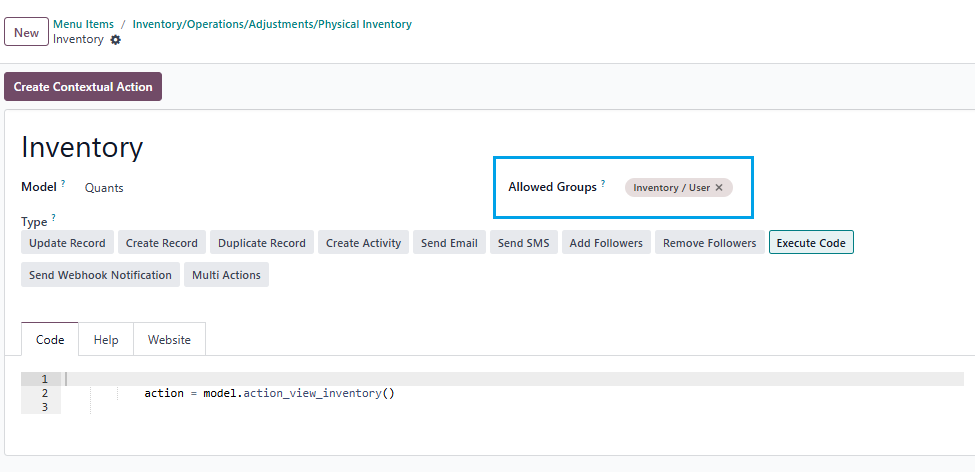
0
Avatar
Annuleer
Avatar
Cybrosys Techno Solutions Pvt.Ltd
Beste antwoord

Hi,

You can set access rights in a model by navigating to Settings → Technical → Database Structure → Models. First, you need to enable Developer Mode.

stock.quant is the model used for physical inventory. If you open the stock.quant model, you can see tabs such as Fields, Access Rights, Record Rules, Notes, and Views. You can set access rights under the Access Rights tab in the model
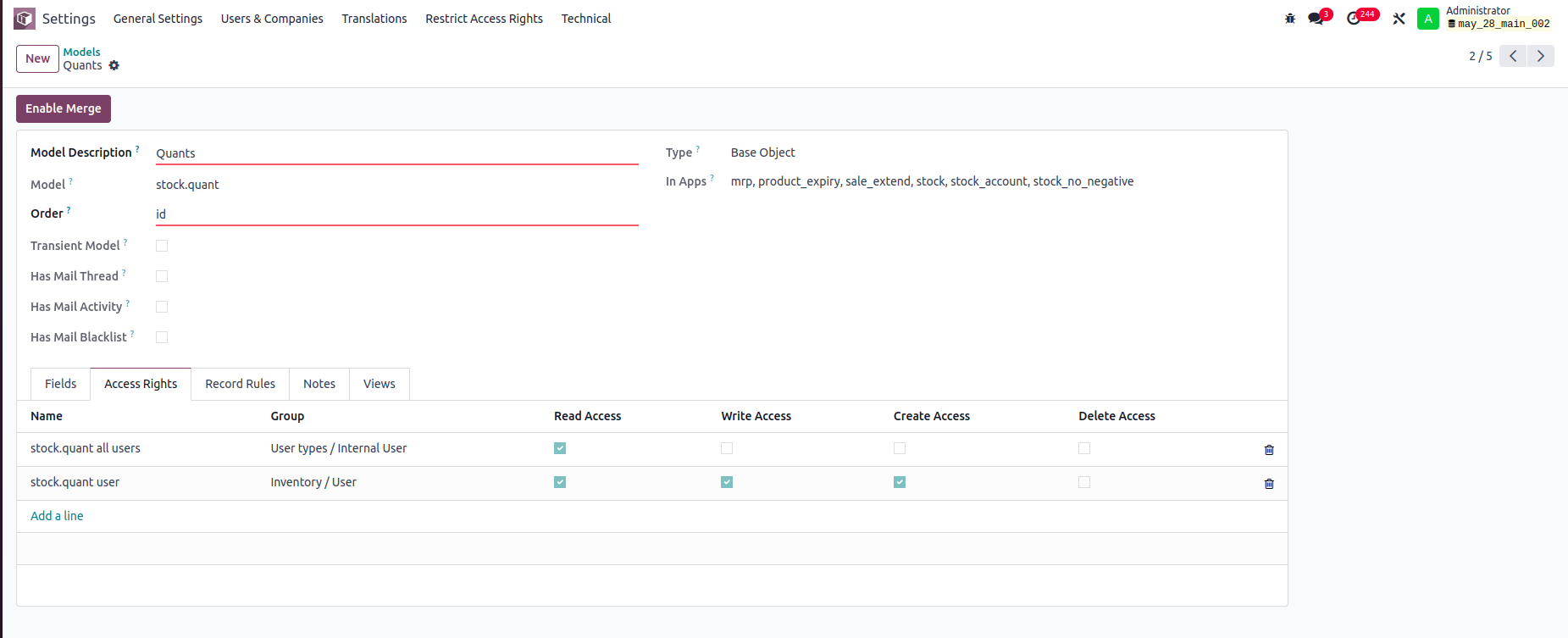


In this example:

-Internal Users can only read stock.quant records.

-Inventory Users can read, write, and create stock.quant records, but cannot delete them.

You can set read, write, create, and delete access rights for a model based on user groups


Record rule:

In Odoo, Record Rules define which records users can access within a model, based on filter conditions (domains) and user groups.



- Users can access only the stock quant records that belong to departments they are associated with.


Hope it helps.


0
Avatar
Annuleer
Avatar
Tatvamasi Labs, Piyush H
Beste antwoord

To give a non-administrator user access to the physical inventory menu in Odoo, you need to adjust their access rights. Here's how you can do it, along with the relevant access rights name and model:

1. Access Rights and Model

  • Model: ir.model.access
  • You'll need to find or create an access right record that grants the necessary permissions for the "inventory.adjustment" model (which is used for physical inventories).

2. Steps to Grant Access

Activate Developer Mode:

  • First, activate Odoo's developer mode. Go to Settings and scroll down to the bottom of the page. Click "Activate the developer mode".

Navigate to Groups:

  • Go to Settings > Users & Companies > Groups.

Edit or Create a Group:

  • You can either modify an existing group or create a new one for your inventory users.
  • To create a new group, click "Create". Give it a descriptive name (e.g., "Inventory Counter").

Access Rights Tab:

  • In the group form, go to the "Access Rights" tab.
  • Click "Add a line".
  • In the "Model" field, search for and select "inventory.adjustment".
  • Enable the following options as appropriate:
    • Read: Allows the user to see existing physical inventory records.
    • Create: Allows the user to create new physical inventory records.
    • Write: Allows the user to edit existing physical inventory records.
    • Delete: Allows the user to delete physical inventory records (use caution with this one).

Assign Users to the Group:

  • Go to the "Users" tab on the group form.
  • Click "Add a line" and add the users who need access to physical inventories.

Important Considerations

  • Existing Groups: Carefully consider whether to modify existing groups. Adding users to powerful groups (like "Inventory / User") might grant them more access than you intend.
  • Minimum Necessary Access: Grant only the minimum access required for the user to perform their job.
  • Testing: Always test the new access rights to ensure they work as expected and don't grant unintended permissions.
  • Administrator Role: Only a user with "Access Rights" administration rights can modify access rights. Be careful when changing these settings, as incorrect settings can negatively impact your database. Odoo recommends contacting an Odoo Business Analyst or their Support Team before making changes to access rights.


🚀 Did This Solve Your Problem?

If this answer helped you save time, money, or frustration, consider:

✅ Upvoting (👍) to help others find it faster

✅ Marking as "Best Answer" if it resolved your issue

Your feedback keeps the Odoo community strong! 💪

(Need further customization? Drop a comment—I’m happy to refine the solution!)

-1
Avatar
Annuleer
Chris TRINGHAM

Do you really want feedback?

This answer is partially correct, but a lot of the advice is very misleading or just wrong and therefore unhelpful. So it won't save people time, and it will increase frustration.

Geniet je van het gesprek? Blijf niet alleen lezen, doe ook mee!

Maak vandaag nog een account aan om te profiteren van exclusieve functies en deel uit te maken van onze geweldige community!

Aanmelden
Gerelateerde posts Antwoorden Weergaven Activiteit
Restrict product quantity adjustments for Inventory / Users ✅ SOLVED
inventory access rights InventoryAdjustment Quickstart
Avatar
Avatar
1
mrt. 25
4356
How to override base model access rights in my custom module? Opgelost
security model override access rights
Avatar
Avatar
1
apr. 25
13143
Back Date Inventory adjustment excel import Opgelost
InventoryAdjustment
Avatar
Avatar
1
jul. 25
2820
Inventory Adjustment page is Blank | Would like to manually edit inventory numbers for initial count
InventoryAdjustment
Avatar
Avatar
Avatar
2
jun. 25
2841
Odoo Enterprise 16 Inventory Adjustment Set to ZERO Products in Locations Opgelost
InventoryAdjustment
Avatar
Avatar
Avatar
2
dec. 24
6102
Community
  • Tutorials
  • Documentatie
  • Forum
Open Source
  • Downloaden
  • Github
  • Runbot
  • Vertalingen
Diensten
  • Odoo.sh Hosting
  • Ondersteuning
  • Upgrade
  • Gepersonaliseerde ontwikkelingen
  • Onderwijs
  • Vind een boekhouder
  • Vind een partner
  • Partner worden
Over ons
  • Ons bedrijf
  • Merkelementen
  • Neem contact met ons op
  • Vacatures
  • Evenementen
  • Podcast
  • Blog
  • Klanten
  • Juridisch • Privacy
  • Beveiliging
الْعَرَبيّة Català 简体中文 繁體中文 (台灣) Čeština Dansk Nederlands English Suomi Français Deutsch हिंदी Bahasa Indonesia Italiano 日本語 한국어 (KR) Lietuvių kalba Język polski Português (BR) română русский язык Slovenský jazyk Slovenščina Español (América Latina) Español Svenska ภาษาไทย Türkçe українська Tiếng Việt

Odoo is een suite van open source zakelijke apps die aan al je bedrijfsbehoeften voldoet: CRM, E-commerce, boekhouding, inventaris, kassasysteem, projectbeheer, enz.

Odoo's unieke waardepropositie is om tegelijkertijd zeer gebruiksvriendelijk en volledig geïntegreerd te zijn.

Website made with

Odoo Experience on YouTube

1. Use the live chat to ask your questions.
2. The operator answers within a few minutes.

Live support on Youtube
Watch now