콘텐츠로 건너뛰기
Odoo 메뉴
  • 로그인
  • 무료 체험하기
  • 앱
    재무 관리
    • 회계
    • 청구서 관리
    • 비용 관리
    • 스프레드시트 (BI)
    • 문서
    • 전자 서명
    판매
    • CRM
    • 판매
    • POS 스토어
    • POS 레스토랑
    • 구독
    • 렌탈
    웹사이트
    • 웹사이트 빌더
    • 이커머스
    • 블로그
    • 포럼
    • 실시간 채팅
    • 온라인 학습 관리
    공급망
    • 재고 관리
    • 제조 관리
    • 제품 수명주기 관리 (PLM)
    • 매입
    • 유지관리
    • 품질
    인적자원 관리
    • 인사 관리
    • 채용
    • 휴가 관리
    • 인사 평가
    • 인재 추천
    • 차량 관리
    마케팅
    • 소셜 마케팅
    • 이메일 마케팅
    • SMS 마케팅
    • 행사
    • 마케팅 자동화
    • 설문 조사
    서비스
    • 프로젝트
    • 작업 기록
    • 현장 서비스
    • 헬프데스크
    • 일정 관리
    • 일정 예약
    생산성
    • 메일 및 채팅
    • 인공지능
    • IoT
    • VoIP
    • 지식 센터
    • WhatsApp
    타사 앱 Odoo 스튜디오 Odoo 클라우드 플랫폼
  • 업종 분류
    리테일
    • 서점
    • 의류 매장
    • 가구점
    • 식료품점
    • 철물점
    • 장난감 가게
    식음료 & 숙박업
    • 바 & 펍
    • 레스토랑
    • 패스트푸드
    • 게스트 하우스
    • 음료 유통업체
    • 호텔
    부동산
    • 부동산 중개업체
    • 건축 회사
    • 건설
    • 부동산 관리
    • 가드닝
    • 부동산 소유자 협회
    컨설팅
    • 회계 법인
    • Odoo 파트너
    • 마케팅 대행사
    • 법률 사무소
    • 인재 영입
    • 감사 및 인증
    제조 관리
    • 텍스타일
    • 메탈
    • 가구
    • 푸드
    • 양조장
    • 기업용 선물
    건강 & 피트니스
    • 스포츠 클럽
    • 안경점
    • 피트니스 센터
    • 웰니스 전문가
    • 약국
    • 미용실
    사업
    • 핸디맨
    • IT 하드웨어 및 지원 서비스
    • 태양 에너지 시스템
    • 제화업체
    • 클리닝 서비스
    • HVAC 서비스
    기타
    • 비영리 단체
    • 환경 에이전시
    • 광고판 임대
    • 사진
    • 자전거 임대
    • 소프트웨어 리셀러
    전체 업종 검색하기
  • 커뮤니티
    학습
    • 튜토리얼
    • 문서
    • 인증
    • 훈련
    • 블로그
    • 팟캐스트
    교육 역량 강화
    • 교육 프로그램
    • Scale-Up! 경영관리 게임
    • Odoo에 방문해보세요
    소프트웨어 신청
    • 다운로드
    • 버전 살펴보기
    • 릴리스 내역
    협업
    • Github
    • 포럼
    • 행사
    • 번역
    • 파트너 등록
    • 파트너 대상 서비스
    • 회계 법인 정보 등록
    서비스 신청
    • 파트너 검색
    • 회계사 검색
    • 전문 상담 예약
    • 구현 서비스
    • 고객 정보
    • 고객 지원
    • 업그레이드
    Github 유튜브 트위터 링크드인 인스타그램 페이스북 스포티파이
    +1 (650) 691-3277
    데모 예약하기
  • 요금제
  • 고객 지원
커뮤니티에 참여하려면 회원 가입을 하시기 바랍니다.
모든 게시물 사용자 배지
태그 (모두 보기)
odoo accounting v14 pos v15
게시판 정보
커뮤니티에 참여하려면 회원 가입을 하시기 바랍니다.
모든 게시물 사용자 배지
태그 (모두 보기)
odoo accounting v14 pos v15
게시판 정보
도움말

Physical Inventory Access Rights

구독

이 게시물에 활동이 있으면 알림 받기

신고된 질문입니다
modelaccess rightsInventoryAdjustment
3 답글
3300 화면
아바타
National Co.

Hi


How to give a non-administrator user access to the physical inventory menu?


Can anyone tell me the "Access Rights name and model"?


Thanks

0
아바타
취소
Chris TRINGHAM

Which version of Odoo?

National Co.
작성자

Hello Piyush

I can't find  ir.model.access, my database version is saas~18.2+e (Enterprise Edition)

If that's normal, how to create it if it doesn't exist?


For all the rest steps, I can do it.


Thanks


Chris TRINGHAM

In v18 inventory users should be able to access the Physical Inventory menu, but the Cybrosys answer should help you (but I don't think departments are a standard feature).

National Co.
작성자

Hello Cybrosys


I have added the "Limited User" to stock.quant model as the picture, but still get "Access Error." 


Should I create a "Record rule" for the Limited User Group? If so, how do I creat this rule?


Thanks

image0


Chris TRINGHAM

What does the error message say? It might give you a clue.

You can read this to get more information: https://odootricks.tips/odoo-model-access/

National Co.
작성자

Hello Chris

The user I need to grant permission to is not standard; it's custom (named Limited User), with specific menus and access rights.

Bellow the error message when I click Physical Inventory...


Thanks


Chris TRINGHAM

I see, so you have created a new user access group for the "Inventory / Limited User" which can do physical inventory but not some other things.

This is a complex area and from my own experience it needs a lot of checking and testing ("trial and error") and it's very difficult to diagnose the problem(s) from screenshots.

National Co.
작성자

Hello Chris


Yes, it's a new user access group with specified access rights.


Do you mean this place?, If not, where to find it?

Thanks

Chris TRINGHAM

Yes, see my updated answer.

National Co.
작성자

Hello Chris

Thank you very much for your help; it's worked like a charm after adding the "Limited User" to the menu Allowed Groups.


아바타
Chris TRINGHAM
베스트 답변

I think it may because this menu option calls a Server Action that is only available for Inventory / User

Go to menu items, find Physical Inventory and then click on the second part of the Action

Then you can change who is authorized:
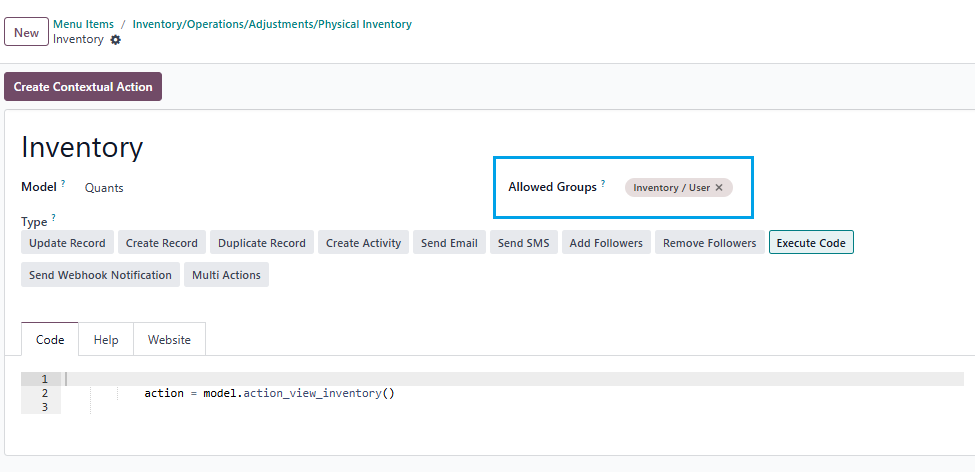
0
아바타
취소
아바타
Cybrosys Techno Solutions Pvt.Ltd
베스트 답변

Hi,

You can set access rights in a model by navigating to Settings → Technical → Database Structure → Models. First, you need to enable Developer Mode.

stock.quant is the model used for physical inventory. If you open the stock.quant model, you can see tabs such as Fields, Access Rights, Record Rules, Notes, and Views. You can set access rights under the Access Rights tab in the model
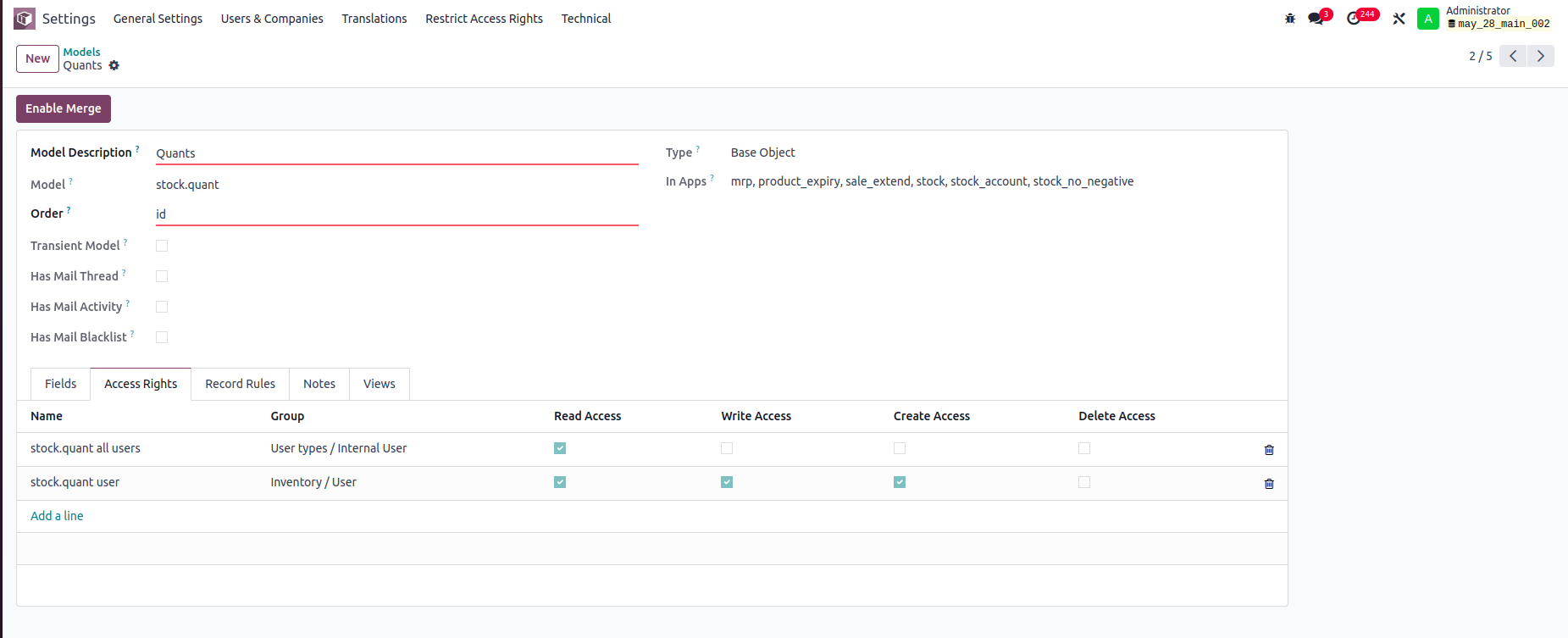


In this example:

-Internal Users can only read stock.quant records.

-Inventory Users can read, write, and create stock.quant records, but cannot delete them.

You can set read, write, create, and delete access rights for a model based on user groups


Record rule:

In Odoo, Record Rules define which records users can access within a model, based on filter conditions (domains) and user groups.



- Users can access only the stock quant records that belong to departments they are associated with.


Hope it helps.


0
아바타
취소
아바타
Tatvamasi Labs, Piyush H
베스트 답변

To give a non-administrator user access to the physical inventory menu in Odoo, you need to adjust their access rights. Here's how you can do it, along with the relevant access rights name and model:

1. Access Rights and Model

  • Model: ir.model.access
  • You'll need to find or create an access right record that grants the necessary permissions for the "inventory.adjustment" model (which is used for physical inventories).

2. Steps to Grant Access

Activate Developer Mode:

  • First, activate Odoo's developer mode. Go to Settings and scroll down to the bottom of the page. Click "Activate the developer mode".

Navigate to Groups:

  • Go to Settings > Users & Companies > Groups.

Edit or Create a Group:

  • You can either modify an existing group or create a new one for your inventory users.
  • To create a new group, click "Create". Give it a descriptive name (e.g., "Inventory Counter").

Access Rights Tab:

  • In the group form, go to the "Access Rights" tab.
  • Click "Add a line".
  • In the "Model" field, search for and select "inventory.adjustment".
  • Enable the following options as appropriate:
    • Read: Allows the user to see existing physical inventory records.
    • Create: Allows the user to create new physical inventory records.
    • Write: Allows the user to edit existing physical inventory records.
    • Delete: Allows the user to delete physical inventory records (use caution with this one).

Assign Users to the Group:

  • Go to the "Users" tab on the group form.
  • Click "Add a line" and add the users who need access to physical inventories.

Important Considerations

  • Existing Groups: Carefully consider whether to modify existing groups. Adding users to powerful groups (like "Inventory / User") might grant them more access than you intend.
  • Minimum Necessary Access: Grant only the minimum access required for the user to perform their job.
  • Testing: Always test the new access rights to ensure they work as expected and don't grant unintended permissions.
  • Administrator Role: Only a user with "Access Rights" administration rights can modify access rights. Be careful when changing these settings, as incorrect settings can negatively impact your database. Odoo recommends contacting an Odoo Business Analyst or their Support Team before making changes to access rights.


🚀 Did This Solve Your Problem?

If this answer helped you save time, money, or frustration, consider:

✅ Upvoting (👍) to help others find it faster

✅ Marking as "Best Answer" if it resolved your issue

Your feedback keeps the Odoo community strong! 💪

(Need further customization? Drop a comment—I’m happy to refine the solution!)

-1
아바타
취소
Chris TRINGHAM

Do you really want feedback?

This answer is partially correct, but a lot of the advice is very misleading or just wrong and therefore unhelpful. So it won't save people time, and it will increase frustration.

토론이 재미있으신가요? 직접 참여해보세요!

지금 바로 가입하여 독점 서비스를 이용해보고 특별한 커뮤니티와 소통하세요!

가입
관련 게시물 답글 화면 활동
Restrict product quantity adjustments for Inventory / Users ✅ SOLVED
inventory access rights InventoryAdjustment Quickstart
아바타
아바타
1
3월 25
4384
How to override base model access rights in my custom module? 해결 완료
security model override access rights
아바타
아바타
1
4월 25
13144
Back Date Inventory adjustment excel import 해결 완료
InventoryAdjustment
아바타
아바타
1
7월 25
2830
Inventory Adjustment page is Blank | Would like to manually edit inventory numbers for initial count
InventoryAdjustment
아바타
아바타
아바타
2
6월 25
2842
Odoo Enterprise 16 Inventory Adjustment Set to ZERO Products in Locations 해결 완료
InventoryAdjustment
아바타
아바타
아바타
2
12월 24
6104
커뮤니티
  • 튜토리얼
  • 문서
  • 포럼
오픈 소스
  • 다운로드
  • Github
  • Runbot
  • 번역
서비스
  • Odoo.sh 호스팅
  • 고객 지원
  • 업그레이드
  • 맞춤 개발
  • 학습
  • 회계사 검색
  • 파트너 검색
  • 파트너 등록
회사 소개
  • 회사 소개
  • 브랜드 자산
  • 상담 문의
  • 인재 채용
  • 행사
  • 팟캐스트
  • 블로그
  • 고객 사례
  • 법적고지 • 개인정보
  • 보안
الْعَرَبيّة Català 简体中文 繁體中文 (台灣) Čeština Dansk Nederlands English Suomi Français Deutsch हिंदी Bahasa Indonesia Italiano 日本語 한국어 (KR) Lietuvių kalba Język polski Português (BR) română русский язык Slovenský jazyk Slovenščina Español (América Latina) Español Svenska ภาษาไทย Türkçe українська Tiếng Việt

Odoo는 CRM, 이커머스, 회계, 재고, POS, 프로젝트 관리 등 기업의 모든 요구 사항을 충족하도록 설계된 오픈 소스 기반의 통합 비즈니스 앱 제품군입니다.

Odoo의 간편한 UI와 완벽하게 통합된 기능을 직접 확인해 보세요.

Website made with

Odoo Experience on YouTube

1. Use the live chat to ask your questions.
2. The operator answers within a few minutes.

Live support on Youtube
Watch now