Skip ke Konten
Odoo Menu
  • Login
  • Uji coba gratis
  • Aplikasi
    Keuangan
    • Akuntansi
    • Faktur
    • Pengeluaran
    • Spreadsheet (BI)
    • Dokumen
    • Tanda Tangan
    Sales
    • CRM
    • Sales
    • POS Toko
    • POS Restoran
    • Langganan
    • Rental
    Website
    • Website Builder
    • eCommerce
    • Blog
    • Forum
    • Live Chat
    • eLearning
    Supply Chain
    • Inventaris
    • Manufaktur
    • PLM
    • Purchase
    • Maintenance
    • Kualitas
    Sumber Daya Manusia
    • Karyawan
    • Rekrutmen
    • Cuti
    • Appraisal
    • Referensi
    • Armada
    Marketing
    • Social Marketing
    • Email Marketing
    • SMS Marketing
    • Acara
    • Otomatisasi Marketing
    • Survei
    Layanan
    • Project
    • Timesheet
    • Layanan Lapangan
    • Meja Bantuan
    • Planning
    • Appointment
    Produktivitas
    • Discuss
    • Kecerdasan Buatan
    • IoT
    • VoIP
    • Pengetahuan
    • WhatsApp
    Aplikasi pihak ketiga Odoo Studio Platform Odoo Cloud
  • Industri
    Retail
    • Toko Buku
    • Toko Baju
    • Toko Furnitur
    • Toko Kelontong
    • Toko Hardware
    • Toko Mainan
    Makanan & Hospitality
    • Bar dan Pub
    • Restoran
    • Fast Food
    • Rumah Tamu
    • Distributor Minuman
    • Hotel
    Real Estate
    • Agensi Real Estate
    • Firma Arsitektur
    • Konstruksi
    • Manajemen Properti
    • Perkebunan
    • Asosiasi Pemilik Properti
    Konsultansi
    • Firma Akuntansi
    • Mitra Odoo
    • Agensi Marketing
    • Firma huku
    • Talent Acquisition
    • Audit & Sertifikasi
    Manufaktur
    • Tekstil
    • Logam
    • Perabotan
    • Makanan
    • Brewery
    • Corporate Gift
    Kesehatan & Fitness
    • Sports Club
    • Toko Kacamata
    • Fitness Center
    • Wellness Practitioners
    • Farmasi
    • Salon Rambut
    Perdagangan
    • Handyman
    • IT Hardware & Support
    • Sistem-Sistem Energi Surya
    • Pembuat Sepatu
    • Cleaning Service
    • Layanan HVAC
    Lainnya
    • Organisasi Nirlaba
    • Agen Lingkungan
    • Rental Billboard
    • Fotografi
    • Penyewaan Sepeda
    • Reseller Software
    Browse semua Industri
  • Komunitas
    Belajar
    • Tutorial-tutorial
    • Dokumentasi
    • Sertifikasi
    • Pelatihan
    • Blog
    • Podcast
    Empower Education
    • Program Edukasi
    • Game Bisnis 'Scale Up!'
    • Kunjungi Odoo
    Dapatkan Softwarenya
    • Download
    • Bandingkan Edisi
    • Daftar Rilis
    Kolaborasi
    • Github
    • Forum
    • Acara
    • Terjemahan
    • Menjadi Partner
    • Layanan untuk Partner
    • Daftarkan perusahaan Akuntansi Anda.
    Dapatkan Layanan
    • Temukan Mitra
    • Temukan Akuntan
    • Konsultasi
    • Layanan Implementasi
    • Referensi Pelanggan
    • Bantuan
    • Upgrades
    Github Youtube Twitter Linkedin Instagram Facebook Spotify
    +1 (650) 691-3277
    Dapatkan demo
  • Harga
  • Bantuan
Anda harus terdaftar untuk dapat berinteraksi di komunitas.
Semua Post Orang Lencana-Lencana
Label (Lihat semua)
odoo accounting v14 pos v15
Mengenai forum ini
Anda harus terdaftar untuk dapat berinteraksi di komunitas.
Semua Post Orang Lencana-Lencana
Label (Lihat semua)
odoo accounting v14 pos v15
Mengenai forum ini
Help

Physical Inventory Access Rights

Langganan

Dapatkan notifikasi saat terdapat aktivitas pada post ini

Pertanyaan ini telah diberikan tanda
modelaccess rightsInventoryAdjustment
3 Replies
3283 Tampilan
Avatar
National Co.

Hi


How to give a non-administrator user access to the physical inventory menu?


Can anyone tell me the "Access Rights name and model"?


Thanks

0
Avatar
Buang
Chris TRINGHAM

Which version of Odoo?

National Co.
Penulis

Hello Piyush

I can't find  ir.model.access, my database version is saas~18.2+e (Enterprise Edition)

If that's normal, how to create it if it doesn't exist?


For all the rest steps, I can do it.


Thanks


Chris TRINGHAM

In v18 inventory users should be able to access the Physical Inventory menu, but the Cybrosys answer should help you (but I don't think departments are a standard feature).

National Co.
Penulis

Hello Cybrosys


I have added the "Limited User" to stock.quant model as the picture, but still get "Access Error." 


Should I create a "Record rule" for the Limited User Group? If so, how do I creat this rule?


Thanks

image0


Chris TRINGHAM

What does the error message say? It might give you a clue.

You can read this to get more information: https://odootricks.tips/odoo-model-access/

National Co.
Penulis

Hello Chris

The user I need to grant permission to is not standard; it's custom (named Limited User), with specific menus and access rights.

Bellow the error message when I click Physical Inventory...


Thanks


Chris TRINGHAM

I see, so you have created a new user access group for the "Inventory / Limited User" which can do physical inventory but not some other things.

This is a complex area and from my own experience it needs a lot of checking and testing ("trial and error") and it's very difficult to diagnose the problem(s) from screenshots.

National Co.
Penulis

Hello Chris


Yes, it's a new user access group with specified access rights.


Do you mean this place?, If not, where to find it?

Thanks

Chris TRINGHAM

Yes, see my updated answer.

National Co.
Penulis

Hello Chris

Thank you very much for your help; it's worked like a charm after adding the "Limited User" to the menu Allowed Groups.


Avatar
Chris TRINGHAM
Jawaban Terbai

I think it may because this menu option calls a Server Action that is only available for Inventory / User

Go to menu items, find Physical Inventory and then click on the second part of the Action

Then you can change who is authorized:
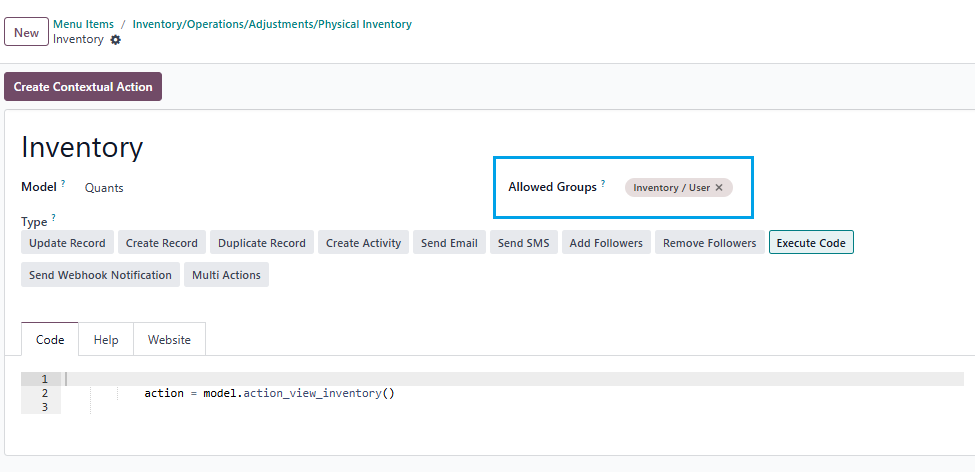
0
Avatar
Buang
Avatar
Cybrosys Techno Solutions Pvt.Ltd
Jawaban Terbai

Hi,

You can set access rights in a model by navigating to Settings → Technical → Database Structure → Models. First, you need to enable Developer Mode.

stock.quant is the model used for physical inventory. If you open the stock.quant model, you can see tabs such as Fields, Access Rights, Record Rules, Notes, and Views. You can set access rights under the Access Rights tab in the model
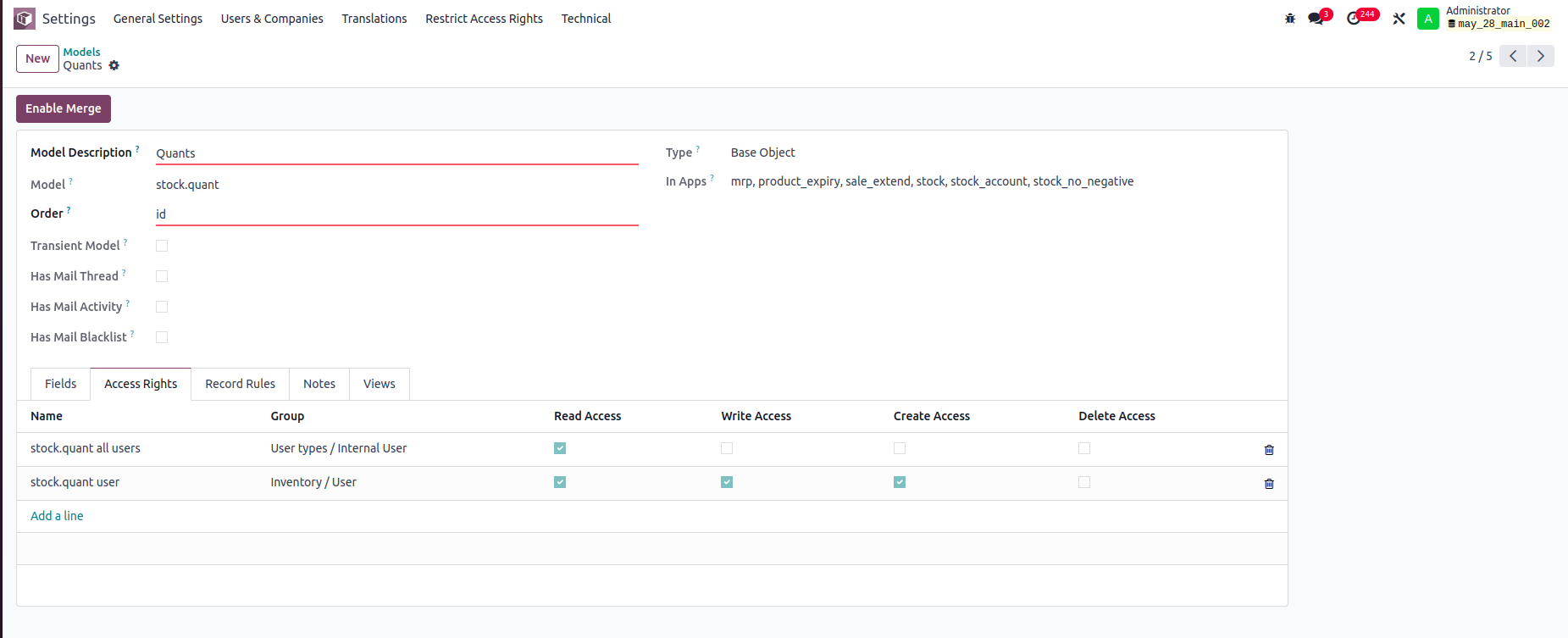


In this example:

-Internal Users can only read stock.quant records.

-Inventory Users can read, write, and create stock.quant records, but cannot delete them.

You can set read, write, create, and delete access rights for a model based on user groups


Record rule:

In Odoo, Record Rules define which records users can access within a model, based on filter conditions (domains) and user groups.



- Users can access only the stock quant records that belong to departments they are associated with.


Hope it helps.


0
Avatar
Buang
Avatar
Tatvamasi Labs, Piyush H
Jawaban Terbai

To give a non-administrator user access to the physical inventory menu in Odoo, you need to adjust their access rights. Here's how you can do it, along with the relevant access rights name and model:

1. Access Rights and Model

  • Model: ir.model.access
  • You'll need to find or create an access right record that grants the necessary permissions for the "inventory.adjustment" model (which is used for physical inventories).

2. Steps to Grant Access

Activate Developer Mode:

  • First, activate Odoo's developer mode. Go to Settings and scroll down to the bottom of the page. Click "Activate the developer mode".

Navigate to Groups:

  • Go to Settings > Users & Companies > Groups.

Edit or Create a Group:

  • You can either modify an existing group or create a new one for your inventory users.
  • To create a new group, click "Create". Give it a descriptive name (e.g., "Inventory Counter").

Access Rights Tab:

  • In the group form, go to the "Access Rights" tab.
  • Click "Add a line".
  • In the "Model" field, search for and select "inventory.adjustment".
  • Enable the following options as appropriate:
    • Read: Allows the user to see existing physical inventory records.
    • Create: Allows the user to create new physical inventory records.
    • Write: Allows the user to edit existing physical inventory records.
    • Delete: Allows the user to delete physical inventory records (use caution with this one).

Assign Users to the Group:

  • Go to the "Users" tab on the group form.
  • Click "Add a line" and add the users who need access to physical inventories.

Important Considerations

  • Existing Groups: Carefully consider whether to modify existing groups. Adding users to powerful groups (like "Inventory / User") might grant them more access than you intend.
  • Minimum Necessary Access: Grant only the minimum access required for the user to perform their job.
  • Testing: Always test the new access rights to ensure they work as expected and don't grant unintended permissions.
  • Administrator Role: Only a user with "Access Rights" administration rights can modify access rights. Be careful when changing these settings, as incorrect settings can negatively impact your database. Odoo recommends contacting an Odoo Business Analyst or their Support Team before making changes to access rights.


🚀 Did This Solve Your Problem?

If this answer helped you save time, money, or frustration, consider:

✅ Upvoting (👍) to help others find it faster

✅ Marking as "Best Answer" if it resolved your issue

Your feedback keeps the Odoo community strong! 💪

(Need further customization? Drop a comment—I’m happy to refine the solution!)

-1
Avatar
Buang
Chris TRINGHAM

Do you really want feedback?

This answer is partially correct, but a lot of the advice is very misleading or just wrong and therefore unhelpful. So it won't save people time, and it will increase frustration.

Menikmati diskusi? Jangan hanya membaca, ikuti!

Buat akun sekarang untuk menikmati fitur eksklufi dan agar terlibat dengan komunitas kami!

Daftar
Post Terkait Replies Tampilan Aktivitas
Restrict product quantity adjustments for Inventory / Users ✅ SOLVED
inventory access rights InventoryAdjustment Quickstart
Avatar
Avatar
1
Mar 25
4356
How to override base model access rights in my custom module? Diselesaikan
security model override access rights
Avatar
Avatar
1
Apr 25
13140
Back Date Inventory adjustment excel import Diselesaikan
InventoryAdjustment
Avatar
Avatar
1
Jul 25
2819
Inventory Adjustment page is Blank | Would like to manually edit inventory numbers for initial count
InventoryAdjustment
Avatar
Avatar
Avatar
2
Jun 25
2841
Odoo Enterprise 16 Inventory Adjustment Set to ZERO Products in Locations Diselesaikan
InventoryAdjustment
Avatar
Avatar
Avatar
2
Des 24
6102
Komunitas
  • Tutorial-tutorial
  • Dokumentasi
  • Forum
Open Source
  • Download
  • Github
  • Runbot
  • Terjemahan
Layanan
  • Odoo.sh Hosting
  • Bantuan
  • Peningkatan
  • Custom Development
  • Pendidikan
  • Temukan Akuntan
  • Temukan Mitra
  • Menjadi Partner
Tentang Kami
  • Perusahaan kami
  • Aset Merek
  • Hubungi kami
  • Karir
  • Acara
  • Podcast
  • Blog
  • Pelanggan
  • Hukum • Privasi
  • Keamanan
الْعَرَبيّة Català 简体中文 繁體中文 (台灣) Čeština Dansk Nederlands English Suomi Français Deutsch हिंदी Bahasa Indonesia Italiano 日本語 한국어 (KR) Lietuvių kalba Język polski Português (BR) română русский язык Slovenský jazyk Slovenščina Español (América Latina) Español Svenska ภาษาไทย Türkçe українська Tiếng Việt

Odoo adalah software terintegrasi dengan 70+ aplikasi seperti CRM, Akuntansi, Inventaris, Sales, eCommerce, Marketing, POS; plus fitur lokal Indonesia!

Mudah digunakan dan terintegrasi penuh pada saat yang sama adalah value proposition unik Odoo.

Website made with

Odoo Experience on YouTube

1. Use the live chat to ask your questions.
2. The operator answers within a few minutes.

Live support on Youtube
Watch now