Pular para o conteúdo
Odoo Menu
  • Entrar
  • Experimente grátis
  • Aplicativos
    Finanças
    • Financeiro
    • Faturamento
    • Despesas
    • Planilhas (BI)
    • Documentos
    • Assinar Documentos
    Vendas
    • CRM
    • Vendas
    • PDV Loja
    • PDV Restaurantes
    • Assinaturas
    • Locação
    Websites
    • Criador de Sites
    • e-Commerce
    • Blog
    • Fórum
    • Chat ao Vivo
    • e-Learning
    Cadeia de mantimentos
    • Inventário
    • Fabricação
    • PLM - Ciclo de Vida do Produto
    • Compras
    • Manutenção
    • Qualidade
    Recursos Humanos
    • Funcionários
    • Recrutamento
    • Folgas
    • Avaliações
    • Indicações
    • Frota
    Marketing
    • Redes Sociais
    • Marketing por E-mail
    • Marketing por SMS
    • Eventos
    • Automação de Marketing
    • Pesquisas
    Serviços
    • Projeto
    • Planilhas de Horas
    • Serviço de Campo
    • Central de Ajuda
    • Planejamento
    • Compromissos
    Produtividade
    • Mensagens
    • Inteligência Artificial
    • Internet das Coisas
    • VoIP
    • Conhecimento
    • WhatsApp
    Aplicativos de terceiros Odoo Studio Plataforma Odoo Cloud
  • Setores
    Varejo
    • Loja de livros
    • Loja de roupas
    • Loja de móveis
    • Mercearia
    • Loja de ferramentas
    • Loja de brinquedos
    Comida e hospitalidade
    • Bar e Pub
    • Restaurante
    • Fast Food
    • Hospedagem
    • Distribuidor de bebidas
    • Hotel
    Imóveis
    • Imobiliária
    • Escritório de arquitetura
    • Construção
    • Gestão de Imóveis
    • Jardinagem
    • Associação de proprietários de imóveis
    Consultoria
    • Escritório de Contabilidade
    • Parceiro Odoo
    • Agência de marketing
    • Escritório de advocacia
    • Aquisição de talentos
    • Auditoria e Certificação
    Fabricação
    • Têxtil
    • Metal
    • Móveis
    • Alimentação
    • Cervejaria
    • Presentes corporativos
    Saúde e Boa forma
    • Clube esportivo
    • Loja de óculos
    • Academia
    • Profissionais de bem-estar
    • Farmácia
    • Salão de cabeleireiro
    Comércio
    • Handyman
    • Hardware e Suporte de TI
    • Sistemas de energia solar
    • Sapataria
    • Serviços de limpeza
    • Serviços de climatização
    Outros
    • Organização sem fins lucrativos
    • Agência Ambiental
    • Aluguel de outdoors
    • Fotografia
    • Aluguel de bicicletas
    • Revendedor de software
    Navegar por todos os setores
  • Comunidade
    Aprenda
    • Tutoriais
    • Documentação
    • Certificações
    • Treinamento
    • Blog
    • Podcast
    Empodere a Educação
    • Programa de educação
    • Scale Up! Jogo de Negócios
    • Visite a Odoo
    Obtenha o Software
    • Baixar
    • Comparar edições
    • Releases
    Colaborar
    • Github
    • Fórum
    • Eventos
    • Traduções
    • Torne-se um parceiro
    • Serviços para parceiros
    • Cadastre seu escritório contábil
    Obtenha os serviços
    • Encontre um parceiro
    • Encontre um Contador
    • Agende uma Demonstração
    • Serviços de Implementação
    • Referências de Clientes
    • Suporte
    • Upgrades
    Github YouTube Twitter Linkedin Instagram Facebook Spotify
    +1 (650) 691-3277
    Faça uma demonstração
  • Preços
  • Ajuda
É necessário estar registrado para interagir com a comunidade.
Todas as publicações Pessoas Emblemas
Marcadores (Ver tudo)
odoo accounting v14 pos v15
Sobre este fórum
É necessário estar registrado para interagir com a comunidade.
Todas as publicações Pessoas Emblemas
Marcadores (Ver tudo)
odoo accounting v14 pos v15
Sobre este fórum
Ajuda

odo v16 inventory app

Inscrever

Seja notificado quando houver atividade nesta publicação

Esta pergunta foi sinalizada
productprinterlabelsodoo16featuresINVENTORY
3 Respostas
3817 Visualizações
Avatar
brent.desalvo

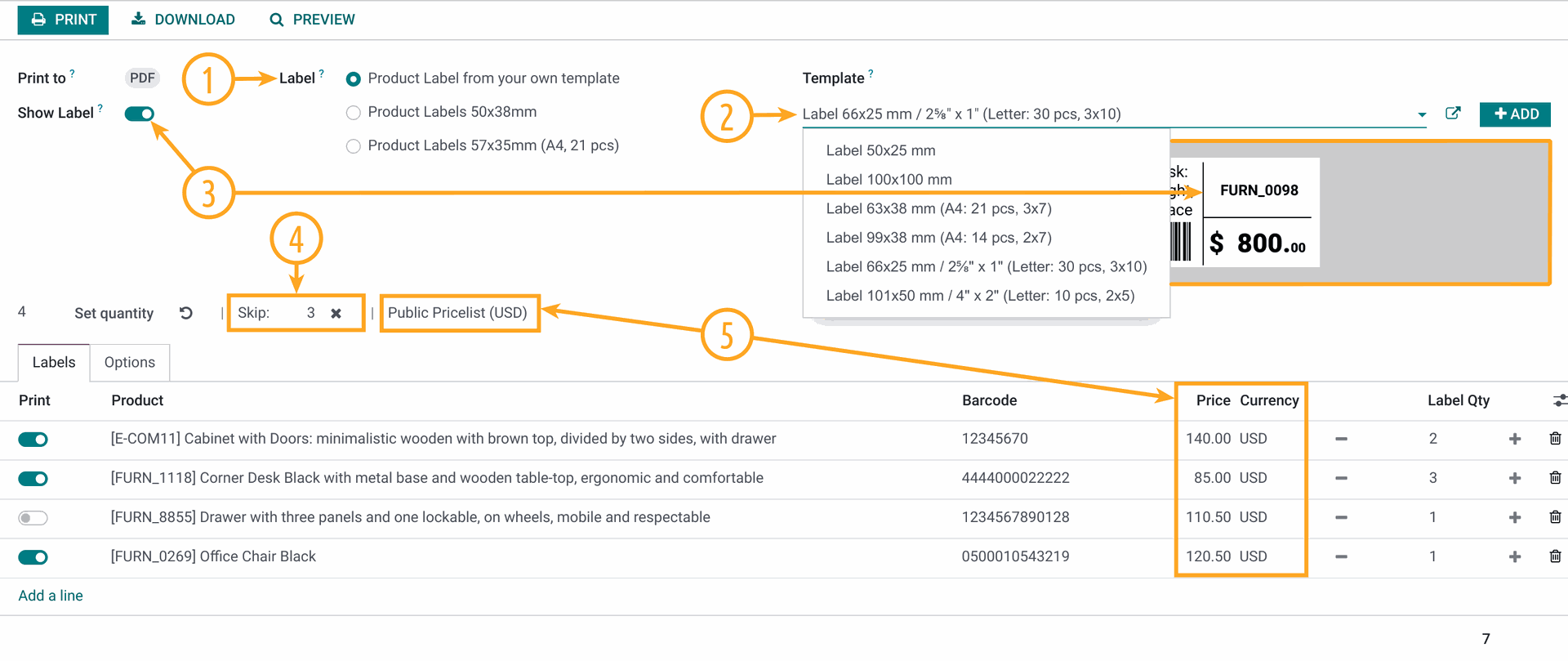
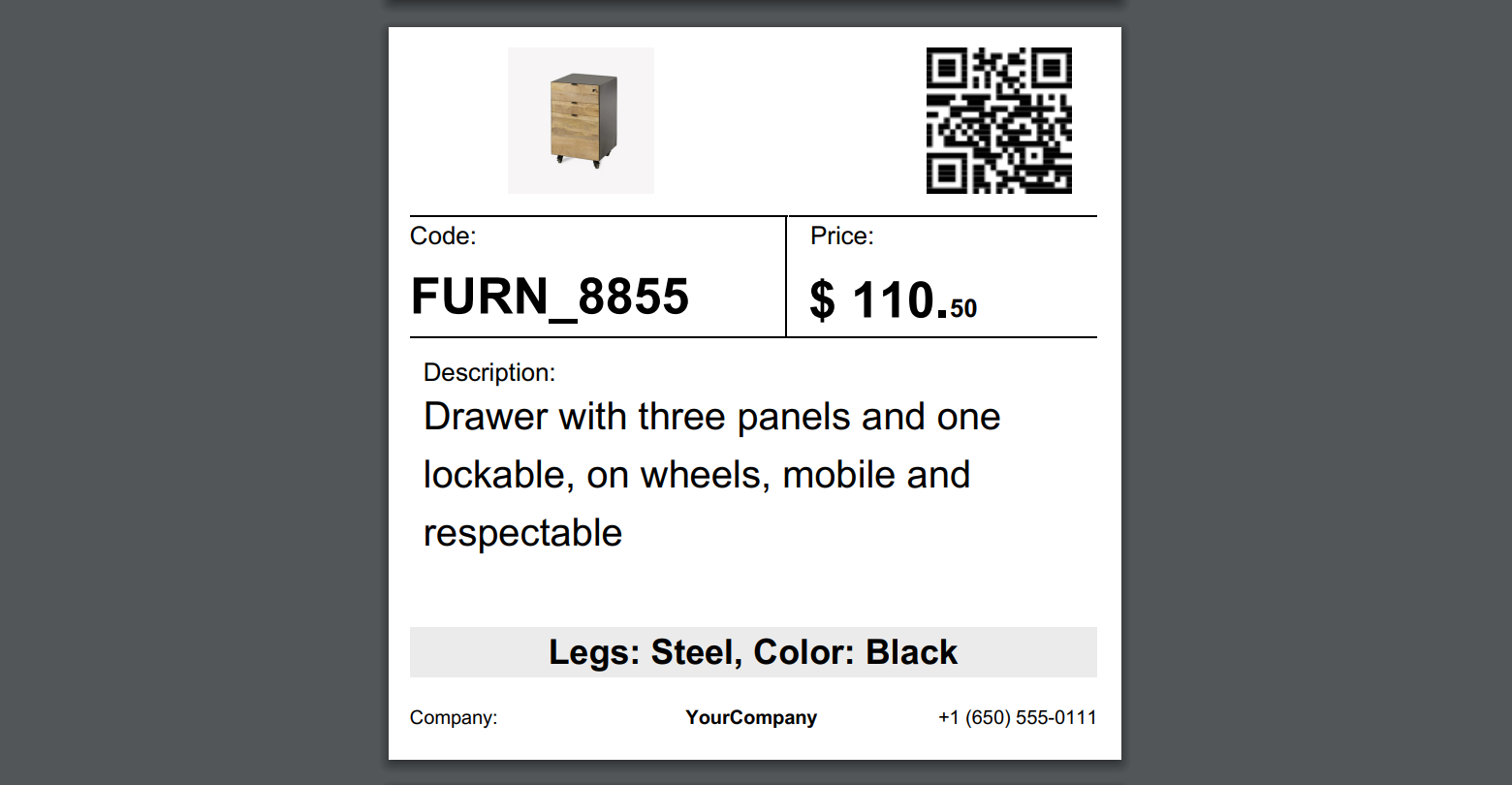
in the inventory app in ver. 16 i would like to print inventory labels.

these label i would like to print would be from the product items.

once printed they can show the product picture, and brief desc. and price  better yet and bar code to say bring item to counter scan it and it will tell me how many i have left and cost.

how can this be done?

thank you in advance..

label printer is printing on like 2x3" about size of business card or baseball card size


0
Avatar
Cancelar
Avatar
Yurii Razumovskyi
Melhor resposta

Hi Brent,

To create a barcode product label in Odoo there are two common ways:

  1. Develop own label (by yourself or with Odoo developers);
  2. Use the app that allows to print and design own labels.

The first approach is not so flexible because after the label creation, if you want to change the label you will need to go into code and change something there.

The second way is more easy and convenient if you use some Odoo module, that is developed at the high level and covered with support and assistance.

We into the product label development since 2017, in the last year, we built our Odoo Product Label Builder. It allows designing and creating your own labels by Odoo UI. You can watch details in this YouTube video.


With the Product Label Builder, you can put into labels your product data and other information from various standard Odoo apps. In this case, you need additional extensions in addition to the Product Label Builder app. The list of these extensions is the following, and you can choose ones that you need:

  • Stock Product Labels — to print from the Stock documents and use its data on your label templates: 
    • Stock Transfers (stock.picking), 
    • Stock Inventory Adjustments (stock.quant),
    • Stock Lots (stock.lot), 
    • Stock Packages (stock.quant.package), 
    • Stock Scrap (stock.scrap).
  • Product Packaging Labels — to print from Product Packaging (product.packaging) and use its data on your label templates.
  • Purchase Product Labels — to print from Purchase Orders (purchaser.order) and use its data on your label templates.
  • MRP Product Labels — to print from Manufacturing Orders (mrp.production) and use its data on your label templates.
  • MRP Workorder Labels — to print from Manufacturing Work Orders (mrp.workorder) and use its data on your label templates (Odoo Enterprise feature only).
  • Repair Product Labels — to print from Repair Orders (repair.order) and use its data on your label templates.
  • Maintenance Barcode Labels — to print from the Maintenance documents and use its data on your label templates: 
    • Maintenance Requests (maintenance.request),
    • Maintenance Equipments (maintenance.equipment).
  • Sales Product Labels  — to print from Sales Orders (sale.order) and use its data on your label templates (in the development at the current moment).


If you need additional assistance or information, please contact us.


Best regards, Yurii Razumovskyi.

Company Garazd Creation — Odoo solutions for e-Commerce, SEO, Data Feeds, Website Tracking, Marketing and Analytics integrations, Product Label designing and printing.

https://garazd.biz  |  Our solutions on Odoo Apps

0
Avatar
Cancelar
Avatar
brent.desalvo
Autor Melhor resposta

thank you for your input and time.,

this looks just about like what i am trying to complete.

i may contact you Monday in regard to maybe a little customization.

thank you i think i got your direct contact info..

thanks to all that read and responded im trying all

0
Avatar
Cancelar
Avatar
Cybrosys Techno Solutions Pvt.Ltd
Melhor resposta

Hi,

Try to Inherits the pdf template

<?xml version="1.0" encoding="UTF-8"?>
<odoo>
    <data>
        <!-- Inherit the existing label template -->
<template id="label_product_product_view" inherit_id="stock.label_product_product_view">
            <xpath expr="//t" position="after">
                <!-- Add product cost -->
<t t-foreach="range(product_info['quantity'])" t-as="qty">
                    <t t-translation="off">
                        ^FT100,185^A0N,30,24^FDCost: <t t-esc="product.standard_price" t-options='{"widget": "float", "precision": 2}'/>^FS
                    </t>
                </t>
                <!-- Add quantity on hand -->
<t t-foreach="range(product_info['quantity'])" t-as="qty">
                    <t t-translation="off">
^FT100,220^A0N,30,24^FDQty: <t t-esc="product.qty_available"/>^FS
                    </t>
                </t>
            </xpath>
        </template>

        <!-- Define Odoo report -->
        <record id="label_product_product" model="ir.actions.report">
            <field name="name">Product Label (ZPL)</field>
<field name="model">product.product</field>
<field name="report_type">qweb-text</field>
<field name="report_name">stock.label_product_product_view_inherited</field>
<field name="report_file">stock.label_product_product_view_inherited</field>
            <field name="binding_model_id" eval="False"/>
<field name="binding_type">report</field>
        </record>
    </data>
</odoo>


if you need to change the print report size, please add a new style in the print label wizard action and add a new paper format to it

class ProductLabel(models.Model):
    _inherit = 'product.product'

    print_format = fields.Selection([
        ('dymo', 'Dymo'),
        ('2x7xprice', '2 x 7 with price'),
        ('4x7xprice', '4 x 7 with price'),
        ('4x12', '4 x 12'),
        ('4x12xprice', '4 x 12 with price'),
        ('2x3', '2 x 3 (Business Card Size)')  # New size option
    ], string="Format", default='2x7xprice', required=True)

<!-- Update existing template to handle different sizes -->
<template id="label_product_product_view" inherit_id="stock.label_product_product_view">
<xpath expr="//field[@name='print_format']/selection[@name='print_format']/value[last()]" position="after">
                <value>2x3</value>
            </xpath>
        </template>

        <!-- Define Odoo report for 2x3" label size -->
        <record id="label_product_product_2x3" model="ir.actions.report">
            <field name="name">Product Label 2x3 (ZPL)</field>
<field name="model">product.product</field>
<field name="report_type">qweb-text</field>
<field name="report_name">stock.label_product_product_view_2x3</field>
<field name="report_file">stock.label_product_product_view_2x3</field>
            <field name="binding_model_id" eval="False"/>
<field name="binding_type">report</field>
        </record>


Hope it helps

0
Avatar
Cancelar
Está gostando da discussão? Não fique apenas lendo, participe!

Crie uma conta hoje mesmo para aproveitar os recursos exclusivos e interagir com nossa incrível comunidade!

Inscrever-se
Publicações relacionadas Respostas Visualizações Atividade
Print ODOO product label to zebra printer
product labels zebra odoo16features zpl
Avatar
Avatar
Avatar
Avatar
3
mar. 24
6289
How to print barcode for products Resolvido
product printer barcode ean13 labels
Avatar
Avatar
Avatar
5
dez. 23
20232
product name on product label is not printing
product labels
Avatar
Avatar
2
mar. 15
8621
Print Product Labels on Dymo 550 printer Resolvido
printer labels Dymo
Avatar
Avatar
2
ago. 25
1770
V16 Import multiple images for each product
product product_images odoo16features
Avatar
Avatar
Avatar
Avatar
Avatar
5
mar. 25
7955
Comunidade
  • Tutoriais
  • Documentação
  • Fórum
Open Source
  • Baixar
  • Github
  • Runbot
  • Traduções
Serviços
  • Odoo.sh Hosting
  • Suporte
  • Upgrade
  • Desenvolvimentos personalizados
  • Educação
  • Encontre um Contador
  • Encontre um parceiro
  • Torne-se um parceiro
Sobre nós
  • Nossa empresa
  • Ativos da marca
  • Contato
  • Empregos
  • Eventos
  • Podcast
  • Blog
  • Clientes
  • Legal • Privacidade
  • Segurança
الْعَرَبيّة Català 简体中文 繁體中文 (台灣) Čeština Dansk Nederlands English Suomi Français Deutsch हिंदी Bahasa Indonesia Italiano 日本語 한국어 (KR) Lietuvių kalba Język polski Português (BR) română русский язык Slovenský jazyk Slovenščina Español (América Latina) Español Svenska ภาษาไทย Türkçe українська Tiếng Việt

Odoo é um conjunto de aplicativos de negócios em código aberto que cobre todas as necessidades de sua empresa: CRM, comércio eletrônico, contabilidade, estoque, ponto de venda, gerenciamento de projetos, etc.

A proposta de valor exclusiva Odoo é ser, ao mesmo tempo, muito fácil de usar e totalmente integrado.

Site feito com

Odoo Experience on YouTube

1. Use the live chat to ask your questions.
2. The operator answers within a few minutes.

Live support on Youtube
Watch now