Skip to Content
Odoo Menu
  • Log ind
  • Prøv gratis
  • Apps
    Økonomi
    • Bogføring
    • Fakturering
    • Udgifter
    • Regneark (BI)
    • Dokumenter
    • e-Signatur
    Salg
    • CRM
    • Salg
    • POS Butik
    • POS Restaurant
    • Abonnementer
    • Udlejning
    Hjemmeside
    • Hjemmesidebygger
    • e-Handel
    • Blog
    • Forum
    • LiveChat
    • e-Læring
    Forsyningskæde
    • Lagerbeholdning
    • Produktion
    • PLM
    • Indkøb
    • Vedligeholdelse
    • Kvalitet
    HR
    • Medarbejdere
    • Rekruttering
    • Fravær
    • Medarbejdersamtaler
    • Anbefalinger
    • Flåde
    Marketing
    • Markedsføring på sociale medier
    • E-mailmarketing
    • SMS-marketing
    • Arrangementer
    • Automatiseret marketing
    • Spørgeundersøgelser
    Tjenester
    • Projekt
    • Timesedler
    • Udkørende Service
    • Kundeservice
    • Planlægning
    • Aftaler
    Produktivitet
    • Dialog
    • Kunstig intelligens
    • IoT
    • VoIP
    • Vidensdeling
    • WhatsApp
    Tredjepartsapps Odoo Studio Odoo Cloud-platform
  • Brancher
    Detailhandel
    • Boghandel
    • Tøjforretning
    • Møbelforretning
    • Dagligvarebutik
    • Byggemarked
    • Legetøjsforretning
    Mad og værtsskab
    • Bar og pub
    • Restaurant
    • Fastfood
    • Gæstehus
    • Drikkevareforhandler
    • Hotel
    Ejendom
    • Ejendomsmægler
    • Arkitektfirma
    • Byggeri
    • Ejendomsadministration
    • Havearbejde
    • Boligejerforening
    Rådgivning
    • Regnskabsfirma
    • Odoo-partner
    • Marketingbureau
    • Advokatfirma
    • Rekruttering
    • Audit & certificering
    Produktion
    • Tekstil
    • Metal
    • Møbler
    • Fødevareproduktion
    • Bryggeri
    • Firmagave
    Heldbred & Fitness
    • Sportsklub
    • Optiker
    • Fitnesscenter
    • Kosmetolog
    • Apotek
    • Frisør
    Håndværk
    • Handyman
    • IT-hardware og support
    • Solenergisystemer
    • Skomager
    • Rengøringsservicer
    • VVS- og ventilationsservice
    Andet
    • Nonprofitorganisation
    • Miljøagentur
    • Udlejning af billboards
    • Fotografi
    • Cykeludlejning
    • Softwareforhandler
    Gennemse alle brancher
  • Community
    Få mere at vide
    • Tutorials
    • Dokumentation
    • Certificeringer
    • Oplæring
    • Blog
    • Podcast
    Bliv klogere
    • Udannelselsesprogram
    • Scale Up!-forretningsspillet
    • Besøg Odoo
    Få softwaren
    • Download
    • Sammenlign versioner
    • Udgaver
    Samarbejde
    • Github
    • Forum
    • Arrangementer
    • Oversættelser
    • Bliv partner
    • Tjenester til partnere
    • Registrér dit regnskabsfirma
    Modtag tjenester
    • Find en partner
    • Find en bogholder
    • Kontakt en rådgiver
    • Implementeringstjenester
    • Kundereferencer
    • Support
    • Opgraderinger
    Github Youtube Twitter LinkedIn Instagram Facebook Spotify
    +1 (650) 691-3277
    Få en demo
  • Prissætning
  • Hjælp
Du skal være registreret for at interagere med fællesskabet.
Alle bidrag Personer Emblemer
Tags (Vis alle)
odoo accounting v14 pos v15
Om dette forum
Du skal være registreret for at interagere med fællesskabet.
Alle bidrag Personer Emblemer
Tags (Vis alle)
odoo accounting v14 pos v15
Om dette forum
Hjælp

odo v16 inventory app

Tilmeld

Få besked, når der er aktivitet på dette indlæg

Dette spørgsmål er blevet anmeldt
productprinterlabelsodoo16featuresINVENTORY
3 Besvarelser
3820 Visninger
Avatar
brent.desalvo

in the inventory app in ver. 16 i would like to print inventory labels.

these label i would like to print would be from the product items.

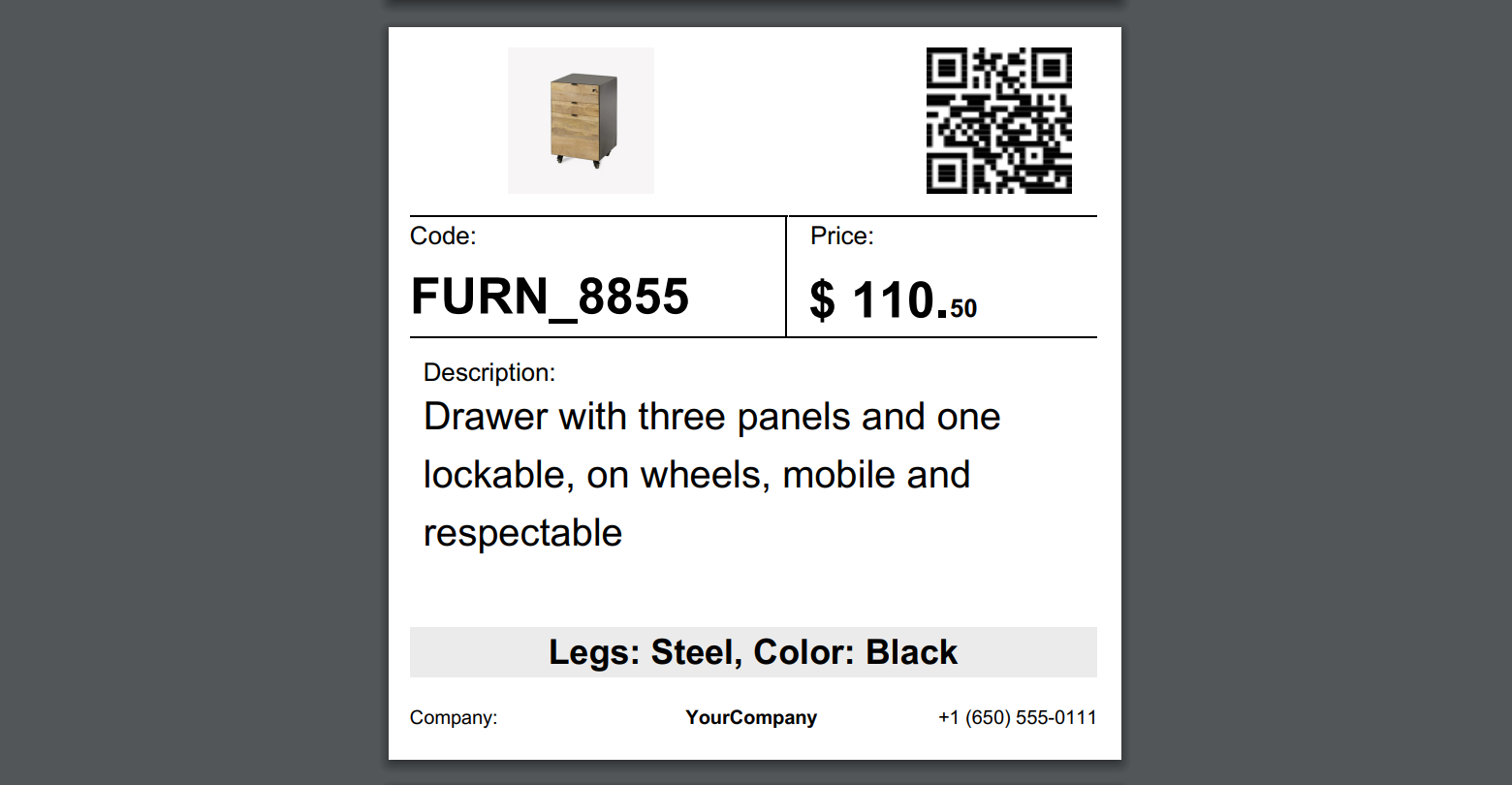
once printed they can show the product picture, and brief desc. and price  better yet and bar code to say bring item to counter scan it and it will tell me how many i have left and cost.

how can this be done?

thank you in advance..

label printer is printing on like 2x3" about size of business card or baseball card size


0
Avatar
Kassér
Avatar
Yurii Razumovskyi
Bedste svar

Hi Brent,

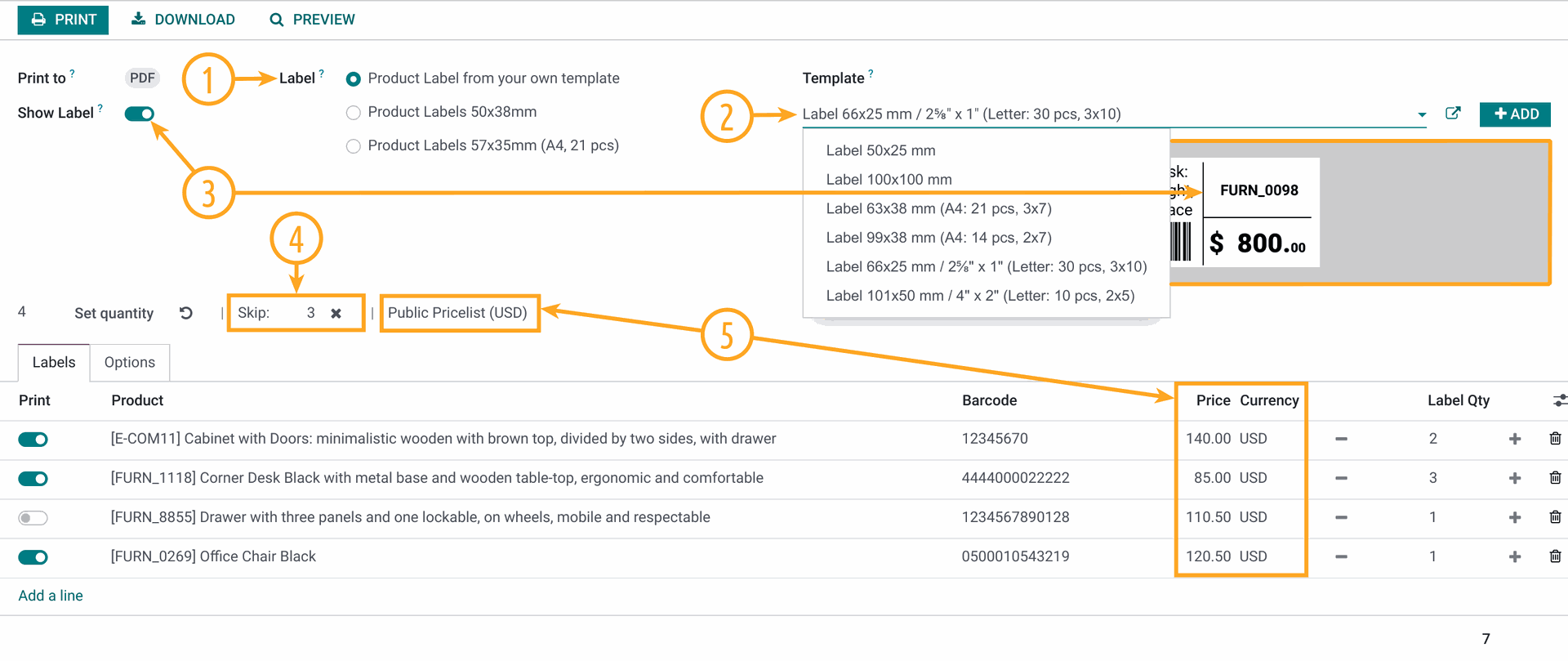
To create a barcode product label in Odoo there are two common ways:

  1. Develop own label (by yourself or with Odoo developers);
  2. Use the app that allows to print and design own labels.

The first approach is not so flexible because after the label creation, if you want to change the label you will need to go into code and change something there.

The second way is more easy and convenient if you use some Odoo module, that is developed at the high level and covered with support and assistance.

We into the product label development since 2017, in the last year, we built our Odoo Product Label Builder. It allows designing and creating your own labels by Odoo UI. You can watch details in this YouTube video.


With the Product Label Builder, you can put into labels your product data and other information from various standard Odoo apps. In this case, you need additional extensions in addition to the Product Label Builder app. The list of these extensions is the following, and you can choose ones that you need:

  • Stock Product Labels — to print from the Stock documents and use its data on your label templates: 
    • Stock Transfers (stock.picking), 
    • Stock Inventory Adjustments (stock.quant),
    • Stock Lots (stock.lot), 
    • Stock Packages (stock.quant.package), 
    • Stock Scrap (stock.scrap).
  • Product Packaging Labels — to print from Product Packaging (product.packaging) and use its data on your label templates.
  • Purchase Product Labels — to print from Purchase Orders (purchaser.order) and use its data on your label templates.
  • MRP Product Labels — to print from Manufacturing Orders (mrp.production) and use its data on your label templates.
  • MRP Workorder Labels — to print from Manufacturing Work Orders (mrp.workorder) and use its data on your label templates (Odoo Enterprise feature only).
  • Repair Product Labels — to print from Repair Orders (repair.order) and use its data on your label templates.
  • Maintenance Barcode Labels — to print from the Maintenance documents and use its data on your label templates: 
    • Maintenance Requests (maintenance.request),
    • Maintenance Equipments (maintenance.equipment).
  • Sales Product Labels  — to print from Sales Orders (sale.order) and use its data on your label templates (in the development at the current moment).


If you need additional assistance or information, please contact us.


Best regards, Yurii Razumovskyi.

Company Garazd Creation — Odoo solutions for e-Commerce, SEO, Data Feeds, Website Tracking, Marketing and Analytics integrations, Product Label designing and printing.

https://garazd.biz  |  Our solutions on Odoo Apps

0
Avatar
Kassér
Avatar
brent.desalvo
Forfatter Bedste svar

thank you for your input and time.,

this looks just about like what i am trying to complete.

i may contact you Monday in regard to maybe a little customization.

thank you i think i got your direct contact info..

thanks to all that read and responded im trying all

0
Avatar
Kassér
Avatar
Cybrosys Techno Solutions Pvt.Ltd
Bedste svar

Hi,

Try to Inherits the pdf template

<?xml version="1.0" encoding="UTF-8"?>
<odoo>
    <data>
        <!-- Inherit the existing label template -->
<template id="label_product_product_view" inherit_id="stock.label_product_product_view">
            <xpath expr="//t" position="after">
                <!-- Add product cost -->
<t t-foreach="range(product_info['quantity'])" t-as="qty">
                    <t t-translation="off">
                        ^FT100,185^A0N,30,24^FDCost: <t t-esc="product.standard_price" t-options='{"widget": "float", "precision": 2}'/>^FS
                    </t>
                </t>
                <!-- Add quantity on hand -->
<t t-foreach="range(product_info['quantity'])" t-as="qty">
                    <t t-translation="off">
^FT100,220^A0N,30,24^FDQty: <t t-esc="product.qty_available"/>^FS
                    </t>
                </t>
            </xpath>
        </template>

        <!-- Define Odoo report -->
        <record id="label_product_product" model="ir.actions.report">
            <field name="name">Product Label (ZPL)</field>
<field name="model">product.product</field>
<field name="report_type">qweb-text</field>
<field name="report_name">stock.label_product_product_view_inherited</field>
<field name="report_file">stock.label_product_product_view_inherited</field>
            <field name="binding_model_id" eval="False"/>
<field name="binding_type">report</field>
        </record>
    </data>
</odoo>


if you need to change the print report size, please add a new style in the print label wizard action and add a new paper format to it

class ProductLabel(models.Model):
    _inherit = 'product.product'

    print_format = fields.Selection([
        ('dymo', 'Dymo'),
        ('2x7xprice', '2 x 7 with price'),
        ('4x7xprice', '4 x 7 with price'),
        ('4x12', '4 x 12'),
        ('4x12xprice', '4 x 12 with price'),
        ('2x3', '2 x 3 (Business Card Size)')  # New size option
    ], string="Format", default='2x7xprice', required=True)

<!-- Update existing template to handle different sizes -->
<template id="label_product_product_view" inherit_id="stock.label_product_product_view">
<xpath expr="//field[@name='print_format']/selection[@name='print_format']/value[last()]" position="after">
                <value>2x3</value>
            </xpath>
        </template>

        <!-- Define Odoo report for 2x3" label size -->
        <record id="label_product_product_2x3" model="ir.actions.report">
            <field name="name">Product Label 2x3 (ZPL)</field>
<field name="model">product.product</field>
<field name="report_type">qweb-text</field>
<field name="report_name">stock.label_product_product_view_2x3</field>
<field name="report_file">stock.label_product_product_view_2x3</field>
            <field name="binding_model_id" eval="False"/>
<field name="binding_type">report</field>
        </record>


Hope it helps

0
Avatar
Kassér
Kan du lide at diskutere? Læs ikke bare med, deltag aktivt i debatten!

Opret en konto i dag for at få glæde af eksklusive funktioner, og bliv en del af vores skønne fællesskab!

Tilmeld dig
Relaterede indlæg Besvarelser Visninger Aktivitet
Print ODOO product label to zebra printer
product labels zebra odoo16features zpl
Avatar
Avatar
Avatar
Avatar
3
mar. 24
6289
How to print barcode for products Løst
product printer barcode ean13 labels
Avatar
Avatar
Avatar
5
dec. 23
20233
product name on product label is not printing
product labels
Avatar
Avatar
2
mar. 15
8621
Print Product Labels on Dymo 550 printer Løst
printer labels Dymo
Avatar
Avatar
2
aug. 25
1770
V16 Import multiple images for each product
product product_images odoo16features
Avatar
Avatar
Avatar
Avatar
Avatar
5
mar. 25
7955
Community
  • Tutorials
  • Dokumentation
  • Forum
Open Source
  • Download
  • Github
  • Runbot
  • Oversættelser
Tjenester
  • Odoo.sh-hosting
  • Support
  • Opgradere
  • Individuelt tilpasset udvikling
  • Uddannelse
  • Find en bogholder
  • Find en partner
  • Bliv partner
Om os
  • Vores virksomhed
  • Brandaktiver
  • Kontakt os
  • Stillinger
  • Arrangementer
  • Podcast
  • Blog
  • Kunder
  • Juridiske dokumenter • Privatlivspolitik
  • Sikkerhedspolitik
الْعَرَبيّة Català 简体中文 繁體中文 (台灣) Čeština Dansk Nederlands English Suomi Français Deutsch हिंदी Bahasa Indonesia Italiano 日本語 한국어 (KR) Lietuvių kalba Język polski Português (BR) română русский язык Slovenský jazyk Slovenščina Español (América Latina) Español Svenska ภาษาไทย Türkçe українська Tiếng Việt

Odoo er en samling open source-forretningsapps, der dækker alle dine virksomhedsbehov – lige fra CRM, e-handel og bogføring til lagerstyring, POS, projektledelse og meget mere.

Det unikke ved Odoo er, at systemet både er brugervenligt og fuldt integreret.

Website made with

Odoo Experience on YouTube

1. Use the live chat to ask your questions.
2. The operator answers within a few minutes.

Live support on Youtube
Watch now