Passa al contenuto
Odoo Menu
  • Accedi
  • Provalo gratis
  • App
    Finanze
    • Contabilità
    • Fatturazione
    • Note spese
    • Fogli di calcolo (BI)
    • Documenti
    • Firma
    Vendite
    • CRM
    • Vendite
    • Punto vendita Negozio
    • Punto vendita Ristorante
    • Abbonamenti
    • Noleggi
    Siti web
    • Configuratore sito web
    • E-commerce
    • Blog
    • Forum
    • Live chat
    • E-learning
    Supply chain
    • Magazzino
    • Produzione
    • PLM
    • Acquisti
    • Manutenzione
    • Qualità
    Risorse umane
    • Dipendenti
    • Assunzioni
    • Ferie
    • Valutazioni
    • Referral dipendenti
    • Parco veicoli
    Marketing
    • Social marketing
    • E-mail marketing
    • SMS marketing
    • Eventi
    • Marketing automation
    • Sondaggi
    Servizi
    • Progetti
    • Fogli ore
    • Assistenza sul campo
    • Helpdesk
    • Pianificazione
    • Appuntamenti
    Produttività
    • Comunicazioni
    • Intelligenza artificiale
    • IoT
    • VoIP
    • Knowledge
    • WhatsApp
    App di terze parti Odoo Studio Piattaforma cloud Odoo
  • Settori
    Retail
    • Libreria
    • Negozio di abbigliamento
    • Negozio di arredamento
    • Alimentari
    • Ferramenta
    • Negozio di giocattoli
    Cibo e ospitalità
    • Bar e pub
    • Ristorante
    • Fast food
    • Pensione
    • Grossista di bevande
    • Hotel
    Agenzia immobiliare
    • Agenzia immobiliare
    • Studio di architettura
    • Edilizia
    • Gestione immobiliare
    • Impresa di giardinaggio
    • Associazione di proprietari immobiliari
    Consulenza
    • Società di contabilità
    • Partner Odoo
    • Agenzia di marketing
    • Studio legale
    • Selezione del personale
    • Audit e certificazione
    Produzione
    • Tessile
    • Metallo
    • Arredamenti
    • Alimentare
    • Birrificio
    • Ditta di regalistica aziendale
    Benessere e sport
    • Club sportivo
    • Negozio di ottica
    • Centro fitness
    • Centro benessere
    • Farmacia
    • Parrucchiere
    Commercio
    • Tuttofare
    • Hardware e assistenza IT
    • Ditta di installazione di pannelli solari
    • Calzolaio
    • Servizi di pulizia
    • Servizi di climatizzazione
    Altro
    • Organizzazione non profit
    • Ente per la tutela ambientale
    • Agenzia di cartellonistica pubblicitaria
    • Studio fotografico
    • Punto noleggio di biciclette
    • Rivenditore di software
    Carica tutti i settori
  • Community
    Apprendimento
    • Tutorial
    • Documentazione
    • Certificazioni 
    • Formazione
    • Blog
    • Podcast
    Potenzia la tua formazione
    • Programma educativo
    • Scale Up! Business Game
    • Visita Odoo
    Ottieni il software
    • Scarica
    • Versioni a confronto
    • Note di versione
    Collabora
    • Github
    • Forum
    • Eventi
    • Traduzioni
    • Diventa nostro partner
    • Servizi per partner
    • Registra la tua società di contabilità
    Ottieni servizi
    • Trova un partner
    • Trova un contabile
    • Incontra un esperto
    • Servizi di implementazione
    • Testimonianze dei clienti
    • Supporto
    • Aggiornamenti
    GitHub Youtube Twitter Linkedin Instagram Facebook Spotify
    +1 (650) 691-3277
    Richiedi una demo
  • Prezzi
  • Aiuto
È necessario essere registrati per interagire con la community.
Tutti gli articoli Persone Badge
Etichette (Mostra tutto)
odoo accounting v14 pos v15
Sul forum
È necessario essere registrati per interagire con la community.
Tutti gli articoli Persone Badge
Etichette (Mostra tutto)
odoo accounting v14 pos v15
Sul forum
Assistenza

odo v16 inventory app

Iscriviti

Ricevi una notifica quando c'è un'attività per questo post

La domanda è stata contrassegnata
productprinterlabelsodoo16featuresINVENTORY
3 Risposte
3842 Visualizzazioni
Avatar
brent.desalvo

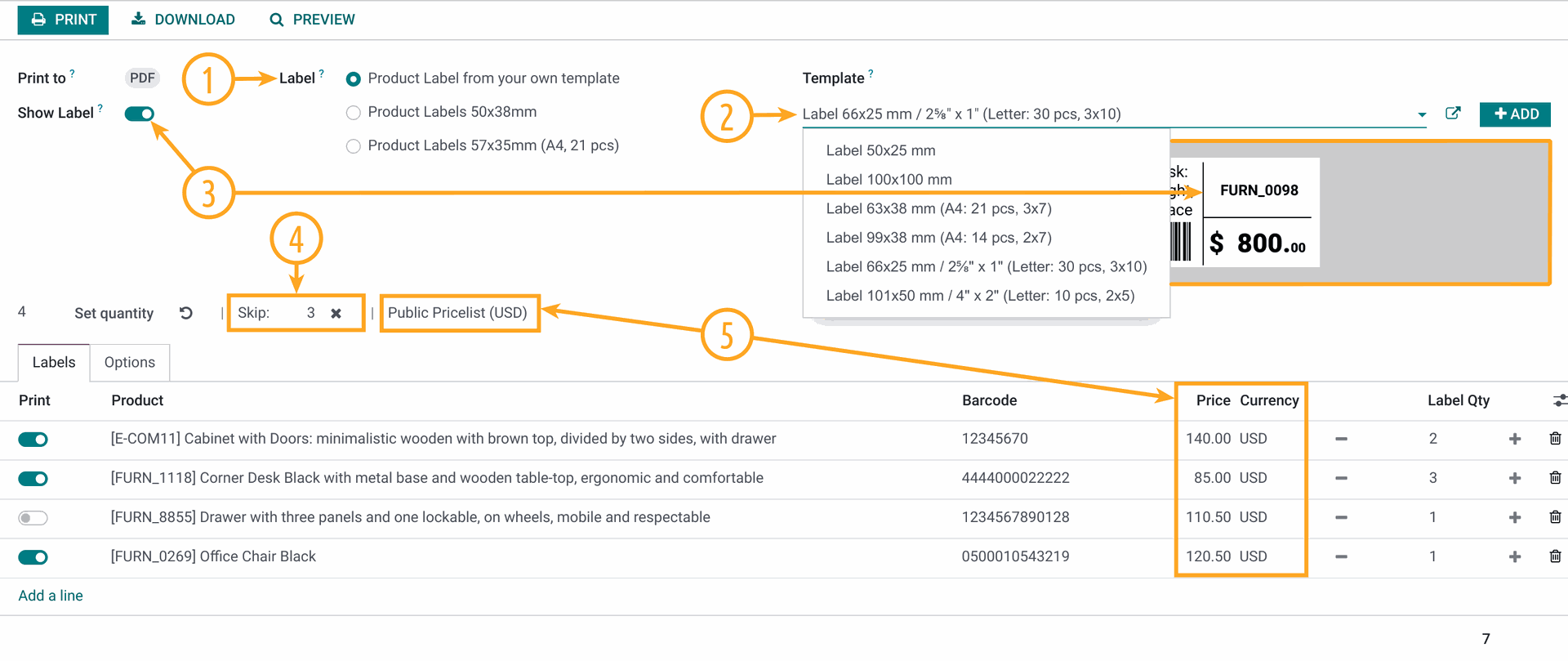
in the inventory app in ver. 16 i would like to print inventory labels.

these label i would like to print would be from the product items.

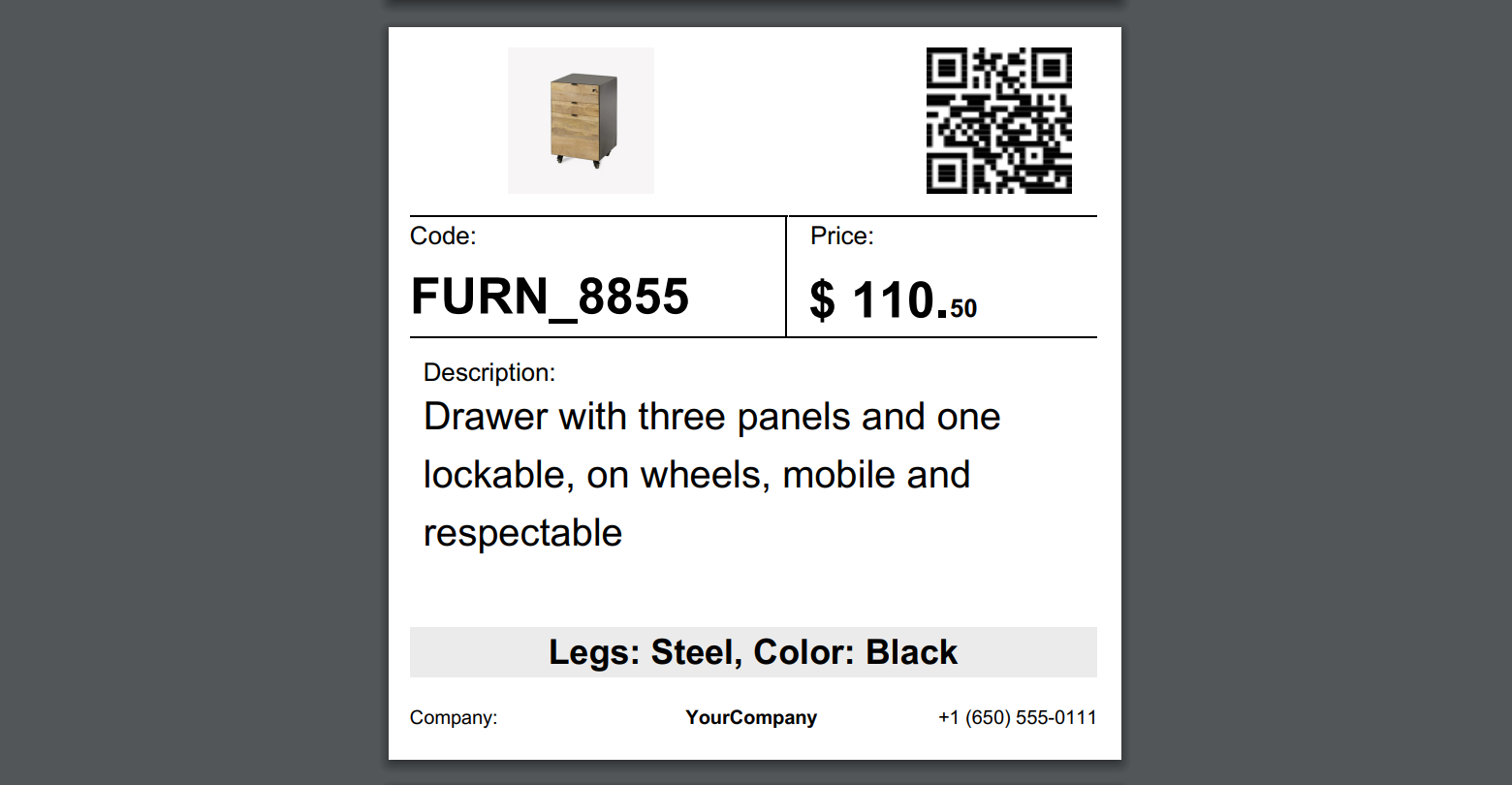
once printed they can show the product picture, and brief desc. and price  better yet and bar code to say bring item to counter scan it and it will tell me how many i have left and cost.

how can this be done?

thank you in advance..

label printer is printing on like 2x3" about size of business card or baseball card size


0
Avatar
Abbandona
Avatar
Yurii Razumovskyi
Risposta migliore

Hi Brent,

To create a barcode product label in Odoo there are two common ways:

  1. Develop own label (by yourself or with Odoo developers);
  2. Use the app that allows to print and design own labels.

The first approach is not so flexible because after the label creation, if you want to change the label you will need to go into code and change something there.

The second way is more easy and convenient if you use some Odoo module, that is developed at the high level and covered with support and assistance.

We into the product label development since 2017, in the last year, we built our Odoo Product Label Builder. It allows designing and creating your own labels by Odoo UI. You can watch details in this YouTube video.


With the Product Label Builder, you can put into labels your product data and other information from various standard Odoo apps. In this case, you need additional extensions in addition to the Product Label Builder app. The list of these extensions is the following, and you can choose ones that you need:

  • Stock Product Labels — to print from the Stock documents and use its data on your label templates: 
    • Stock Transfers (stock.picking), 
    • Stock Inventory Adjustments (stock.quant),
    • Stock Lots (stock.lot), 
    • Stock Packages (stock.quant.package), 
    • Stock Scrap (stock.scrap).
  • Product Packaging Labels — to print from Product Packaging (product.packaging) and use its data on your label templates.
  • Purchase Product Labels — to print from Purchase Orders (purchaser.order) and use its data on your label templates.
  • MRP Product Labels — to print from Manufacturing Orders (mrp.production) and use its data on your label templates.
  • MRP Workorder Labels — to print from Manufacturing Work Orders (mrp.workorder) and use its data on your label templates (Odoo Enterprise feature only).
  • Repair Product Labels — to print from Repair Orders (repair.order) and use its data on your label templates.
  • Maintenance Barcode Labels — to print from the Maintenance documents and use its data on your label templates: 
    • Maintenance Requests (maintenance.request),
    • Maintenance Equipments (maintenance.equipment).
  • Sales Product Labels  — to print from Sales Orders (sale.order) and use its data on your label templates (in the development at the current moment).


If you need additional assistance or information, please contact us.


Best regards, Yurii Razumovskyi.

Company Garazd Creation — Odoo solutions for e-Commerce, SEO, Data Feeds, Website Tracking, Marketing and Analytics integrations, Product Label designing and printing.

https://garazd.biz  |  Our solutions on Odoo Apps

0
Avatar
Abbandona
Avatar
brent.desalvo
Autore Risposta migliore

thank you for your input and time.,

this looks just about like what i am trying to complete.

i may contact you Monday in regard to maybe a little customization.

thank you i think i got your direct contact info..

thanks to all that read and responded im trying all

0
Avatar
Abbandona
Avatar
Cybrosys Techno Solutions Pvt.Ltd
Risposta migliore

Hi,

Try to Inherits the pdf template

<?xml version="1.0" encoding="UTF-8"?>
<odoo>
    <data>
        <!-- Inherit the existing label template -->
<template id="label_product_product_view" inherit_id="stock.label_product_product_view">
            <xpath expr="//t" position="after">
                <!-- Add product cost -->
<t t-foreach="range(product_info['quantity'])" t-as="qty">
                    <t t-translation="off">
                        ^FT100,185^A0N,30,24^FDCost: <t t-esc="product.standard_price" t-options='{"widget": "float", "precision": 2}'/>^FS
                    </t>
                </t>
                <!-- Add quantity on hand -->
<t t-foreach="range(product_info['quantity'])" t-as="qty">
                    <t t-translation="off">
^FT100,220^A0N,30,24^FDQty: <t t-esc="product.qty_available"/>^FS
                    </t>
                </t>
            </xpath>
        </template>

        <!-- Define Odoo report -->
        <record id="label_product_product" model="ir.actions.report">
            <field name="name">Product Label (ZPL)</field>
<field name="model">product.product</field>
<field name="report_type">qweb-text</field>
<field name="report_name">stock.label_product_product_view_inherited</field>
<field name="report_file">stock.label_product_product_view_inherited</field>
            <field name="binding_model_id" eval="False"/>
<field name="binding_type">report</field>
        </record>
    </data>
</odoo>


if you need to change the print report size, please add a new style in the print label wizard action and add a new paper format to it

class ProductLabel(models.Model):
    _inherit = 'product.product'

    print_format = fields.Selection([
        ('dymo', 'Dymo'),
        ('2x7xprice', '2 x 7 with price'),
        ('4x7xprice', '4 x 7 with price'),
        ('4x12', '4 x 12'),
        ('4x12xprice', '4 x 12 with price'),
        ('2x3', '2 x 3 (Business Card Size)')  # New size option
    ], string="Format", default='2x7xprice', required=True)

<!-- Update existing template to handle different sizes -->
<template id="label_product_product_view" inherit_id="stock.label_product_product_view">
<xpath expr="//field[@name='print_format']/selection[@name='print_format']/value[last()]" position="after">
                <value>2x3</value>
            </xpath>
        </template>

        <!-- Define Odoo report for 2x3" label size -->
        <record id="label_product_product_2x3" model="ir.actions.report">
            <field name="name">Product Label 2x3 (ZPL)</field>
<field name="model">product.product</field>
<field name="report_type">qweb-text</field>
<field name="report_name">stock.label_product_product_view_2x3</field>
<field name="report_file">stock.label_product_product_view_2x3</field>
            <field name="binding_model_id" eval="False"/>
<field name="binding_type">report</field>
        </record>


Hope it helps

0
Avatar
Abbandona
Ti stai godendo la conversazione? Non leggere soltanto, partecipa anche tu!

Crea un account oggi per scoprire funzionalità esclusive ed entrare a far parte della nostra fantastica community!

Registrati
Post correlati Risposte Visualizzazioni Attività
Print ODOO product label to zebra printer
product labels zebra odoo16features zpl
Avatar
Avatar
Avatar
Avatar
3
mar 24
6337
How to print barcode for products Risolto
product printer barcode ean13 labels
Avatar
Avatar
Avatar
5
dic 23
20250
product name on product label is not printing
product labels
Avatar
Avatar
2
mar 15
8629
Print Product Labels on Dymo 550 printer Risolto
printer labels Dymo
Avatar
Avatar
2
ago 25
1816
V16 Import multiple images for each product
product product_images odoo16features
Avatar
Avatar
Avatar
Avatar
Avatar
5
mar 25
7988
Community
  • Tutorial
  • Documentazione
  • Forum
Open source
  • Scarica
  • Github
  • Runbot
  • Traduzioni
Servizi
  • Hosting Odoo.sh
  • Supporto
  • Aggiornamenti
  • Sviluppi personalizzati
  • Formazione
  • Trova un contabile
  • Trova un partner
  • Diventa nostro partner
Chi siamo
  • La nostra azienda
  • Branding
  • Contattaci
  • Lavora con noi
  • Eventi
  • Podcast
  • Blog
  • Clienti
  • Note legali • Privacy
  • Sicurezza
الْعَرَبيّة Català 简体中文 繁體中文 (台灣) Čeština Dansk Nederlands English Suomi Français Deutsch हिंदी Bahasa Indonesia Italiano 日本語 한국어 (KR) Lietuvių kalba Język polski Português (BR) română русский язык Slovenský jazyk Slovenščina Español (América Latina) Español Svenska ภาษาไทย Türkçe українська Tiếng Việt

Odoo è un gestionale di applicazioni aziendali open source pensato per coprire tutte le esigenze della tua azienda: CRM, Vendite, E-commerce, Magazzino, Produzione, Fatturazione elettronica, Project Management e molto altro.

Il punto di forza di Odoo è quello di offrire un ecosistema unico di app facili da usare, intuitive e completamente integrate tra loro.

Website made with

Odoo Experience on YouTube

1. Use the live chat to ask your questions.
2. The operator answers within a few minutes.

Live support on Youtube
Watch now