Se rendre au contenu
Odoo Menu
  • Se connecter
  • Essai gratuit
  • Applications
    Finance
    • Comptabilité
    • Facturation
    • Notes de frais
    • Feuilles de calcul (BI)
    • Documents
    • Signature
    Ventes
    • CRM
    • Ventes
    • PdV Boutique
    • PdV Restaurant
    • Abonnements
    • Location
    Sites web
    • Site Web
    • eCommerce
    • Blog
    • Forum
    • Live Chat
    • eLearning
    Chaîne d'approvisionnement
    • Inventaire
    • Fabrication
    • PLM
    • Achats
    • Maintenance
    • Qualité
    Ressources Humaines
    • Employés
    • Recrutement
    • Congés
    • Évaluations
    • Recommandations
    • Parc automobile
    Marketing
    • Marketing Social
    • E-mail Marketing
    • SMS Marketing
    • Événements
    • Marketing Automation
    • Sondages
    Services
    • Projet
    • Feuilles de temps
    • Services sur Site
    • Assistance
    • Planification
    • Rendez-vous
    Productivité
    • Discussion
    • Intelligence artificielle
    • Internet des Objets
    • VoIP
    • Connaissances
    • WhatsApp
    Applications tierces Odoo Studio Plateforme Cloud d'Odoo
  • Industries
    Commerce de détail
    • Librairie
    • Magasin de vêtements
    • Magasin de meubles
    • Supermarché
    • Quincaillerie
    • Magasin de jouets
    Restauration & Hôtellerie
    • Bar et Pub
    • Restaurant
    • Fast-food
    • Maison d’hôtes
    • Distributeur de boissons
    • Hôtel
    Immobilier
    • Agence immobilière
    • Cabinet d'architecture
    • Construction
    • Gestion immobilière
    • Jardinage
    • Association de copropriétaires
    Consultance
    • Cabinet d'expertise comptable
    • Partenaire Odoo
    • Agence Marketing
    • Cabinet d'avocats
    • Aquisition de talents
    • Audit & Certification
    Fabrication
    • Textile
    • Métal
    • Meubles
    • Alimentation
    • Brasserie
    • Cadeaux d'entreprise
    Santé & Fitness
    • Club de sports
    • Opticien
    • Salle de fitness
    • Praticiens bien-être
    • Pharmacie
    • Salon de coiffure
    Commerce
    • Homme à tout faire
    • Matériel informatique & support
    • Systèmes photovoltaïques
    • Cordonnier
    • Services de nettoyage
    • Services CVC
    Autres
    • Organisation à but non lucratif
    • Agence environnementale
    • Location de panneaux d'affichage
    • Photographie
    • Leasing de vélos
    • Revendeur de logiciel
    Parcourir toutes les industries
  • Communauté
    Apprenez
    • Tutoriels
    • Documentation
    • Certifications
    • Formation
    • Blog
    • Podcast
    Renforcer l'éducation
    • Programme éducatif
    • Business Game Scale-Up!
    • Rendez-nous visite
    Obtenir le logiciel
    • Téléchargement
    • Comparez les éditions
    • Versions
    Collaborer
    • Github
    • Forum
    • Événements
    • Traductions
    • Devenir partenaire
    • Services pour partenaires
    • Enregistrer votre cabinet comptable
    Nos Services
    • Trouver un partenaire
    • Trouver un comptable
    • Rencontrer un conseiller
    • Services de mise en œuvre
    • Références clients
    • Assistance
    • Mises à niveau
    Github Youtube Twitter Linkedin Instagram Facebook Spotify
    +1 (650) 691-3277
    Obtenir une démonstration
  • Tarification
  • Aide
Vous devez être inscrit pour interagir avec la communauté.
Toutes les publications Personnes Badges
Étiquettes (Voir toutl)
odoo accounting v14 pos v15
À propos de ce forum
Vous devez être inscrit pour interagir avec la communauté.
Toutes les publications Personnes Badges
Étiquettes (Voir toutl)
odoo accounting v14 pos v15
À propos de ce forum
Aide

odo v16 inventory app

S'inscrire

Recevez une notification lorsqu'il y a de l'activité sur ce poste

Cette question a été signalée
productprinterlabelsodoo16featuresINVENTORY
3 Réponses
3824 Vues
Avatar
brent.desalvo

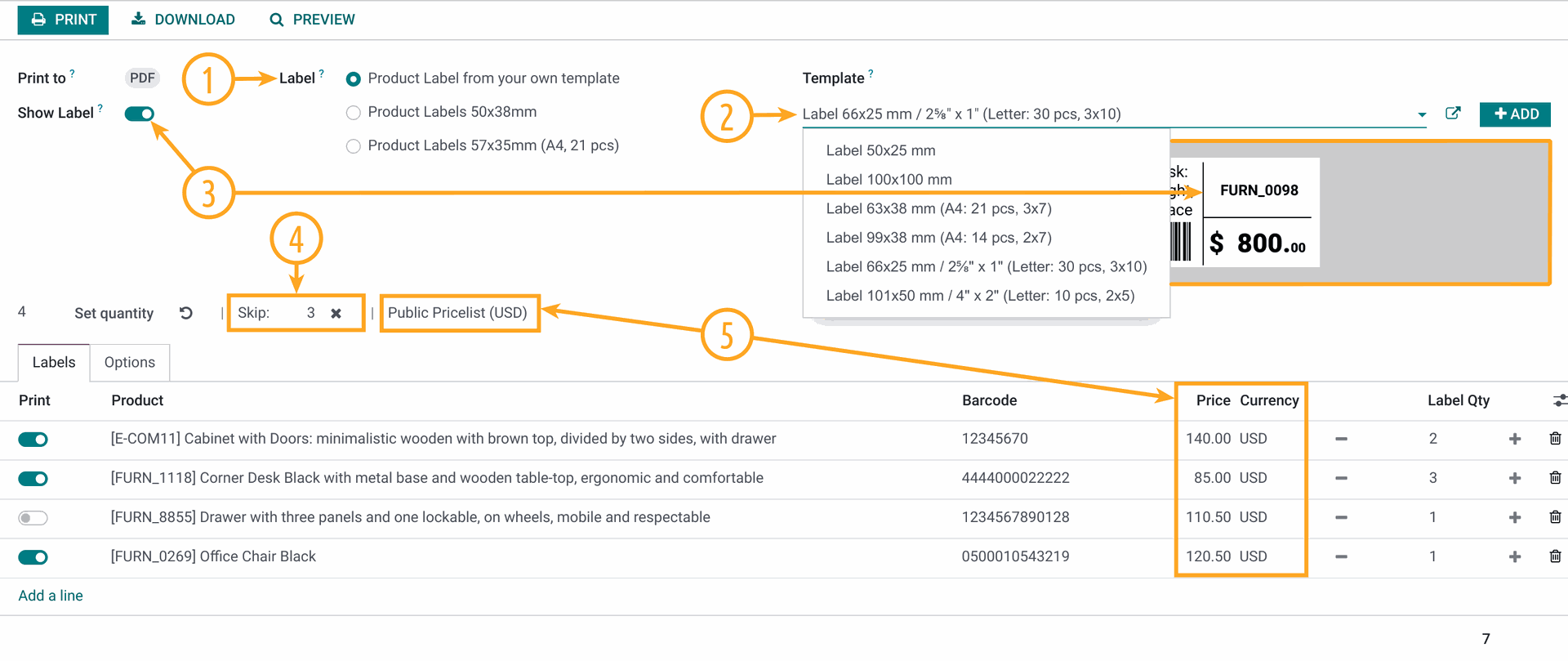
in the inventory app in ver. 16 i would like to print inventory labels.

these label i would like to print would be from the product items.

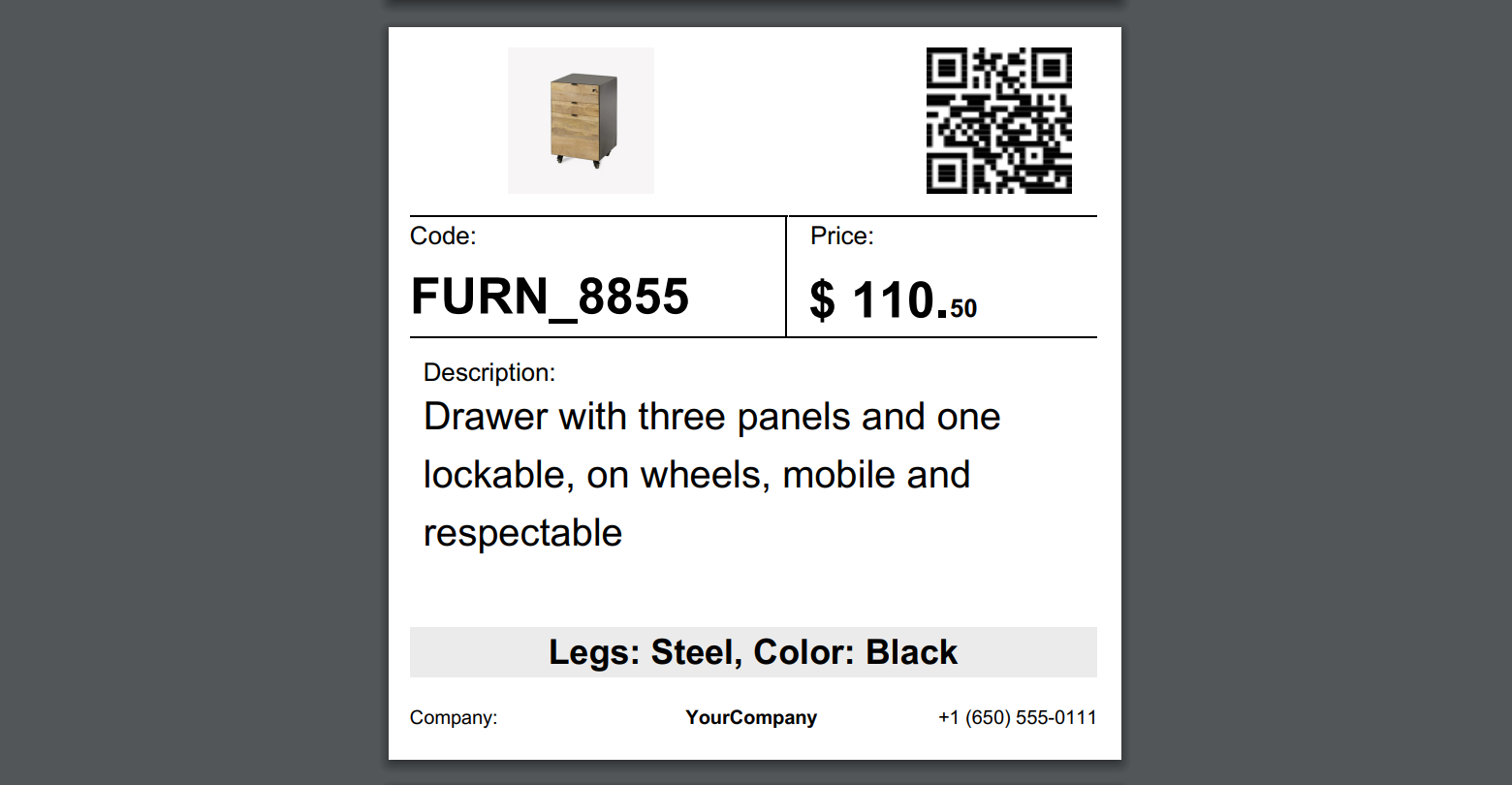
once printed they can show the product picture, and brief desc. and price  better yet and bar code to say bring item to counter scan it and it will tell me how many i have left and cost.

how can this be done?

thank you in advance..

label printer is printing on like 2x3" about size of business card or baseball card size


0
Avatar
Ignorer
Avatar
Yurii Razumovskyi
Meilleure réponse

Hi Brent,

To create a barcode product label in Odoo there are two common ways:

  1. Develop own label (by yourself or with Odoo developers);
  2. Use the app that allows to print and design own labels.

The first approach is not so flexible because after the label creation, if you want to change the label you will need to go into code and change something there.

The second way is more easy and convenient if you use some Odoo module, that is developed at the high level and covered with support and assistance.

We into the product label development since 2017, in the last year, we built our Odoo Product Label Builder. It allows designing and creating your own labels by Odoo UI. You can watch details in this YouTube video.


With the Product Label Builder, you can put into labels your product data and other information from various standard Odoo apps. In this case, you need additional extensions in addition to the Product Label Builder app. The list of these extensions is the following, and you can choose ones that you need:

  • Stock Product Labels — to print from the Stock documents and use its data on your label templates: 
    • Stock Transfers (stock.picking), 
    • Stock Inventory Adjustments (stock.quant),
    • Stock Lots (stock.lot), 
    • Stock Packages (stock.quant.package), 
    • Stock Scrap (stock.scrap).
  • Product Packaging Labels — to print from Product Packaging (product.packaging) and use its data on your label templates.
  • Purchase Product Labels — to print from Purchase Orders (purchaser.order) and use its data on your label templates.
  • MRP Product Labels — to print from Manufacturing Orders (mrp.production) and use its data on your label templates.
  • MRP Workorder Labels — to print from Manufacturing Work Orders (mrp.workorder) and use its data on your label templates (Odoo Enterprise feature only).
  • Repair Product Labels — to print from Repair Orders (repair.order) and use its data on your label templates.
  • Maintenance Barcode Labels — to print from the Maintenance documents and use its data on your label templates: 
    • Maintenance Requests (maintenance.request),
    • Maintenance Equipments (maintenance.equipment).
  • Sales Product Labels  — to print from Sales Orders (sale.order) and use its data on your label templates (in the development at the current moment).


If you need additional assistance or information, please contact us.


Best regards, Yurii Razumovskyi.

Company Garazd Creation — Odoo solutions for e-Commerce, SEO, Data Feeds, Website Tracking, Marketing and Analytics integrations, Product Label designing and printing.

https://garazd.biz  |  Our solutions on Odoo Apps

0
Avatar
Ignorer
Avatar
brent.desalvo
Auteur Meilleure réponse

thank you for your input and time.,

this looks just about like what i am trying to complete.

i may contact you Monday in regard to maybe a little customization.

thank you i think i got your direct contact info..

thanks to all that read and responded im trying all

0
Avatar
Ignorer
Avatar
Cybrosys Techno Solutions Pvt.Ltd
Meilleure réponse

Hi,

Try to Inherits the pdf template

<?xml version="1.0" encoding="UTF-8"?>
<odoo>
    <data>
        <!-- Inherit the existing label template -->
<template id="label_product_product_view" inherit_id="stock.label_product_product_view">
            <xpath expr="//t" position="after">
                <!-- Add product cost -->
<t t-foreach="range(product_info['quantity'])" t-as="qty">
                    <t t-translation="off">
                        ^FT100,185^A0N,30,24^FDCost: <t t-esc="product.standard_price" t-options='{"widget": "float", "precision": 2}'/>^FS
                    </t>
                </t>
                <!-- Add quantity on hand -->
<t t-foreach="range(product_info['quantity'])" t-as="qty">
                    <t t-translation="off">
^FT100,220^A0N,30,24^FDQty: <t t-esc="product.qty_available"/>^FS
                    </t>
                </t>
            </xpath>
        </template>

        <!-- Define Odoo report -->
        <record id="label_product_product" model="ir.actions.report">
            <field name="name">Product Label (ZPL)</field>
<field name="model">product.product</field>
<field name="report_type">qweb-text</field>
<field name="report_name">stock.label_product_product_view_inherited</field>
<field name="report_file">stock.label_product_product_view_inherited</field>
            <field name="binding_model_id" eval="False"/>
<field name="binding_type">report</field>
        </record>
    </data>
</odoo>


if you need to change the print report size, please add a new style in the print label wizard action and add a new paper format to it

class ProductLabel(models.Model):
    _inherit = 'product.product'

    print_format = fields.Selection([
        ('dymo', 'Dymo'),
        ('2x7xprice', '2 x 7 with price'),
        ('4x7xprice', '4 x 7 with price'),
        ('4x12', '4 x 12'),
        ('4x12xprice', '4 x 12 with price'),
        ('2x3', '2 x 3 (Business Card Size)')  # New size option
    ], string="Format", default='2x7xprice', required=True)

<!-- Update existing template to handle different sizes -->
<template id="label_product_product_view" inherit_id="stock.label_product_product_view">
<xpath expr="//field[@name='print_format']/selection[@name='print_format']/value[last()]" position="after">
                <value>2x3</value>
            </xpath>
        </template>

        <!-- Define Odoo report for 2x3" label size -->
        <record id="label_product_product_2x3" model="ir.actions.report">
            <field name="name">Product Label 2x3 (ZPL)</field>
<field name="model">product.product</field>
<field name="report_type">qweb-text</field>
<field name="report_name">stock.label_product_product_view_2x3</field>
<field name="report_file">stock.label_product_product_view_2x3</field>
            <field name="binding_model_id" eval="False"/>
<field name="binding_type">report</field>
        </record>


Hope it helps

0
Avatar
Ignorer
Vous appréciez la discussion ? Ne vous contentez pas de lire, rejoignez-nous !

Créez un compte dès aujourd'hui pour profiter de fonctionnalités exclusives et échanger avec notre formidable communauté !

S'inscrire
Publications associées Réponses Vues Activité
Print ODOO product label to zebra printer
product labels zebra odoo16features zpl
Avatar
Avatar
Avatar
Avatar
3
mars 24
6291
How to print barcode for products Résolu
product printer barcode ean13 labels
Avatar
Avatar
Avatar
5
déc. 23
20237
product name on product label is not printing
product labels
Avatar
Avatar
2
mars 15
8622
Print Product Labels on Dymo 550 printer Résolu
printer labels Dymo
Avatar
Avatar
2
août 25
1771
V16 Import multiple images for each product
product product_images odoo16features
Avatar
Avatar
Avatar
Avatar
Avatar
5
mars 25
7956
Communauté
  • Tutoriels
  • Documentation
  • Forum
Open Source
  • Téléchargement
  • Github
  • Runbot
  • Traductions
Services
  • Hébergement Odoo.sh
  • Assistance
  • Migration
  • Développements personnalisés
  • Éducation
  • Trouver un comptable
  • Trouver un partenaire
  • Devenir partenaire
À propos
  • Notre société
  • Actifs de la marque
  • Contactez-nous
  • Emplois
  • Événements
  • Podcast
  • Blog
  • Clients
  • Informations légales • Confidentialité
  • Sécurité.
الْعَرَبيّة Català 简体中文 繁體中文 (台灣) Čeština Dansk Nederlands English Suomi Français Deutsch हिंदी Bahasa Indonesia Italiano 日本語 한국어 (KR) Lietuvių kalba Język polski Português (BR) română русский язык Slovenský jazyk Slovenščina Español (América Latina) Español Svenska ภาษาไทย Türkçe українська Tiếng Việt

Odoo est une suite d'applications open source couvrant tous les besoins de votre entreprise : CRM, eCommerce, Comptabilité, Inventaire, Point de Vente, Gestion de Projet, etc.

Le positionnement unique d'Odoo est d'être à la fois très facile à utiliser et totalement intégré.

Website made with

Odoo Experience on YouTube

1. Use the live chat to ask your questions.
2. The operator answers within a few minutes.

Live support on Youtube
Watch now