콘텐츠로 건너뛰기
Odoo 메뉴
  • 로그인
  • 무료 체험하기
  • 앱
    재무 관리
    • 회계
    • 청구서 관리
    • 비용 관리
    • 스프레드시트 (BI)
    • 문서
    • 전자 서명
    판매
    • CRM
    • 판매
    • POS 스토어
    • POS 레스토랑
    • 구독
    • 렌탈
    웹사이트
    • 웹사이트 빌더
    • 이커머스
    • 블로그
    • 포럼
    • 실시간 채팅
    • 온라인 학습 관리
    공급망
    • 재고 관리
    • 제조 관리
    • 제품 수명주기 관리 (PLM)
    • 매입
    • 유지관리
    • 품질
    인적자원 관리
    • 인사 관리
    • 채용
    • 휴가 관리
    • 인사 평가
    • 인재 추천
    • 차량 관리
    마케팅
    • 소셜 마케팅
    • 이메일 마케팅
    • SMS 마케팅
    • 행사
    • 마케팅 자동화
    • 설문 조사
    서비스
    • 프로젝트
    • 작업 기록
    • 현장 서비스
    • 헬프데스크
    • 일정 관리
    • 일정 예약
    생산성
    • 메일 및 채팅
    • 인공지능
    • IoT
    • VoIP
    • 지식 센터
    • WhatsApp
    타사 앱 Odoo 스튜디오 Odoo 클라우드 플랫폼
  • 업종 분류
    리테일
    • 서점
    • 의류 매장
    • 가구점
    • 식료품점
    • 철물점
    • 장난감 가게
    식음료 & 숙박업
    • 바 & 펍
    • 레스토랑
    • 패스트푸드
    • 게스트 하우스
    • 음료 유통업체
    • 호텔
    부동산
    • 부동산 중개업체
    • 건축 회사
    • 건설
    • 부동산 관리
    • 가드닝
    • 부동산 소유자 협회
    컨설팅
    • 회계 법인
    • Odoo 파트너
    • 마케팅 대행사
    • 법률 사무소
    • 인재 영입
    • 감사 및 인증
    제조 관리
    • 텍스타일
    • 메탈
    • 가구
    • 푸드
    • 양조장
    • 기업용 선물
    건강 & 피트니스
    • 스포츠 클럽
    • 안경점
    • 피트니스 센터
    • 웰니스 전문가
    • 약국
    • 미용실
    사업
    • 핸디맨
    • IT 하드웨어 및 지원 서비스
    • 태양 에너지 시스템
    • 제화업체
    • 클리닝 서비스
    • HVAC 서비스
    기타
    • 비영리 단체
    • 환경 에이전시
    • 광고판 임대
    • 사진
    • 자전거 임대
    • 소프트웨어 리셀러
    전체 업종 검색하기
  • 커뮤니티
    학습
    • 튜토리얼
    • 문서
    • 인증
    • 훈련
    • 블로그
    • 팟캐스트
    교육 역량 강화
    • 교육 프로그램
    • Scale-Up! 경영관리 게임
    • Odoo에 방문해보세요
    소프트웨어 신청
    • 다운로드
    • 버전 살펴보기
    • 릴리스 내역
    협업
    • Github
    • 포럼
    • 행사
    • 번역
    • 파트너 등록
    • 파트너 대상 서비스
    • 회계 법인 정보 등록
    서비스 신청
    • 파트너 검색
    • 회계사 검색
    • 전문 상담 예약
    • 구현 서비스
    • 고객 정보
    • 고객 지원
    • 업그레이드
    Github 유튜브 트위터 링크드인 인스타그램 페이스북 스포티파이
    +1 (650) 691-3277
    데모 예약하기
  • 요금제
  • 고객 지원
커뮤니티에 참여하려면 회원 가입을 하시기 바랍니다.
모든 게시물 사용자 배지
태그 (모두 보기)
odoo accounting v14 pos v15
게시판 정보
커뮤니티에 참여하려면 회원 가입을 하시기 바랍니다.
모든 게시물 사용자 배지
태그 (모두 보기)
odoo accounting v14 pos v15
게시판 정보
도움말

Three-Step-Manufacturing don't generate PC-Transfer

구독

이 게시물에 활동이 있으면 알림 받기

신고된 질문입니다
manufacturing
2 답글
1488 화면
아바타
Nico

Hi,


I have an issue with standard 3-step manufacturing in Odoo.


Problem:

When creating and confirming a Manufacturing Order, Odoo only creates the transfer for:

  • Post-Production → Stock

But it does NOT create the expected component picking transfer:

  • Stock → Pre-Production (WH/PC/...)

As a result, the MO stays waiting for components (components not available).


I already reset everything to the standard Odoo 3-step manufacturing configuration and checked:

  • routes
  • operation types
  • source/destination locations

  • product routes

  • warehouse settings


Any idea why the picking transfer is never generated?


Thanks!



0
아바타
취소
Codesphere Tech

Hello
What rule you have set for Pre-Production?

Nico
작성자

Hi, i can't upload a picture but see my configuration below:

3 Step Manufacturing Route:
- Pull from - WH/ProductionRoom/Pre-Procution (internal Storage) to WH/ProctionRomm/Production (production)
- Pull from - WH/Stock to WH/ProductionRoom/Pre-Production
- Push to - WH/ProductionRoom/Post-Production to WH/Stock

Manufacturing Route:
- Manufacturing - (empty) to WH/ProductionRoom/Post-Production
- Pull from - WH/ProductionRoom/Post-Production to WH/Stock

These are the standard settings - i've also resetted them.

Codesphere Tech

I'm talking about the inventory -> Configuration -> Rules -> Pull From WH/Stock WH/Pre-Production
open this check which supply method you have set

Nico
작성자

Supply Method is Take from Stock (in the Rule for the Route 3 steps manufacturing)

Codesphere Tech

Can you try to change it to this: Take From Stock, if unavailable, Trigger Another Rule

Nico
작성자

Also no Transfer generated

Codesphere Tech

Revert that change.. Can you please write in detail like what you are doing so I can test that on my local env..

Nico
작성자

Okay. I reverted.

First i changed in "Inventory - Warehouses - MyWarehouse" the Manufacturing Radio Button to 3 steps Manufacturing. After that i took care that the Routes in my products are choosen to Manufacturing AND 3Step-Manufacturing. Then i go to "Manufacturing - Manufacturing Orders" and created a new one. The operation type (Misscelaneous) is automatically set up to "Manufacturing" and the locations for the components are from "Pre-Production" and the final prduct to "Post-Production". After that i confirm the MO. Then i can see the transfer in "Inventory"-App for the Manufacturing and for storage the final product after the production (WH/SPF/...). But there is no transfer generated for picking the components (WH/PC/...)

Codesphere Tech

Hello
1. Go to the Product Form for your Components, in the Inventory tab, uncheck any custom "3-Step" or "Manufacture" routes, Ensure only "Buy" route (if purchased) or nothing is checked.
2. Go to Operation Types ->Pick Components -> Check Default Source Location (WH/Stock) and Default Destination Location (WH/Pre-Production).
3. Go to Inventory > Configuration > Routes -> Manufacture -> Find the rule WH: Stock -> Pre-Production
Action: Pull from
Supply Method: Trigger another rule

Nico
작성자

Thanks for your reply. Unfortunately all settings have been existed before. Just the rule WH/Stock > WH/Pre-Production in Manufacturing Route does not have existed. I've added it and also no transfer added.

If i change the type from the rule WH/Stock > WH/Pre-Production in the (3-Steps-Manufacturing-Route) to "Push & Pull" or "Push to" then a transfer will be generated at the correct place. But it only generate a transfer with the product itself and not with the components needed for manufacturing.

Codesphere Tech

Can you please share the screenshot? Because I know something is missing but don't get it exactly.

Nico
작성자

I can't upload but here a link with Screenshots from the Routes and Rules (it's german language): https://spoondrink-my.sharepoint.com/:f:/p/nico/IgDa2Y-u9Rr0Ro5AvakWJIRAAWOZJf12jZNu0us253H6qQg?e=ne1Klg

Codesphere Tech

Can you provide it in English?

Nico
작성자

I've translated the Key-Facts in the Screenshots. You can see it in English now

Codesphere Tech

The issue is within sequence(22) in this screenshot Rule_Stock>PreProduction in 3 Step.png.
Suggest to reset all the settings by default to Odoo. and then test. It will working.
Thanks
Let me know after testing
info@codespheretech.in

Nico
작성자

So i have to reset ALL Odoo settings?

Codesphere Tech

No, only related to 3 steps configuration.

Nico
작성자

Okay but how can i do it? I've already resetted the radio buttons in Warehouse for Manufacturing? Do i have to delete the Routes for Manufacturing or how can i reset them to default?

Codesphere Tech

If you have already reset it then no need to do it again. I'm unable to give proper solution without seeing actual scenario. It is working properly my local env.

Nico
작성자

Hi Vivek,
thanks for your answer. Unfortunately the sequences does not help to fix the problem. But one question in this case: what sequence does the Routes have? The route "Manufacturing" and the "3-Step" Route? And what rules have to be set in the "Manufacturing" Route?

I tested with a whole new Odoo Test-Account on the Website and the Manufacturing-Route does not have changed? But i'm not sure if i crashed anything by deleting the standard Manufacturing Rule ...

I'm wondering because in normal the confirmation of a manufacturing generates a PC Transfer first and AFTER finishing the Manufacturing the SFP-Transfer is being generated. In my case the SFP-Transfer is being generated directly afert cofirmation of the manufacturing.

아바타
Jaideep
베스트 답변

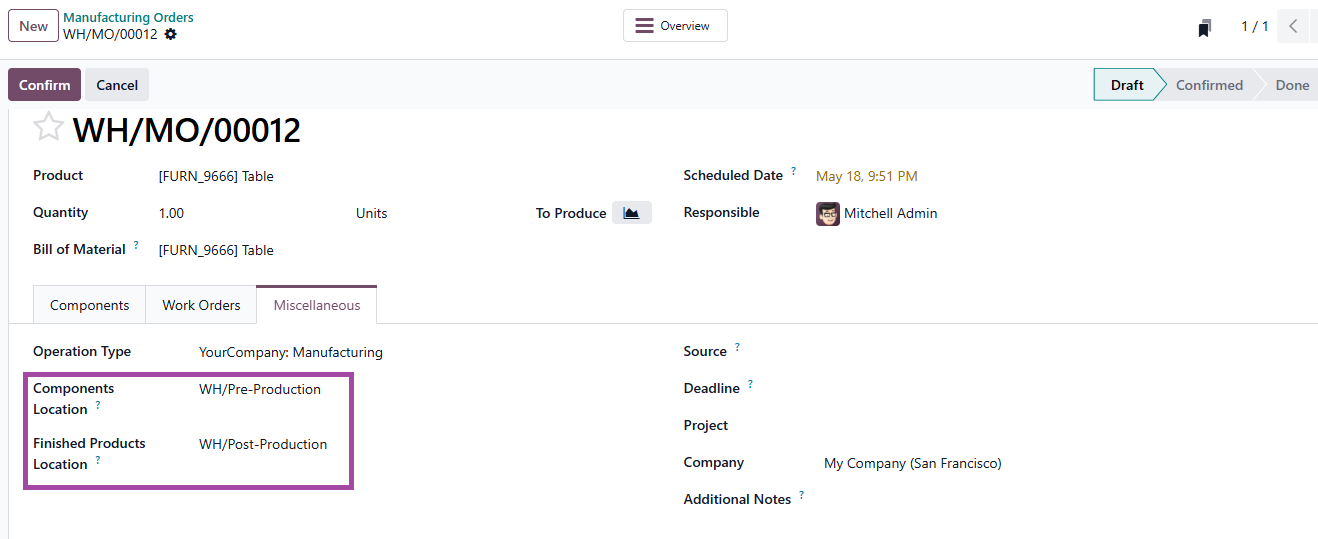
Could you validate if the source and destination location on the MO corresponds to the locations as set on your route? MO > Miscellaneous tab

AO/produktionsraum/pre-product and AO/produktionsraum/post-production

The default value is usually WH/Pre-product and WH/Post-production (AO/pre-production and AO/post-production as your WH is AO).

The locations being different on MO and that on route could be the reason for transfer operation not triggering


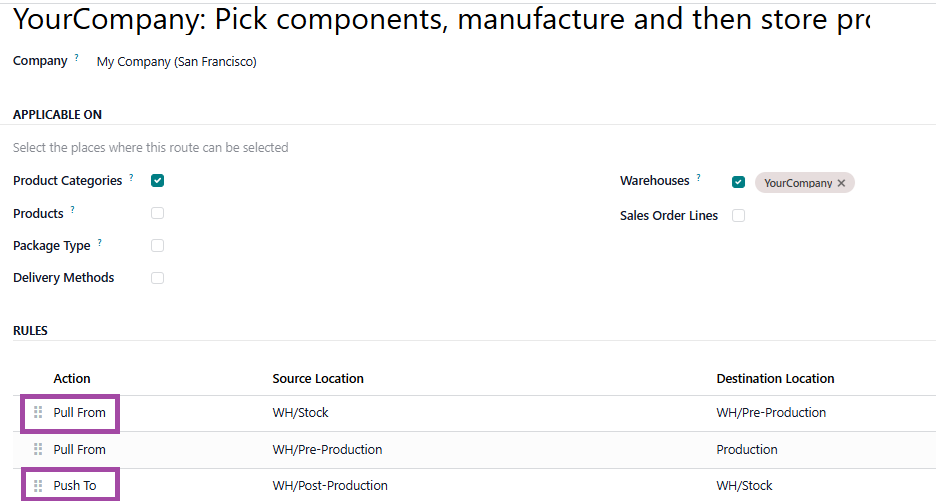
2. The 3 step route has a "pull from" Stock to pre-production and "Push to"  Post-production to Stock.

Since your route (manufacture sequence 4) has 'pull from' Post-production to Stock this operation triggers prior to product arriving at Post-production location.

Default route

Supply method is 'Take from Stock'

0
아바타
취소
아바타
Vivek Kundaliya
베스트 답변

Hi Nico,


I have seen this issue before — the Pick Components (WH/PC) transfer not generating is almost always a route sequence or product-level route assignment issue. Here is a step-by-step fix:


Step 1: Check routes on your component products

Open a component product → Inventory tab → Routes section. The "3-Step Manufacturing" route should NOT be checked on the components. Components should only have "Buy" (if purchased) or nothing special set. The 3-step route goes on the finished product only.


Step 2: Verify the Pull rule sequence in the route (most likely culprit)

Go to Inventory → Configuration → Routes → select your 3-Step Manufacturing route. You need exactly these rules in the right sequence order:

  • Sequence 5: Stock → Pre-Production (Pull, Take from Stock)

Sequence 10: Pre-Production → Production (Pull)

  • Sequence 15: Post-Production → Stock (Push)

The Stock → Pre-Production rule MUST have the lowest sequence number. If the sequences are wrong or that rule is missing, Odoo skips the first transfer entirely. Based on your screenshots, this is very likely the issue.


Step 3: Verify the Pick Components operation type

Inventory → Configuration → Operations Types → find Pick Components:

  • Source Location: WH/Stock

Destination Location: WH/Pre-Production

  • Reservation Method: At Confirmation

Step 4: Always click Confirm, not just Save

The Pick Component transfer is only generated when the MO is Confirmed, not when saved as a draft.


To reset routes to Odoo default without touching other settings: Go to Inventory → Configuration → Routes, delete the custom 3-step route, then go back to the Warehouse settings and switch from 2-step to 1-step manufacturing, save, then switch back to 3-step and save again. Odoo will regenerate the default rules.


Let us know if that fixes it!

-3
아바타
취소
토론이 재미있으신가요? 직접 참여해보세요!

지금 바로 가입하여 독점 서비스를 이용해보고 특별한 커뮤니티와 소통하세요!

가입
관련 게시물 답글 화면 활동
V19.0 MPS - Replenishment trigger set to automatic
manufacturing
아바타
아바타
1
6월 26
280
How to make Odoo schedule manufacturing in parallel?
manufacturing
아바타
아바타
1
5월 26
2357
Three-Step-Manufacturing don't generate PC-Transfer
manufacturing
아바타
0
5월 26
3
Ayuda imprenta en apuros por odoo
manufacturing
아바타
아바타
아바타
아바타
아바타
4
5월 26
1578
Weight barcode nomenclature not matching products despite correct
manufacturing
아바타
0
4월 26
3
커뮤니티
  • 튜토리얼
  • 문서
  • 포럼
오픈 소스
  • 다운로드
  • Github
  • Runbot
  • 번역
서비스
  • Odoo.sh 호스팅
  • 고객 지원
  • 업그레이드
  • 맞춤 개발
  • 학습
  • 회계사 검색
  • 파트너 검색
  • 파트너 등록
회사 소개
  • 회사 소개
  • 브랜드 자산
  • 상담 문의
  • 인재 채용
  • 행사
  • 팟캐스트
  • 블로그
  • 고객 사례
  • 법적고지 • 개인정보
  • 보안
الْعَرَبيّة Català 简体中文 繁體中文 (台灣) Čeština Dansk Nederlands English Suomi Français Deutsch हिंदी Bahasa Indonesia Italiano 日本語 한국어 (KR) Lietuvių kalba Język polski Português (BR) română русский язык Slovenský jazyk Slovenščina Español (América Latina) Español Svenska ภาษาไทย Türkçe українська Tiếng Việt

Odoo는 CRM, 이커머스, 회계, 재고, POS, 프로젝트 관리 등 기업의 모든 요구 사항을 충족하도록 설계된 오픈 소스 기반의 통합 비즈니스 앱 제품군입니다.

Odoo의 간편한 UI와 완벽하게 통합된 기능을 직접 확인해 보세요.

Website made with

Odoo Experience on YouTube

1. Use the live chat to ask your questions.
2. The operator answers within a few minutes.

Live support on Youtube
Watch now