Zum Inhalt springen
Odoo Menü
  • Anmelden
  • Jetzt gratis testen
  • Apps
    Finanzen
    • Buchhaltung
    • Rechnungsstellung
    • Spesenabrechnung
    • Tabellenkalkulation (BI)
    • Dokumente
    • E-Signatur
    Verkauf
    • CRM
    • Verkauf
    • Kassensystem – Shop
    • Kassensystem – Restaurant
    • Abonnements
    • Vermietung
    Websites
    • Website-Builder
    • E-Commerce
    • Blog
    • Forum
    • Livechat
    • E-Learning
    Lieferkette
    • Lager
    • Fertigung
    • PLM
    • Einkauf
    • Wartung
    • Qualität
    Personalwesen
    • Mitarbeiter
    • Personalbeschaffung
    • Abwesenheiten
    • Mitarbeiterbeurteilung
    • Personalempfehlungen
    • Fuhrpark
    Marketing
    • Social Marketing
    • E-Mail-Marketing
    • SMS-Marketing
    • Veranstaltungen
    • Marketing-Automatisierung
    • Umfragen
    Dienstleistungen
    • Projekte
    • Zeiterfassung
    • Außendienst
    • Kundendienst
    • Planung
    • Termine
    Produktivität
    • Dialog
    • Künstliche Intelligenz
    • IoT
    • VoIP
    • Wissensdatenbank
    • WhatsApp
    Apps von Drittanbietern Odoo Studio Odoo Cloud-Plattform
  • Branchen
    Einzelhandel
    • Buchladen
    • Kleidergeschäft
    • Möbelhaus
    • Lebensmittelgeschäft
    • Baumarkt
    • Spielwarengeschäft
    Essen & Gastgewerbe
    • Bar und Kneipe
    • Restaurant
    • Fast Food
    • Gästehaus
    • Getränkehändler
    • Hotel
    Immobilien
    • Immobilienagentur
    • Architekturbüro
    • Baugewerbe
    • Immobilienverwaltung
    • Gartenarbeit
    • Eigentümervereinigung
    Beratung
    • Buchhaltungsfirma
    • Odoo-Partner
    • Marketingagentur
    • Anwaltskanzlei
    • Talentakquise
    • Prüfung & Zertifizierung
    Fertigung
    • Textil
    • Metall
    • Möbel
    • Speisen
    • Brauerei
    • Firmengeschenke
    Gesundheit & Fitness
    • Sportklub
    • Brillengeschäft
    • Fitnessstudio
    • Therapeut
    • Apotheke
    • Friseursalon
    Handel
    • Handyman
    • IT-Hardware & -Support
    • Solarenergiesysteme
    • Schuster
    • Reinigungsdienstleistungen
    • HLK-Dienstleistungen
    Sonstiges
    • Gemeinnützige Organisation
    • Umweltschutzagentur
    • Plakatwandvermietung
    • Fotostudio
    • Fahrrad-Leasing
    • Software-Händler
    Alle Branchen ansehen
  • Community
    Lernen
    • Tutorials
    • Dokumentation
    • Zertifizierungen
    • Schulung
    • Blog
    • Podcast
    Bildung fördern
    • Bildungsprogramm
    • Scale-Up! Planspiel
    • Odoo besuchen
    Software anfragen
    • Herunterladen
    • Editionen vergleichen
    • Releases
    Zusammenarbeiten
    • Github
    • Forum
    • Veranstaltungen
    • Übersetzungen
    • Partner werden
    • Dienstleistungen für Partner
    • Buchhaltungsfirma registrieren
    Services anfragen
    • Partner finden
    • Buchhalter finden
    • Einen Experten treffen
    • Implementierungsservices
    • Kundenreferenzen
    • Support
    • Upgrades
    Github Youtube Twitter Linkedin Instagram Facebook Spotify
    +1 (650) 691-3277
    Eine Demo erhalten
  • Preise
  • Hilfe
Sie müssen registriert sein, um mit der Community zu interagieren.
Alle Beiträge Personen Abzeichen
Stichwörter (Alle anzeigen)
odoo accounting v14 pos v15
Über dieses Forum
Sie müssen registriert sein, um mit der Community zu interagieren.
Alle Beiträge Personen Abzeichen
Stichwörter (Alle anzeigen)
odoo accounting v14 pos v15
Über dieses Forum
Hilfe

odo v16 inventory app

Abonnieren

Erhalten Sie eine Benachrichtigung, wenn es eine Aktivität zu diesem Beitrag gibt

Diese Frage wurde gekennzeichnet
productprinterlabelsodoo16featuresINVENTORY
3 Antworten
3812 Ansichten
Avatar
brent.desalvo

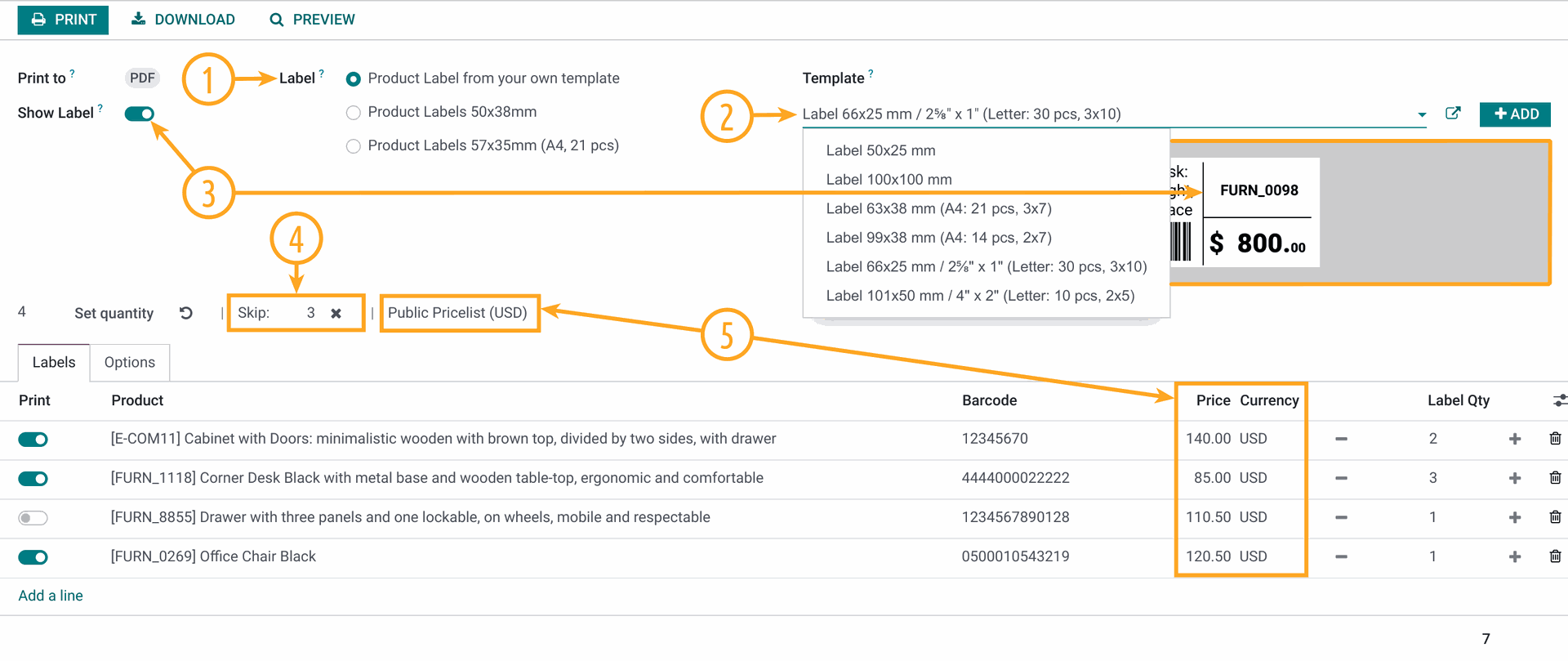
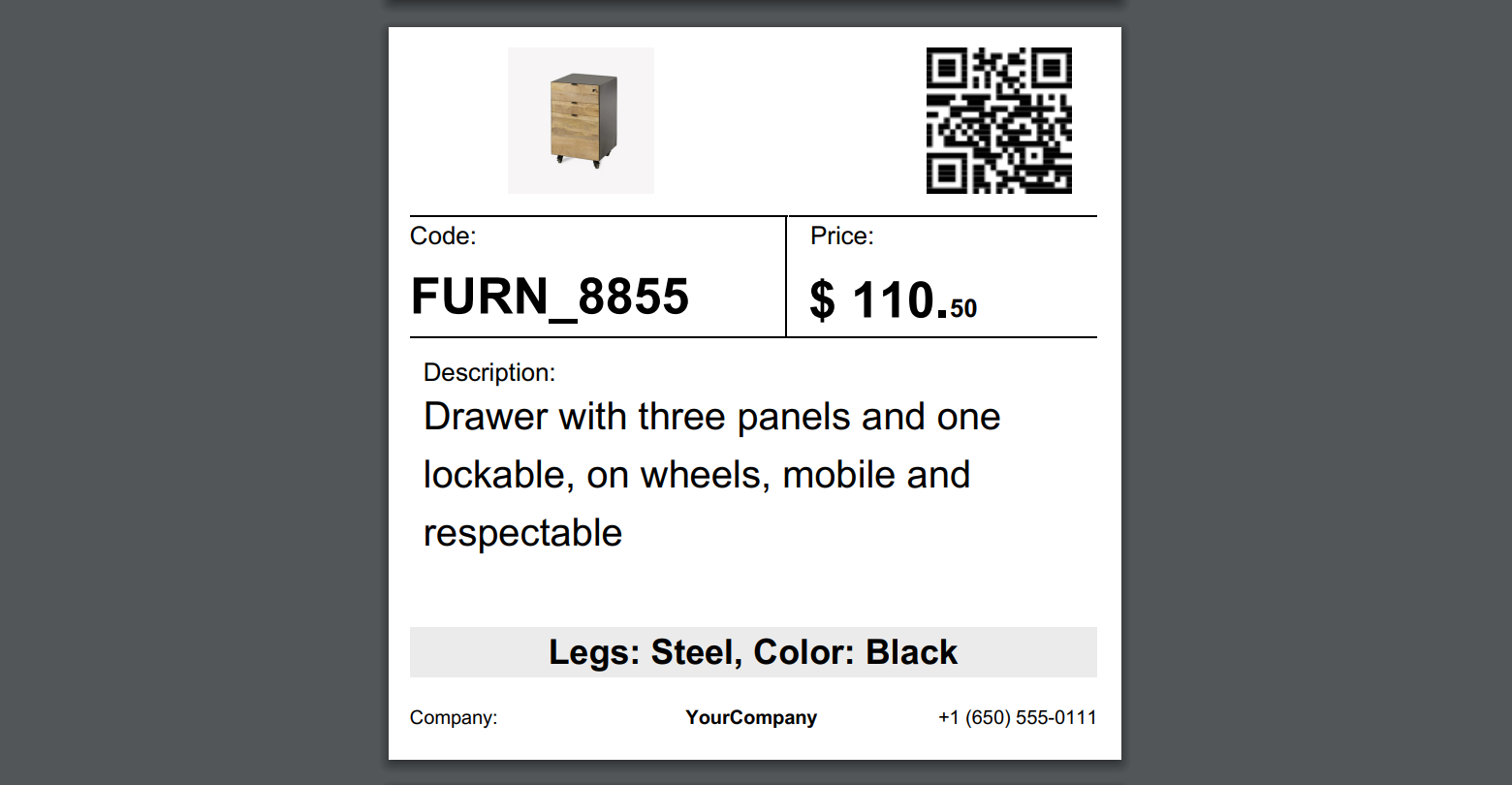
in the inventory app in ver. 16 i would like to print inventory labels.

these label i would like to print would be from the product items.

once printed they can show the product picture, and brief desc. and price  better yet and bar code to say bring item to counter scan it and it will tell me how many i have left and cost.

how can this be done?

thank you in advance..

label printer is printing on like 2x3" about size of business card or baseball card size


0
Avatar
Verwerfen
Avatar
Yurii Razumovskyi
Beste Antwort

Hi Brent,

To create a barcode product label in Odoo there are two common ways:

  1. Develop own label (by yourself or with Odoo developers);
  2. Use the app that allows to print and design own labels.

The first approach is not so flexible because after the label creation, if you want to change the label you will need to go into code and change something there.

The second way is more easy and convenient if you use some Odoo module, that is developed at the high level and covered with support and assistance.

We into the product label development since 2017, in the last year, we built our Odoo Product Label Builder. It allows designing and creating your own labels by Odoo UI. You can watch details in this YouTube video.


With the Product Label Builder, you can put into labels your product data and other information from various standard Odoo apps. In this case, you need additional extensions in addition to the Product Label Builder app. The list of these extensions is the following, and you can choose ones that you need:

  • Stock Product Labels — to print from the Stock documents and use its data on your label templates: 
    • Stock Transfers (stock.picking), 
    • Stock Inventory Adjustments (stock.quant),
    • Stock Lots (stock.lot), 
    • Stock Packages (stock.quant.package), 
    • Stock Scrap (stock.scrap).
  • Product Packaging Labels — to print from Product Packaging (product.packaging) and use its data on your label templates.
  • Purchase Product Labels — to print from Purchase Orders (purchaser.order) and use its data on your label templates.
  • MRP Product Labels — to print from Manufacturing Orders (mrp.production) and use its data on your label templates.
  • MRP Workorder Labels — to print from Manufacturing Work Orders (mrp.workorder) and use its data on your label templates (Odoo Enterprise feature only).
  • Repair Product Labels — to print from Repair Orders (repair.order) and use its data on your label templates.
  • Maintenance Barcode Labels — to print from the Maintenance documents and use its data on your label templates: 
    • Maintenance Requests (maintenance.request),
    • Maintenance Equipments (maintenance.equipment).
  • Sales Product Labels  — to print from Sales Orders (sale.order) and use its data on your label templates (in the development at the current moment).


If you need additional assistance or information, please contact us.


Best regards, Yurii Razumovskyi.

Company Garazd Creation — Odoo solutions for e-Commerce, SEO, Data Feeds, Website Tracking, Marketing and Analytics integrations, Product Label designing and printing.

https://garazd.biz  |  Our solutions on Odoo Apps

0
Avatar
Verwerfen
Avatar
brent.desalvo
Autor Beste Antwort

thank you for your input and time.,

this looks just about like what i am trying to complete.

i may contact you Monday in regard to maybe a little customization.

thank you i think i got your direct contact info..

thanks to all that read and responded im trying all

0
Avatar
Verwerfen
Avatar
Cybrosys Techno Solutions Pvt.Ltd
Beste Antwort

Hi,

Try to Inherits the pdf template

<?xml version="1.0" encoding="UTF-8"?>
<odoo>
    <data>
        <!-- Inherit the existing label template -->
<template id="label_product_product_view" inherit_id="stock.label_product_product_view">
            <xpath expr="//t" position="after">
                <!-- Add product cost -->
<t t-foreach="range(product_info['quantity'])" t-as="qty">
                    <t t-translation="off">
                        ^FT100,185^A0N,30,24^FDCost: <t t-esc="product.standard_price" t-options='{"widget": "float", "precision": 2}'/>^FS
                    </t>
                </t>
                <!-- Add quantity on hand -->
<t t-foreach="range(product_info['quantity'])" t-as="qty">
                    <t t-translation="off">
^FT100,220^A0N,30,24^FDQty: <t t-esc="product.qty_available"/>^FS
                    </t>
                </t>
            </xpath>
        </template>

        <!-- Define Odoo report -->
        <record id="label_product_product" model="ir.actions.report">
            <field name="name">Product Label (ZPL)</field>
<field name="model">product.product</field>
<field name="report_type">qweb-text</field>
<field name="report_name">stock.label_product_product_view_inherited</field>
<field name="report_file">stock.label_product_product_view_inherited</field>
            <field name="binding_model_id" eval="False"/>
<field name="binding_type">report</field>
        </record>
    </data>
</odoo>


if you need to change the print report size, please add a new style in the print label wizard action and add a new paper format to it

class ProductLabel(models.Model):
    _inherit = 'product.product'

    print_format = fields.Selection([
        ('dymo', 'Dymo'),
        ('2x7xprice', '2 x 7 with price'),
        ('4x7xprice', '4 x 7 with price'),
        ('4x12', '4 x 12'),
        ('4x12xprice', '4 x 12 with price'),
        ('2x3', '2 x 3 (Business Card Size)')  # New size option
    ], string="Format", default='2x7xprice', required=True)

<!-- Update existing template to handle different sizes -->
<template id="label_product_product_view" inherit_id="stock.label_product_product_view">
<xpath expr="//field[@name='print_format']/selection[@name='print_format']/value[last()]" position="after">
                <value>2x3</value>
            </xpath>
        </template>

        <!-- Define Odoo report for 2x3" label size -->
        <record id="label_product_product_2x3" model="ir.actions.report">
            <field name="name">Product Label 2x3 (ZPL)</field>
<field name="model">product.product</field>
<field name="report_type">qweb-text</field>
<field name="report_name">stock.label_product_product_view_2x3</field>
<field name="report_file">stock.label_product_product_view_2x3</field>
            <field name="binding_model_id" eval="False"/>
<field name="binding_type">report</field>
        </record>


Hope it helps

0
Avatar
Verwerfen
Diskutieren Sie gerne? Treten Sie bei, statt nur zu lesen!

Erstellen Sie heute ein Konto, um exklusive Funktionen zu nutzen und mit unserer tollen Community zu interagieren!

Registrieren
Verknüpfte Beiträge Antworten Ansichten Aktivität
Print ODOO product label to zebra printer
product labels zebra odoo16features zpl
Avatar
Avatar
Avatar
Avatar
3
März 24
6289
How to print barcode for products Gelöst
product printer barcode ean13 labels
Avatar
Avatar
Avatar
5
Dez. 23
20229
product name on product label is not printing
product labels
Avatar
Avatar
2
März 15
8621
Print Product Labels on Dymo 550 printer Gelöst
printer labels Dymo
Avatar
Avatar
2
Aug. 25
1770
V16 Import multiple images for each product
product product_images odoo16features
Avatar
Avatar
Avatar
Avatar
Avatar
5
März 25
7955
Community
  • Tutorials
  • Dokumentation
  • Forum
Open Source
  • Herunterladen
  • Github
  • Runbot
  • Übersetzungen
Dienstleistungen
  • Odoo.sh-Hosting
  • Support
  • Upgrade
  • Individuelle Entwicklungen
  • Bildung
  • Buchhalter finden
  • Partner finden
  • Partner werden
Über uns
  • Unsere Firma
  • Markenwerte
  • Kontakt
  • Karriere
  • Veranstaltungen
  • Podcast
  • Blog
  • Kunden
  • Rechtliches • Datenschutz
  • Sicherheit
الْعَرَبيّة Català 简体中文 繁體中文 (台灣) Čeština Dansk Nederlands English Suomi Français Deutsch हिंदी Bahasa Indonesia Italiano 日本語 한국어 (KR) Lietuvių kalba Język polski Português (BR) română русский язык Slovenský jazyk Slovenščina Español (América Latina) Español Svenska ภาษาไทย Türkçe українська Tiếng Việt

Odoo ist eine Suite von Open-Source-Betriebsanwendungen, die alle Bedürfnisse Ihres Unternehmens abdecken: CRM, E-Commerce, Buchhaltung, Lager, Kassensystem, Projektmanagement etc.

Das einzigartige Wertversprechen von Odoo ist, dass es gleichzeitig sehr einfach zu bedienen und voll integriert ist.

Website made with

Odoo Experience on YouTube

1. Use the live chat to ask your questions.
2. The operator answers within a few minutes.

Live support on Youtube
Watch now