Service rental products
The Rental app is a comprehensive tool that enables users to customize scheduling, pricing, and inventory for both physical rental products and non-physical goods (services) within a single platform. This flexibility allows for combining products and services like bike rentals with guided tours, or booking a studio with a photographer.
This document covers how to configure a rental service to automatically sync with staff shifts, track time sheet hours, and create project tasks based on a rental order.
Settings
To configure default settings on rental products, navigate to .
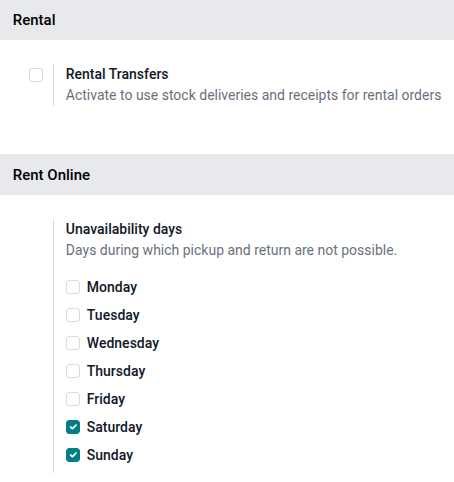
In the Rental section, enable Rental Transfers. In the Rent Online section, designate Unavailability days.
Click Save to apply the changes.
App integration configuration
The following apps are essential for workflow efficiency and automation when creating a service product and rental order:
Sales app: Enables the Prices tab, the use of pricelists, online payments, and quotation templates within the Rental app.
Sign app: Allows for the upload and customization of different rental and service agreements. These documents are used to facilitate the Request Signature feature.
Project app: Enables the automation of creating projects and tasks whenever a rental order is confirmed through the configuration on the rental product form.
Planning app: Enables the automation of matching rental orders with services with employee shifts based on availability.
Timesheet app: Allows employees to log time worked on tasks that are automatically created when confirming a rental order.
eCommerce app: Allows rental products and services to be rented directly from the website.
View rental services
To view all products that can be rented in the database, navigate to . By default, the Rental filter appears in the search bar, and the view is Kanban. Remove the filter, then click the search bar. From the preset filters, select Services. All the configured services appear.
Each service product Kanban card displays the service name, rental rate, and product image (if applicable).
Create a new service product
Important
The Project, Planning, and Sales apps must be installed for the following options to be available on the product form:
Create on Order
Project Template
Invoicing Policy
Project & Task
Planning Services
The Sales checkbox enables the Create on Order and Invoicing Policy fields and also the Prices tab.
To set up a new rental service, go to the and then click New. In the new product window, the Sales checkbox is enabled by default.
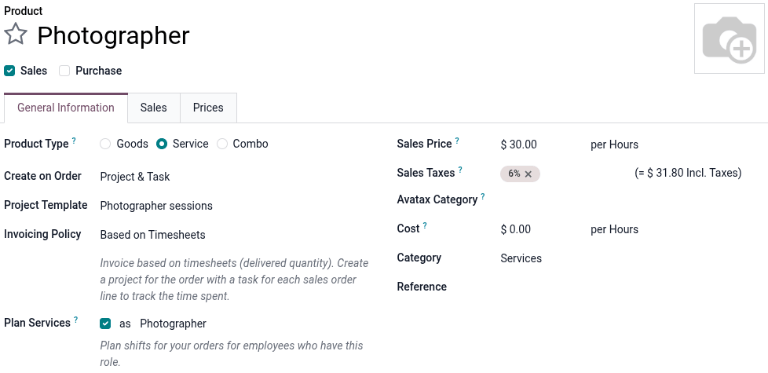
Set the Product Type as Service. In the Create on Order drop-down menu, select Project & Task, then select a template for the Project Template field. In the Invoicing Policy drop-down menu, select Based on Timesheets.
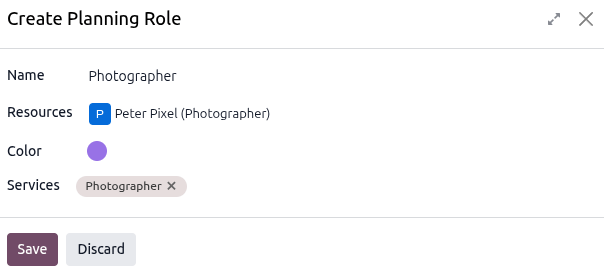
Tick the Plan Services checkbox and either create a new role or select a pre-existing one. To create a new role, type in the name of the role in the blank field and click Create and edit that appears.
In the Create Planning Role pop-up window, enter the role’s name. Select an option for the Services and Resources, and click Save.
Set a base rental period and price
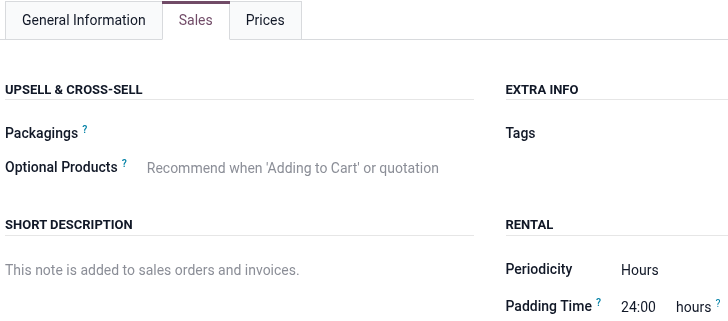
Set up a base rental rate by entering the lowest rental price in the Sales Price field. Next, click the Sales tab, then in the Rental section, select the Periodicity (the unit of duration of the rental) from the dropdown menu.
Then enter the Padding Time to make the product unavailable for pick up for the configured duration.
Important
To set a pricelist for additional rental rates, the Sales app must be installed, and Pricelists must be enabled. Otherwise, the Prices tab is not available.
Set additional rental periods and pricing
There are two ways to configure additional rental rates in the Rental app: Pricelists and the Prices tab.
Using the Pricelists method
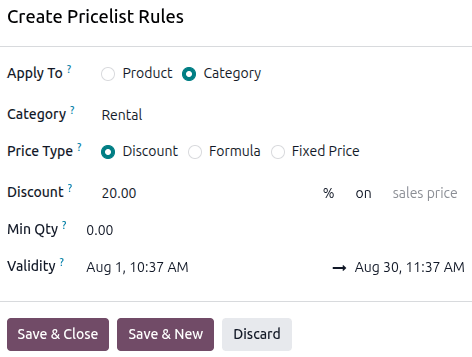
Creating a new Pricelist allows for better customization when applying rental rates to specific time periods, products, or customers by using Pricelist Rules. To set up additional rental rates, go to and click New to create a new pricelist. A Create Pricelist Rules window displays.
Tip
It is recommended to create a new Pricelist first, then select the customized Pricelist in the Prices tab instead of using the Default pricelist. Keeping the Default pricelist blank ensures there is a clean pricelist for the base rental rate.
Example
Part 1
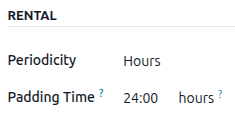
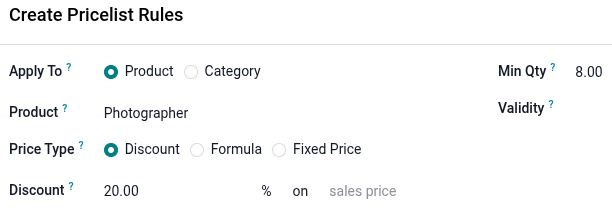
A photography studio rents out its photographers on an hourly and daily basis. The hourly rate is $30, but the studio offers a 20% discount for all-day sessions (eight hours or more). All reservations require a 24-hour notice to reserve a photographer. Navigate to and click the desired product.
Enter the Sales Price and then click the Sales tab to configure the Periodicity and the Padding Time.
Using the Pricelist method, navigate to and click New. Configure Pricelist Rules for the daily rate.
Using the Prices tab method
Prices can also be configured directly on the product using the Prices tab. Navigate to , then click the desired product.
Click the Prices tab and click Add a price. Select the desired Pricelist, then enter the minimum time required for the price change to trigger in the Min. Quantity column. The Min. Quantity column is based on the Periodicity field in the Sales tab.
Lastly, enter the Price rate. Click the (Save manually) icon near the top to save.
Example
Part 2
Using the same scenario in the Pricelists method example, use the Prices tab method by navigating to and click the desired product to configure. Click the Prices tab and configure a new daily rate.

Process a rental order pickup
When a product is rented alongside a service, it is advised to pick it up before entering time on the associated task.
If time is entered on the Timesheets tab of an associated task before the physical rental product is picked up, the rental order status automatically changes to Picked-up. The Pickup button is still available on the rental order if time is entered before picking up the product.
When a customer picks up the product, navigate to the appropriate rental order and click Pickup. Verify the list, then click Validate in the Validate a pickup pop-up window that appears.
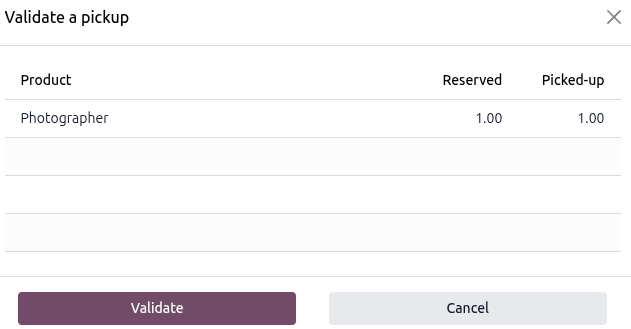
Doing so places a Picked-up status banner on the rental order.
Process a rental order return
Regardless of whether there is a product rented along with a service, the service or product must be returned on the rental order.
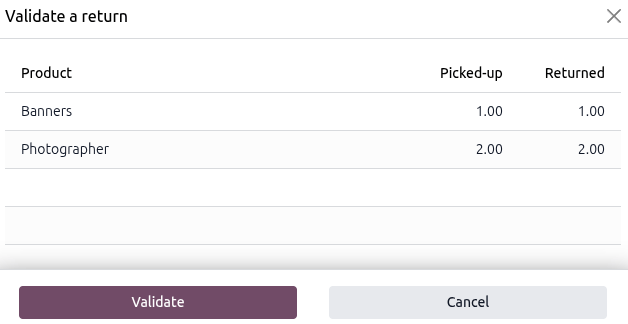
When a customer returns the products or when the service has been completed, navigate to the appropriate rental order and click Return. Validate the return by clicking Validate in the Validate a return pop-up window that appears.
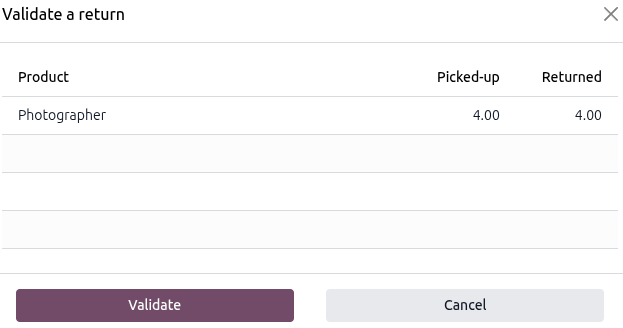
Doing so places a Returned status banner on the rental order.
Example
The photography studio had a customer who wanted to rent one of their photographers and banner decorations for a home photo shoot. The booking was for two hours.
On the Validate a return form for rental order, the banner line item matches the number of banners picked up, and the photographer line item matches the number of hours submitted on the Timesheets tab on the related task.