Přejít na obsah
Odoo Menu
  • Přihlásit se
  • Vyzkoušejte zdarma
  • Aplikace
    Finance
    • Účetnictví
    • Fakturace
    • Výdaje
    • Spreadsheet (BI)
    • Dokumenty
    • Podpisy
    Prodej
    • CRM
    • Prodej
    • POS Obchod
    • POS Restaurace
    • Předplatné
    • Pronájem
    Webové stránky
    • Webové stránky
    • E-shop
    • Blog
    • Fórum
    • Živý chat
    • eLearning
    Dodavatelský řetězec
    • Sklad
    • Výroba
    • PLM
    • Nákup
    • Údržba
    • Kvalita
    Lidské zdroje
    • Zaměstnanci
    • Nábor
    • Volno
    • Hodnocení zaměstnanců
    • Doporučení
    • Vozový park
    Marketing
    • Marketing sociálních sítí
    • Emailový marketing
    • SMS Marketing
    • Události
    • Marketingová automatizace
    • Dotazníky
    Služby
    • Projekt
    • Časové výkazy
    • Práce v terénu
    • Helpdesk
    • Plánování
    • Schůzky
    Produktivita
    • Diskuze
    • Umělá inteligence
    • IoT
    • VoIP
    • Znalosti
    • WhatsApp
    Aplikace třetích stran Odoo Studio Odoo cloudová platforma
  • Branže
    Maloobchod
    • Knihkupectví
    • Obchod s oblečením
    • Obchod s nábytkem
    • Potraviny
    • Obchod s hardwarem
    • Hračkářství
    Jídlo a pohostinství
    • Bar a Pub
    • Restaurace
    • Fast Food
    • Penzion
    • Distributor nápojů
    • Hotel
    Nemovitost
    • Realitní kancelář
    • Architektonická firma
    • Stavba
    • Správa nemovitostí
    • Zahradnictví
    • Asociace vlastníků nemovitosti
    Poradenství
    • Účetní firma
    • Odoo Partner
    • Marketingová agentura
    • Právník
    • Akvizice talentů
    • Audit a certifikace
    Výroba
    • Textil
    • Kov
    • Nábytek
    • Jídlo
    • Pivovar
    • Korporátní dárky
    Zdraví a fitness
    • Sportovní klub
    • Prodejna brýli
    • Fitness Centrum
    • Wellness praktikové
    • Lékárna
    • Kadeřnictví
    Transakce
    • Údržbář
    • Podpora IT & hardware
    • Systémy solární energie
    • Výrobce obuvi
    • Úklidové služby
    • Služby HVAC
    Ostatní
    • Nezisková organizace
    • Agentura pro životní prostředí
    • Pronájem billboardů
    • Fotografování
    • Leasing jízdních kol
    • Prodejce softwaru
    Procházet všechna odvětví
  • Komunita
    Edukační program
    • Tutoriály
    • Dokumentace
    • Certifikace
    • Vzdělávání
    • Blog
    • Podcast
    Podpora vzdělávání
    • Vzdělávací program
    • Scale Up! Hra na firmu
    • Navštivte Odoo
    Získat software
    • Stáhnout
    • Porovnejte edice
    • Verze
    Spolupráce
    • Github
    • Fórum
    • Události
    • Překlady
    • Stát se partnerem
    • Služby pro partnery
    • Registrujte svou účetní firmu
    Získat služby
    • Najít partnera
    • Najít účetní
    • Setkejte se s poradcem
    • Implementační služby
    • Zákaznické reference
    • Podpora
    • Upgrady
    Github Youtube Twitter Linkedin Instagram Facebook Spotify
    +1 (650) 691-3277
    Dohodnout demo
  • Ceník
  • Pomoc
You need to be registered to interact with the community.
All Posts Lidé Odznaky
Štítky (View all)
odoo accounting v14 pos v15
O tomto fóru
You need to be registered to interact with the community.
All Posts Lidé Odznaky
Štítky (View all)
odoo accounting v14 pos v15
O tomto fóru
Pomoc

How to Build Custom Forecasted Quantity Reports in Odoo

Odebírat

Get notified when there's activity on this post

This question has been flagged
inventoryreportforecastquickstartQuickstart
2 Odpovědi
3707 Zobrazení
Avatar
Abraham Ismael Torales Salazar (aits)

Use case: 

Being able to filter the forecasted inventory quantities by product category, customer, different locations, warehouses etc. or being able to see many products forecasted quantities at once.


Versions: 

This was proven in V18, but the same logic would apply to earlier versions.

2
Avatar
Zrušit
Avatar
Abraham Ismael Torales Salazar (aits)
Autor Nejlepší odpověď

Option 1


Step 1: Go to Inventory app, open Studio, and add a menu for report.stock.quantity model

Tip: From this page, you could also move the report menu inside any other menu.


Step 2: Inside the new menu page, set the next filter as favorite/default filter

Tip: In case you need it, you can also filter by forecasted receipts or deliveries


Now you can filter/group your report based on different parameters that belong to product template, product variant, date, company and/or warehouse


Example: Report for Product Category Furtniture/Office between September 1 and 30 in the Warehouse "YourCompany"


Tip: Using Studio, you could also add a pivot table view 


Example: Pivot table showing forecasted quantity in products in the category "Furtniture/Office" grouped by month and warehouse


Option 2

Step 1: Add the following models to Spreadhsheets using the action button from the list view

Make sure to add the appropiate filters before inserting the list in Spreadsheet


Models to insert in spreadsheets:

Model

Technical Model Name

Filters

Locations

stock.quant

"Internal Locations"

"In Stock"

Moves Analysis

stock.move

"Incoming"

Status is not in "Done" or "Cancelled"

Moves Analysis

stock.move

"Outgoing"

Status is not in "Done" or "Cancelled"


💡

Make sure to add as many rows (for each table) as you think you will need, depending on the volume of your operations.

​

You can change the name of the sheets and the lists to easier identify each table and manage the Spreadhsheets formulas.


Example:


Step 2: Add a new sheet and manually create a table with the following columns 

  1. Date
  2. All Dates
  3. Pending Incoming
  4. Pending Outgoing
  5. Current Stock
  6. Accumulated Incoming
  7. Accumulated Outgoing
  8. Forecast


Use other 2 cells in the same sheet to stablish the Minimun Date and Maximun Date with the following formulas:


Cell

Formula

Explanation

Min Date

=ROUNDDOWN(

MIN(

FILTER('Incoming quantities'!A:A, 'Incoming quantities'!A:A>0),

FILTER('Outgoing quantities'!A:A, 'Outgoing quantities'!A:A>0), TODAY()

),0

)

Retrieves the minimum date value between the incoming and outgoing quantities table (the Date in both tables is stored in column A) and today.


This formula is ignoring the empty cells by applying the filter > 0, and rounding down to ignore the hours/minutes/seconds


This is based on field "date" in "Moves Analysis" model

Max Date

=ROUNDDOWN(

MAX(

FILTER('Incoming quantities'!A:A, 'Incoming quantities'!A:A>0),

FILTER('Outgoing quantities'!A:A, 'Outgoing quantities'!A:A>0)

),0

) + 10

Retrieves the maximum date value between the incoming and outgoing quantities table (the Date in both tables is stored in column A) and today.


This formula is ignoring the empty cells by applying the filter > 0, and rounding down to ignore the hours/minutes/seconds


The formula is adding 10 days more just to have a better looking graph


This is based on field "date" in "Moves Analysis" model


✅

Remember to format these cells as date

​


💡

If, for any reason, both tables (incoming and outgoing quantities) are empty, it will display value equal to zero, which is equal to Dec 30 1899. We will fix that later.

​

For the table generated in Step 2, add the following formulas and drag them down:


A

B

C

D

E

F

G

H

I

J

K

1

Date

All Dates

Pending Incoming

Pending Outgoing

Current Stock

Accumulated Incoming

Accumulated Outgoing

Forecast


2

=K2

=IF(K2=0,TODAY(),K2)

=SUMIFS('Incoming quantities'!F:F,ROUNDDOWN('Incoming quantities'!A:A),A2)

=SUMIFS('Outgoing quantities'!F:F,ROUNDDOWN('Outgoing quantities'!A:A),A2)

=SUM('Quantities in Stock'!D:D)

=C2

=D2

=IF(A2="","",$E$2+F2-G2)


Minimum Date

(Formula mentioned above)

3

=IF(B3>$K$3,"",B3)

=B2+1

Drag the previous formula down from here

Drag the previous formula down from here

Don't drag formula down

=F2+C3

=G2+D3

Drag the previous formula down from here


Maximum Date

Formula mentioned above)

4

Drag the previous formula down from here

Drag the previous formula down from here


Drag the previous formula down from here

Drag the previous formula down from here


Brief explanation:

  • K2 and K3 in the same sheet are the minimun and maximum dates respectively in my spreadsheet
  • Sheet "Incoming quantities" (list from Move Analysis model):
    • Column A: Dates for each pending receipt in Odoo. Rounding down the dates to ignore the hours/minutes/seconds
      • Field name: "date"
    • Column F: "Demand" quantities for each pending receipt in Odoo
      • Field name: "product_uom_qty"
  • Sheet "Outgoing quantities" (list from Move Analysis model):
    • Column A: Dates for each pending delivery in Odoo. Rounding down the dates to ignore the hours/minutes/seconds
      • Field name: "date"
    • Column F: "Demand" quantities for each pending delivery in Odoo
      • Field name: "product_uom_qty"
  • Sheet "Quantities in Stock" (list from Location Report model):
    • Column D: Inventoried Quantity
      • Field name "inventory_quantity_auto_apply"


Step 3: Add a graph to show the forecast based on date 


Step 4: Add global filters to filter the data you would like to see


Example of filters by location, product categories, and specific product.

Note: For locations, I stablished only one filter as "Intermediate location" for receipts and as "Source location" for deliveries, but you can create two independent filters to have more control over the location filter for receipts and deliveries. You can set one or more locations per filter at the same time, so you can see a report of one or more warehouses


💡

These are "Relation" filters; you can create anyone you want to filter any relational field that exists in the models we linked to the spreadsheets (Locations Report and Move Analysis), you just have to select the field in each table that is linked to the model selected for the filter. 

​

Final result: 


Explanation:

  • I currently have 100 units in my warehouse
  • I will deliver 20 units on Sept 15  Then I will have 80 forecasted units
  • I will receive 10 units on Sep 22  Then I will have 90 forecasted units
  • I will receive 50 units on Oct 01  Then I will have 140 forecasted units


Aditional: Add conditional formating 

In order to identify easier:

  • Today's date in column A and B
  • Any pending recepits/deliveries in column C and D
  • Current Stock in E2
  • The dates when the forecasted quantities are less than or equal to 0


✅

Remember to add as many rows as needed to show all the days between the minimum date and maximum date

​

4
Avatar
Zrušit
Avatar
Rishu, Niyu Labs
Nejlepší odpověď
Hi,

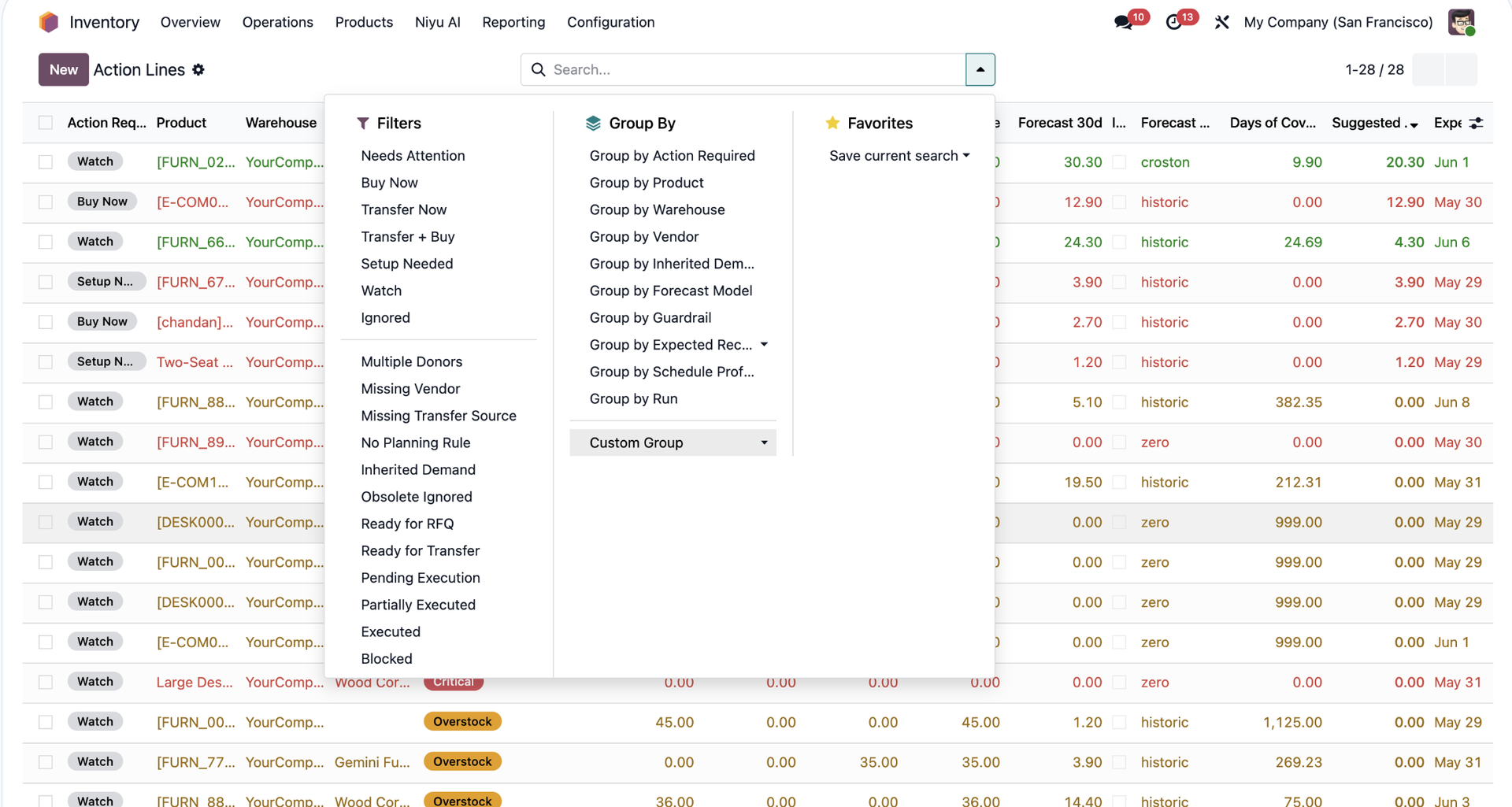
For this report, the key is to decide whether you need a snapshot report or a live operational report.

A useful forecasted quantity report should usually allow filters by:

- product / product category
- warehouse / location
- customer or demand source
- incoming purchase orders
- outgoing sales/manufacturing demand
- date horizon

The tricky part is that Odoo forecasted quantity is not just one stored number. It depends on stock moves, reservations, incoming receipts, outgoing demand, manufacturing, and the date window. So I would avoid copying only `qty_available` or building a simple product table.

A good first version would be:
- product
- on hand
- outgoing demand
- incoming quantity
- forecasted quantity
- shortage / surplus
- grouped by warehouse and category

We build Odoo inventory planning and reporting workflows at Niyu Labs. If useful, I can share the minimum fields I’d include so the report is operational and not just another spreadsheet.


0
Avatar
Zrušit
Enjoying the discussion? Don't just read, join in!

Create an account today to enjoy exclusive features and engage with our awesome community!

Přihlásit se
Related Posts Odpovědi Zobrazení Aktivita
How to use valued delivery notes Vyřešeno
accounting inventory quickstart Quickstart
Avatar
1
dub 26
1064
How to use valued delivery notes
accounting inventory quickstart Quickstart
Avatar
0
dub 26
7
How can I get a report on the quantity of products I have sold but not yet reserved? Vyřešeno
inventory report quantity forecast
Avatar
Avatar
1
čvn 25
2175
¿How can I display the total product quantity from different warehouses in Odoo e-commerce? V 16, 17
inventory ecommerce quickstart Quickstart
Avatar
Avatar
1
čvn 24
5517
Change delivery slip printed from the barcode sheet Vyřešeno
inventory report quickstart odoo16features
Avatar
1
zář 23
3372
Komunita
  • Tutoriály
  • Dokumentace
  • Fórum
Open Source
  • Stáhnout
  • Github
  • Runbot
  • Překlady
Služby
  • Odoo.sh hostování
  • Podpora
  • Upgrade
  • Nestandardní vývoj
  • Edukační program
  • Najít účetní
  • Najít partnera
  • Stát se partnerem
O nás
  • Naše společnost
  • Podklady značky
  • Kontakujte nás
  • Práce
  • Události
  • Podcast
  • Blog
  • Zákazníci
  • Právní dokumenty • Soukromí
  • Zabezpečení
الْعَرَبيّة Català 简体中文 繁體中文 (台灣) Čeština Dansk Nederlands English Suomi Français Deutsch हिंदी Bahasa Indonesia Italiano 日本語 한국어 (KR) Lietuvių kalba Język polski Português (BR) română русский язык Slovenský jazyk Slovenščina Español (América Latina) Español Svenska ภาษาไทย Türkçe українська Tiếng Việt

Odoo je balíček open-source aplikací, které pokrývají všechny potřeby vaší společnosti: CRM, e-shop, účetnictví, sklady, kasy, projektové řízení a další.

Unikátní nabídka od Odoo poskytuje velmi jednoduché uživatelské rozhraní a vše je integrované na jednom místě.

Website made with

Odoo Experience on YouTube

1. Use the live chat to ask your questions.
2. The operator answers within a few minutes.

Live support on Youtube
Watch now