Resellers
Within Odoo’s CRM app, leads can be forwarded to resellers (or partners). Leads can be manually assigned or automatically assigned based on the resellers’ designated level and location. Reseller partners may also take assigned leads and convert them into opportunities in the user portal.
Configuration
To use the reseller features, the Resellers module must be installed first. Navigate to the
Apps application, and remove the Apps filter from the search bar. Then,
search for Resellers.
Click Activate on the Resellers module card that appears. Doing so installs the module and returns to the main Odoo dashboard.
After the module is installed, navigate to :menuselection:` CRM app –> Configuration`. There is a new section, titled Resellers, with three options beneath it: Partner Levels, Partner Activations, and Commission Plans.
Partner levels
Partner levels are used to differentiate between various resellers. To view the partner levels, navigate to .
On the Partner Levels page that appears, there are three default levels:
Gold
Silver
Bronze
New levels can be added as needed by clicking New and filling out the resulting level form.
Existing levels can also be edited and renamed if desired. To modify a level, select it from the list and make any desired changes on the level form page that appears.
Level weight is used to decide the probability that a partner is assigned a lead or opportunity. On the level form, assign a numerical value (greater than zero) to the Level Weight field. If the weight is zero, no leads are assigned.
Tip
Level Weight can be assigned on an individual contact record. The weight assigned on the Level Weight can be assigned to an individual contact record. The weight assigned to the individual record overrides the default weight set in the level configuration form.
Partner activations
Partner activations are used to determine a partner’s status. Activations are assigned on an individual contact record, and can be used to group or filter the Partnership Analysis report ().
To view the partner levels, navigate to .
Three activation types are created by default in the CRM app:
Fully Operational
Ramp-up
First Contact
New partner activations can be added, as needed, by clicking New and entering a Name on the new line that appears. Then, select the desired status in the Active column.
Existing partner activations can also be edited and renamed, if desired. To rename a status, click the Name field of a desired level and enter a new name.
To change the active status of an activation, slide the toggle in the Active column of the desired activation to the inactive position.
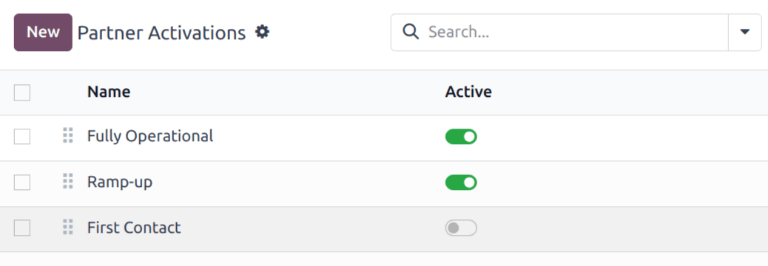
The list of default Partner Activations in the CRM app. The toggle for First Contact is in the inactive position, while the rest are active.
Partner assignments
After partner levels and partner activations are configured, partners may be assigned to handle specific customers.
To update an individual partner record, navigate to , and click the Kanban card for the desired partner to open the customer record.
On the customer record, click the Partner Assignment tab.
Click the Partner Level field, and select an option from the drop-down menu to assign a level. Click the Activation field, and select a partner activation type from the drop-down list, if desired. Then, click the Level Weight field to assign a different level weight, if necessary.
Publish partners
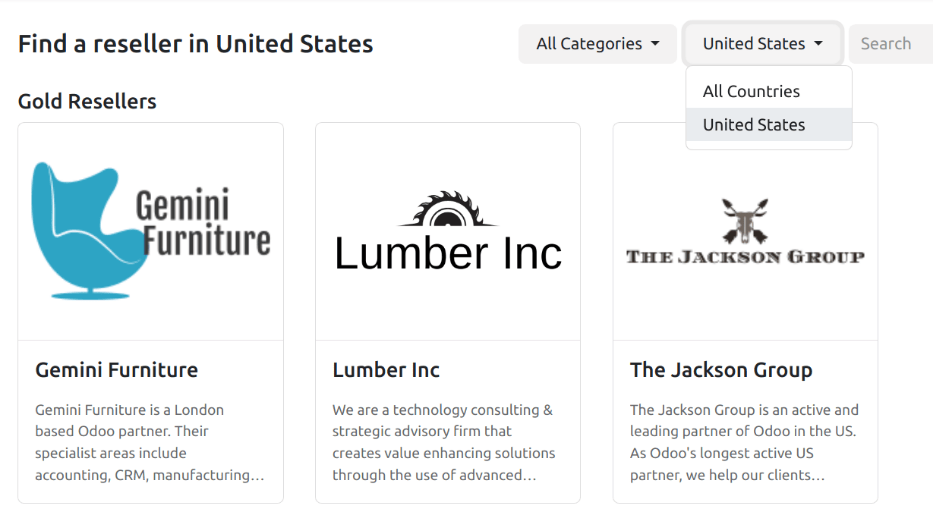
With the Odoo Website app and Resellers module installed, a new webpage (/partners) is
created to display a list of all active partners from the CRM app.
Next, return to , and click the Kanban card for a partner. From that partner’s contact form, click the Go to Website smart button at the top of the page to open that partner’s webpage.
Next, click Edit at the top-right of the partner’s webpage, and use the building blocks to add any additional design elements or information about the partner.
Tip
A company summary is a useful addition to this page.
After making any necessary changes to the page, click Save. At the top of the page, slide the Unpublished toggle to the active, Published position, if needed.
Repeat these steps for all partners.
Partners and the user portal
Reseller partners who have been assigned leads and opportunities can view them in their user portals. Clicking either the Leads or Opportunities button brings up a list of all leads or opportunities assigned to that partner. Individual leads and opportunities can be clicked for more details.

Partner leads
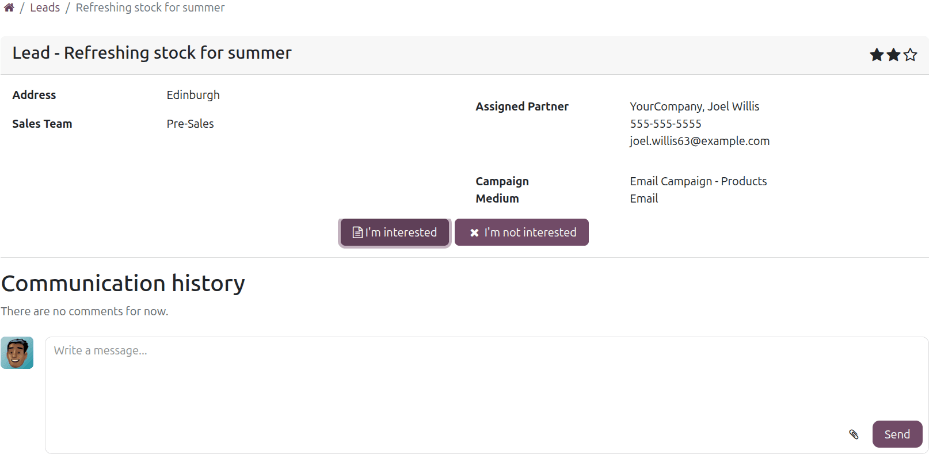
Leads viewed through a partner’s user portal contain the same information as the lead viewed through the CRM app. Reseller partners may click either the I’m interested or I’m not interested buttons. Clicking either button brings up the Lead Feedback form.
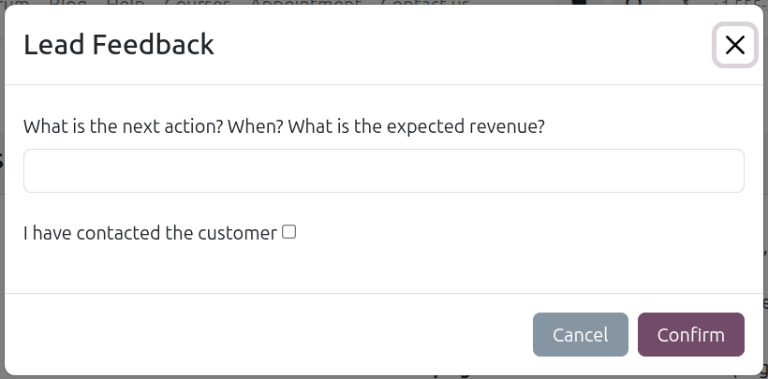
If the partner has expressed interest, the form prompts them to enter their next planned action and expected revenue for the lead and to confirm that they have contacted the customer. Entering this information and clicking the Confirm button converts the lead into an opportunity. Failing to fill out the form prevents the lead from converting to an opportunity.
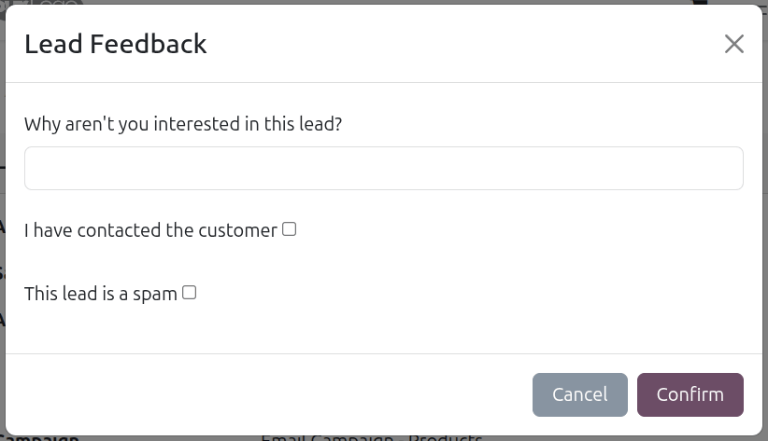
If the partner is not interested in the opportunity, the Lead Feedback form prompts the partner to enter why they’re not interested in the lead, whether they’ve contacted the customer, and whether they think the lead is spam. This version of the Lead Feedback form does not need to be completed by the partner to be confirmed.
Partner opportunities
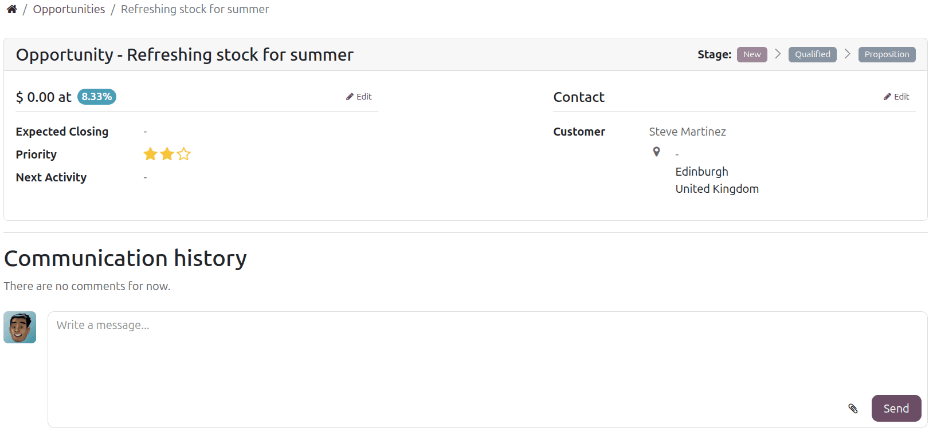
Leads accepted by the partner are converted into opportunities. Clicking an opportunity reveals the same information displayed in the CRM app, but in a view designed for the user portal. From an opportunity’s page, the reseller may:
Change the opportunity’s stage.
Edit the opportunity’s information, including priority, planned revenue, and pertinent dates.
Update the contact information for the opportunity.
Leave notes, messages, and more in the opportunity’s chatter.
Note
The reseller’s ability to change these settings depends on the access granted to them by a database administrator. See the access rights documentation for more details.