Talks, proposals, and agenda
With Odoo Events, visitors can use the event website to view tracks, propose talks, and see a detailed agenda for their events.
Important
In order to access talks, proposals, and agendas, internal users must have event tracks enabled and set up. See the Event tracks documentation to learn more about enabling and creating tracks.
Event website
When an internal user creates an event, Odoo Events generates a separate website for it on the user’s Odoo-built website.
Visitors can access that event website in two ways:
Open the Events app, navigate to the specific event, and click the Go to Website smart button.
Or, while on the Odoo-built website, click the Events header option, then select the desired event.
On the event website, there is a sub-header menu with different pages, including the following:
Talks: View a schedule of all tracks scheduled for the event, listed by date.
Talk Proposals: Submit a proposal to participate as a speaker during the event.
Agenda: View a calendar of all scheduled tracks for the event, showing detailed times for each date.
Note
If the sub-header menu does not appear, it must be manually enabled by the internal user.
To do so, click the Edit button at the top. In the editor panel, click the Customize tab at the top, then enable the Sub-menu (Specific) setting. Finally, click Save to apply changes.
View talks
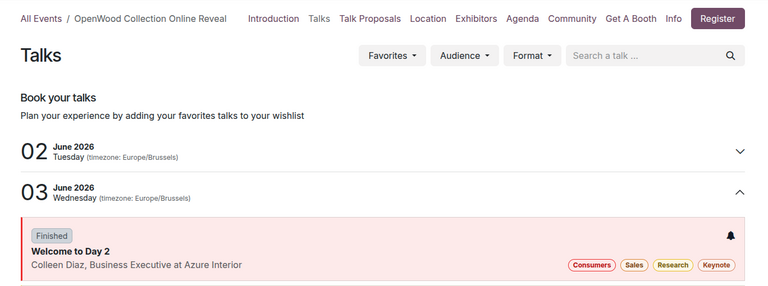
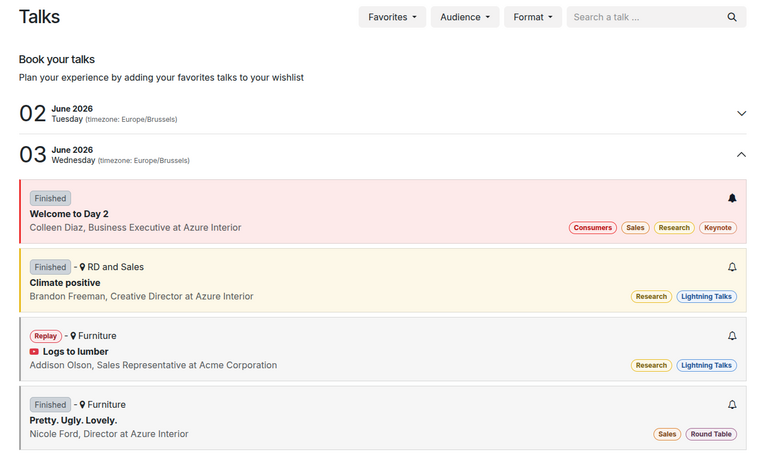
The Talks page displays a schedule of planned tracks for the event, sorted by date.
Visitors can mark a track as a Favorite by clicking the (empty bell) icon to the right of the track title. A track marked as a Favorite appears with the (filled bell) icon. Visitors can then filter tracks by favorites.
Additionally, visitors can also filter tracks by their tags (customized on each track’s form).
Filter by favorites
To filter the Talks page by any tracks marked as a Favorite, click on the Favorites drop-down menu.
Visitors can then choose one of two options:
Favorites: shows only tracks marked as Favorite.
All Talks: shows all tracks.
Note
If the visitor applies the Favorites option without having marked any tracks as a Favorite, all event tracks are displayed.
Filter by tags
If any tracks have tags and tag categories configured in the database during track creation, additional drop-down filter menus will appear at the top of the page next to the Favorites drop-down, allowing users to filter tracks by tag categories.
Tip
To add tags and tag categories to track forms, navigate to the Events app and open the desired event. Click the Tracks smart button and open the desired event track.
On the track form, type a new tag in the Tags field. Then, click Create and edit… from the resulting drop-down menu.
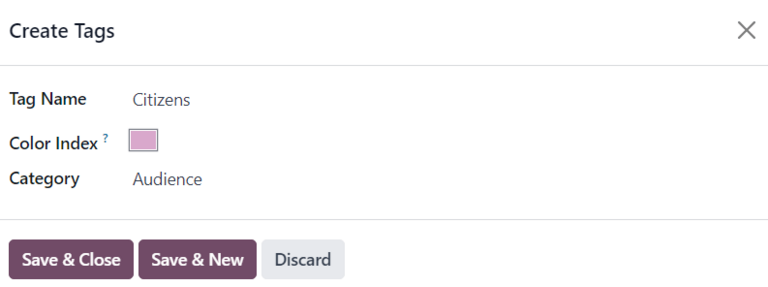
Doing so reveals a Create Tags pop-up form with the following fields:
Tag Name: The name of the tag. This field is already populated.
Color Index: The color of the track associated with this tag, displayed on the website.
Category: The category of the tag. This category appears as the drop-down filter menu on the Talks page.
Propose talks
The Talk Proposals page allows visitors to submit a proposal for a talk via a custom online form.
Tip
By default, the Talk Proposals page is automatically generated by Odoo. If needed, internal users can edit any part of the page, including the proposal form.
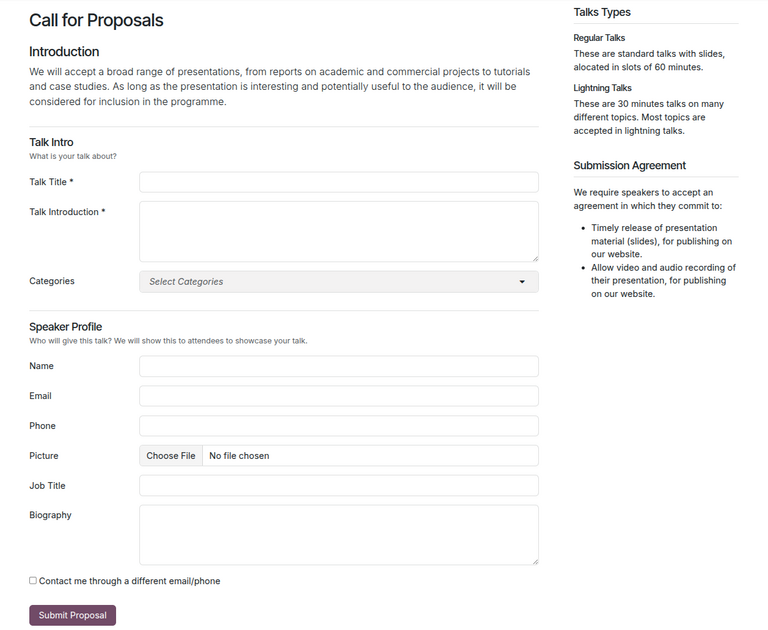
To submit their proposal, visitors fill out the form, then click the Submit Proposal button.
Doing so creates a new track form in the database. Internal users can access it by navigating to the Events app, clicking the relevant event, and selecting the Tracks smart button. The newly-proposed talk now appears as a new track in the Proposal stage.
At this point, an internal user can review the proposed talk and accept or deny the proposal by moving the track to the appropriate stage in the pipeline.
If accepted, the internal user can publish the track on the event website by clicking the Go to Website smart button and toggling the Unpublished switch at the top to Published.
Visitors can then see the track on the Talks page.
View agenda
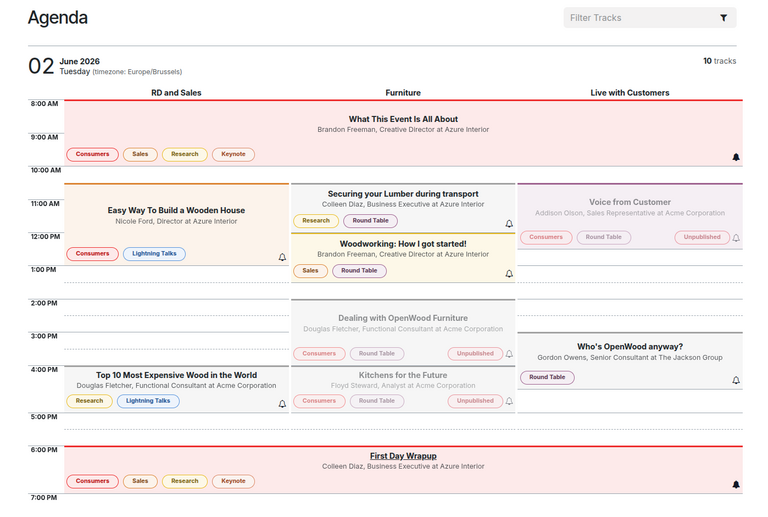
The Agenda page displays an event calendar, showing each talk’s specified location by column and its scheduled time by row.
Visitors can click any track on the calendar to open the track’s specific page on the website.
Tip
A talk’s location can be found on its track form. To find it, navigate to Events app, click on the relevant event, click the Tracks smart button, and select the desired track. In the track form, view or modify the Location field.