
Can we do manufacturing using the barcode app? The barcode app works well for transfers and inventory moves but how can it be put to good use for manufacturing? Are there limitations to using the barcode app with MRP?
لقد تم الإبلاغ عن هذا السؤال
1
الرد
9705
أدوات العرض

The Odoo Barcode app is widely used by users primarily
working in the warehouse to easily manage stock, process transfers and take
cycle counts. Using the Barcode app avoids having to manually input quantities
and rather have the system input information based on what you have scanned,
hence making the process efficient and accurate. Unlike v16, the Barcode app in
Odoo 17 has been integrated with Odoo Manufacturing and we can now process
manufacturing operations simply by using a barcode scanner without the need to
click through multiple screens.
Opening a Manufacturing Order
For manufacturing orders that are already in the system, we can process the entire order through the Barcode app, without entering the Manufacturing app. The first step of the process is to be able to find the right manufacturing order. There are 2 ways to achieve this through the Barcode app.
Manually clicking on ‘Operations’ and then ‘Manufacturing’
This will take you to the list of orders that are in the system, and you can click into the one you want to process.
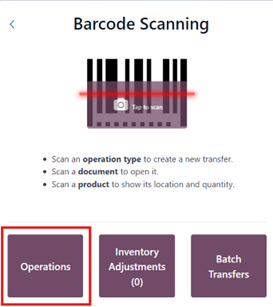
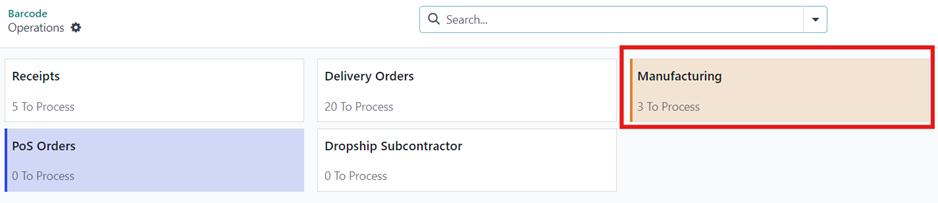
Scanning the Production Order barcode
You can alternatively directly scan the MO barcode from the ‘Barcode Scanning’ screen, and it will take you directly into the MO. If you plan on completing multiple orders and don’t want to take your hand off the barcode scanner, this method can easily help you find the orders you need. You can scan the MO barcode in the production order report.
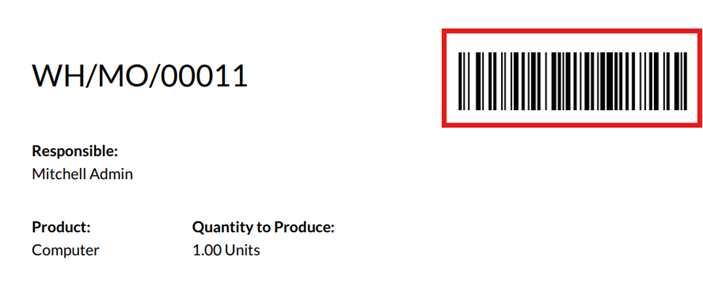
Consuming components
Once the MO is open on the Barcode app, the next step of the process is to consume components and process quantities. Let us split the components into 2 types to understand how to deal with different tracking.
Components without tracking
For products that have no tracking, there are different ways to input consumed quantities.
- Simply click on the “+1” button on the component list view in the barcode app (marked in red in the screenshot).
- Click on the ‘pencil’ icon and then input
information like location and quantity manually (marked in blue in the
screenshot).
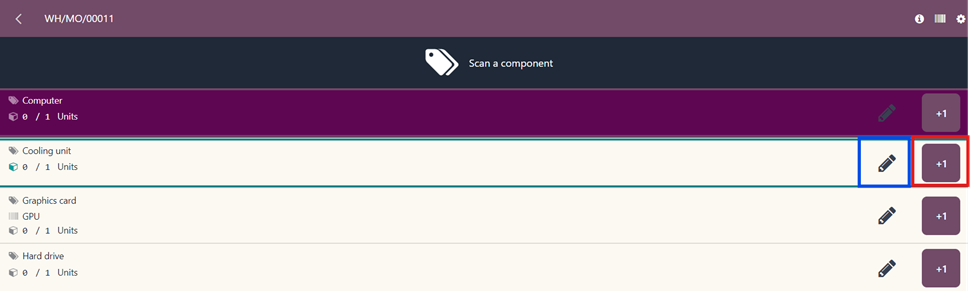
- Barcode scanning - Simply scan the product barcode and Odoo will directly add the product. The product barcodes can be found in the product labels, which you can print and stick on the products.
Components with tracking
Components that are tracked with lots/serial numbers will need the respective tracking information input. This can also be done manually or by scanning.
- For manually selecting the lot/serial number
click on the ‘pencil’ icon and then input the lot serial number.
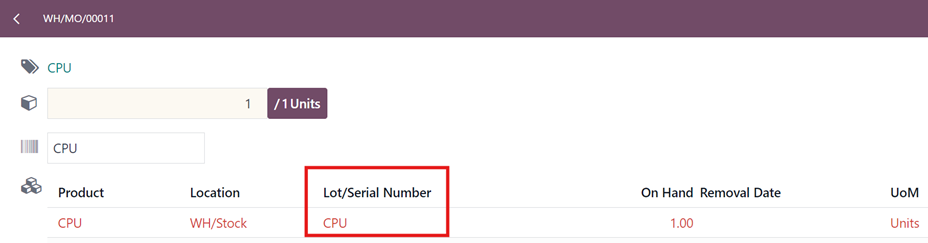
- Barcode scanning – You can scan the barcode of the product or the serial number directly to record consumption of the serial number. Scanning the serial number directly is recommended as Odoo will automatically know the product linked to it.
Processing multiple components
If you have multiple components that you want to validate in one go, you can do this by simply scanning the finished product. By scanning the finished product, all the components needed for the MO will automatically be populated, provided you have them in stock. However, this means that the user will not be able to specify the location/lot serial number as Odoo will pick based on the next component location.
Additional Operations
Adding components that are not part of the BOM
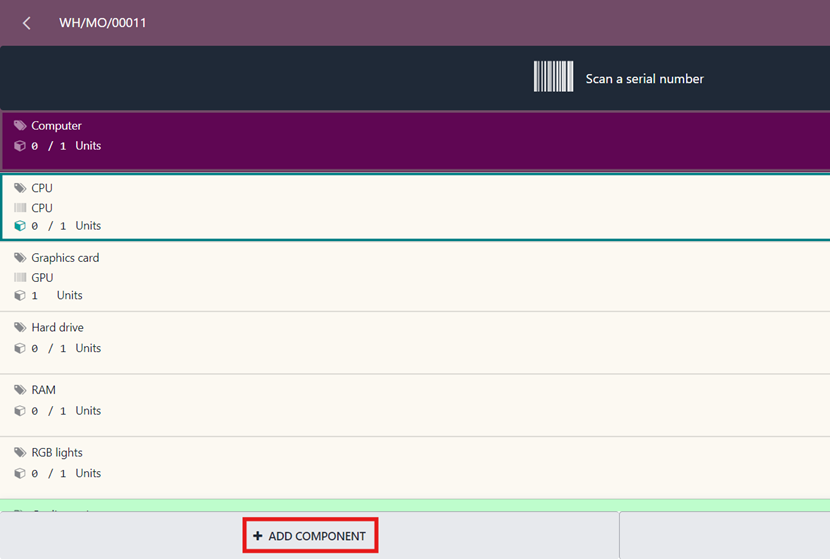
If your manufacturing operations are flexible and you need to add components to an existing BOM, you can do this through the Barcode app as well. When you are in an MO in the Barcode app, you can scan a product that is not a component in the BOM and Odoo will automatically add this additional component to the MO. Alternatively, you can also click on the “Add Component” button and select the product.
Scrapping components
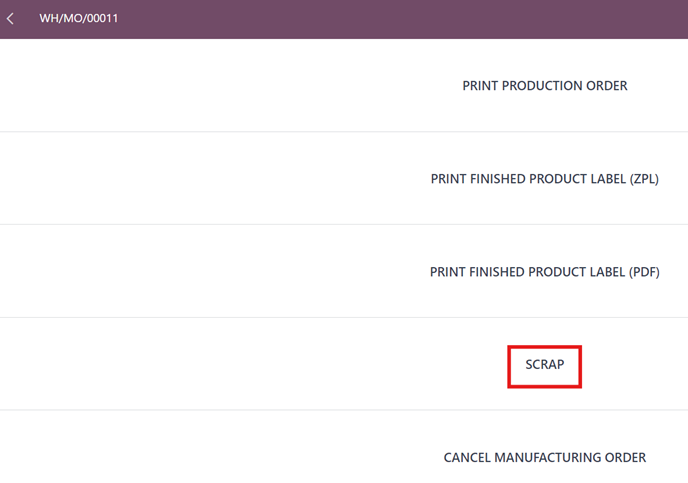
Scrapping components is a common part of a manufacturing process and this can be achieved without navigating away from the Barcode app. When you are in an order, you can click on the gear icon in the top right and hit “Scrap” to manually pick the component that needs to be scrapped.
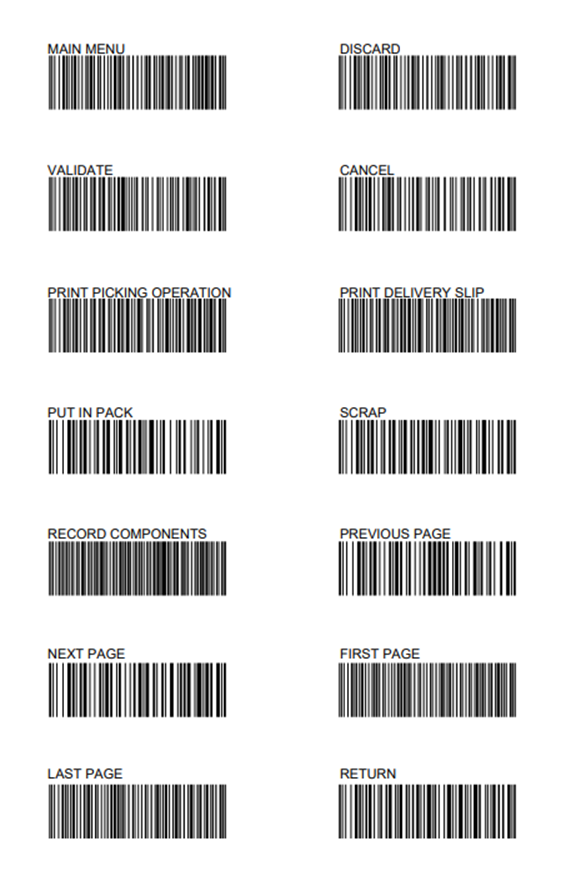
You can also do this by directly scanning the “Scrap” command barcode and then scanning the component you want to scrap. You can find the barcodes for inventory commands in the Inventory app or when you first open the barcode app.
Cancelling Manufacturing Order
Cancelling manufacturing orders also follows the same steps as scrap, but you just hit the “Cancel Manufacturing Order” button (right below scrap) instead. Alternatively, you can just scan the “Cancel” command barcode.
Closing Manufacturing Order
To close an order after consuming all the required components, click on the “Produce all” button and that will close the order. Alternatively, you can scan the “Validate” command barcode and close the order.
Creating a new MO without a BOM
For businesses that deal in custom BOMs or need to create orders that do not have a BOM, this can be achieved without having to navigate away from the barcode app. The following are steps to do this.
- Open the barcode operations and click on “Manufacturing”.
- Click the “New” button on the top left.
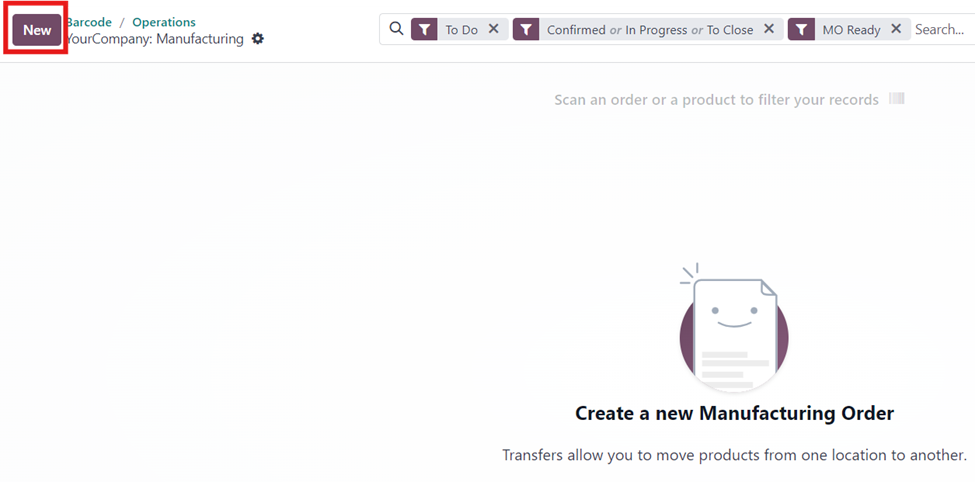
- Scan the barcode of a finished product.
- Scan the barcodes of all the components that are needed for the MO.
- Follow the process of consuming these components and marking the MO as done.
This ensures that an MO is created without having to use the Manufacturing app. However, this will not automatically generate the BOM for the product, but you can always go into the specific MO in manufacturing and click on the “Generate BOM” button.
In conclusion, barcodes revolutionize manufacturing processes by enhancing accuracy, efficiency, and traceability. With Odoo, users can effortlessly scan barcodes, track production progress, manage inventory movements, and ensure seamless manufacturing operations. This powerful combination of barcode technology and Odoo's user-friendly interface empowers businesses to achieve greater productivity and competitiveness in today's dynamic manufacturing landscape. Embracing barcoding with Odoo represents a significant step towards modernizing manufacturing operations and unlocking new levels of efficiency and control.
هل أعجبك النقاش؟ لا تكن مستمعاً فقط. شاركنا!
أنشئ حساباً اليوم لتستمتع بالخصائص الحصرية، وتفاعل مع مجتمعنا الرائع!
تسجيل| المنشورات ذات الصلة | الردود | أدوات العرض | النشاط | |
|---|---|---|---|---|

|
3
أبريل 26
|
8495 | ||

|
2
مايو 25
|
8457 | ||

|
1
أبريل 25
|
3942 | ||
|
|
1
مايو 26
|
5486 | ||

|
1
فبراير 24
|
5198 |
