
FedEx integration
Integrating a FedEx account with Odoo’s Inventory app makes it possible to calculate shipping rates and generate shipping labels within Odoo. This is accomplished by enabling the FedEx shipping connector, then configuring at least one shipping method.
Warning
As of October 21, 2025, the FedEx integration using the latest API is temporarily unavailable while Odoo finalizes its solution-provider validation for FedEx. New setups are currently blocked, and existing integrations using the FedEx Shipping (Legacy) provider will stop working as of June 1, 2026.
For a temporary solution, the Sendcloud integration also supports FedEx services. To request further assistance, submit a support ticket.
Note
This documentation contains configuration details specific to FedEx integration. See the documentation on third-party shippers for general shipper integration instructions.
Enable shipping connector
To enable the shipping connector for FedEx, open the app. Search for FedEx.
Activate the shipping connector.
Configure shipping method
After the FedEx shipping connector is enabled, it is necessary to configure at least one shipping method. After doing so, the shipping method can be included in sales orders (SOs), and used to compute shipping costs, and print shipping labels.
To see all shipping methods for every shipper with a connector enabled, navigate to .
Select a FedEx shipping method to open its form. Alternatively, click New to open a blank form, and configure a new shipping method.
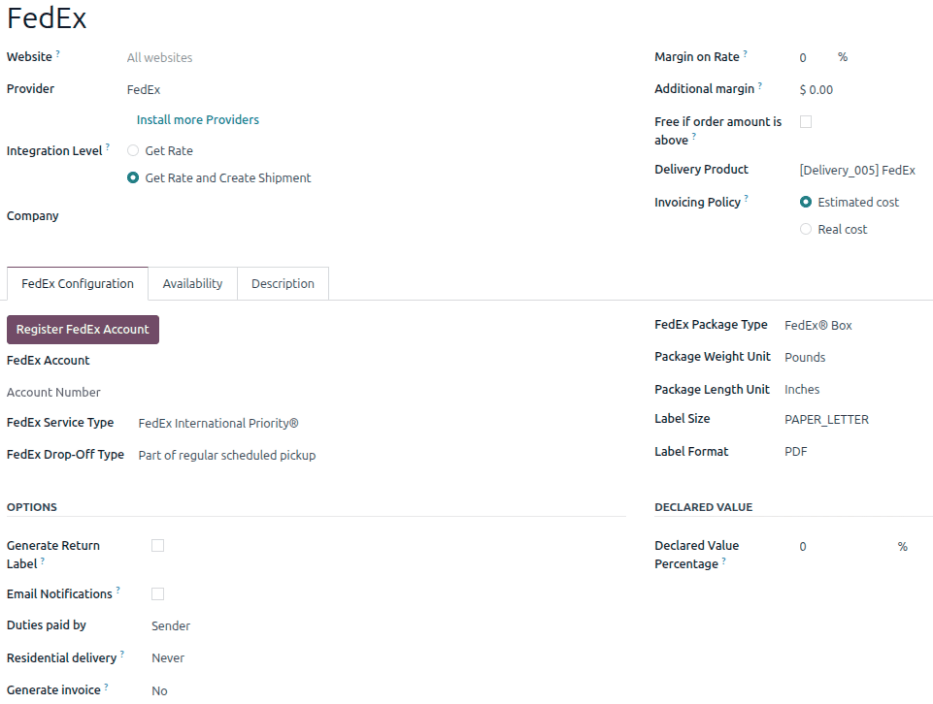
General information
At the very top of a shipping method form are fields used to configure the way the method operates in Odoo. In the Provider field, select FedEx from the drop-down menu, if it is not already selected.
The rest of the fields in this section are general to all shipping providers. For details on how to fill them out, see the documentation on third-party shippers.
FedEx Configuration tab
The options in the Fedex Configuration tab of a FedEx shipping method form are used to connect the method to a FedEx account, and configure the shipping details associated with the method (drop-off type, package type, etc.).
A FedEx business account is required to obtain the information needed to fill out the fields in this tab. To create a new account, navigate to FedEx’s Open Account page, click on Create Account, and follow the instructions.
Then, register the FedEx account in the database. Click the Register FedEx Account button. The FedEx Account Registration window opens. Accept the end user license agreement (EULA) by selecting the I acknowledge the reading of the FedEx End User License Agreement and I accept the terms of FedEx EULA to start shipping checkboxes, then click Accept and Continue.
In the FedEx Account Registration - Shipper Information window, enter the FedEx Account Number. Enter the name of the company in the Customer Name field and provide the business address. If products are being shipped from a residential address, select the Residential Address checkbox. Click the Validate Address button.
Next, choose a Validation Option to verify access to the account. This is a form of multi-factor authentication (MFA). Two options are available:
Invoice Validation: Use information from a recent invoice (within the past 90 days) to validate the account information.
Secure Code Validation: Receive a PIN via Email, SMS, or Voice Call.
If successful, the FedEx Account Registration - Success window displays, and the account is available for all companies. To change this setting, click Open FedEx Account Form and modify the company settings.
In the FedEx Configuration tab, provide more information about the shipping method:
FedEx Service Type: Select the FedEx service used to ship a package.
FedEx Drop-Off Type: Select the method for getting a package into FedEx’s possession.
FedEx Package Type: Select the type of package used for the shipping method.
Package Weight Unit: Select the unit of measure used to weigh packages.
Package Length Unit: This field changes based on what is selected in the Package Weight Unit field. If Pounds is selected, the length unit updates to Inches. If Kilograms is selected, the length unit updates to Centimeters.
Label Size: Select the type of shipping label used for packages.
Label Format: Select the file format used by Odoo to generate shipping labels.
Important
The options that should be selected on the FedEx Configuration tab of a shipping method depend on the negotiated shipping services of the associated FedEx account. To confirm the available services for a FedEx account, visit the Account Management page after logging in to the FedEx website or speak with a customer service representative.
Options section
The Options section of the FedEx Configuration tab provides a few additional options to further configure the shipping method:
Generate Return Label: Select this checkbox to automatically generate a label when a delivery is validated.
Email Notifications: Select this checkbox to send updates via email to customers, if an email address is configured for the customer.
Duties paid by: Use the drop-down menu to select whether duty charges should be paid by the Sender or Recipient.
Residential delivery: Specify when to mark a recipient’s address as residential.
Generate invoice: Specify whether an invoice should be generated as a PDF or sent as an electronic trade document. This is typically required when commercial invoices are needed for international shipments.
Declared Value section
Specify the Declared Value Percentage for insurance purposes.
Activate shipping method
By default, shipping methods in Odoo are created within a test environment. This means they can only be used for testing purposes, and are unable to generate actual shipping orders.
To activate a shipping method in a production environment, click the Test Environment smart button at the top of the shipping method form. After doing so, the smart buttons changes to read Production Environment.
With the production environment enabled, validating a delivery order using the shipping method generates an actual shipping label with FedEx.
Click the Production Environment smart button to return the shipping method to a test environment.
Warning
Do not enable the production environment for a shipping method before it is ready to be used for actual shipping orders. Doing so may lead to the creation of unwanted charges with FedEx.